A Motorola phone can be a reliable travel companion when you are moving through long days and unfamiliar places. The battery tends to last, Android gives you practical control, and there is usually enough storage to keep maps, banking, rideshare, messaging, and hotel apps running without constant juggling.
When it comes to using a travel eSIM, the focus shifts a bit. The real question is whether your specific Motorola model supports eSIM in your destination, and if the setup matches how you plan to stay connected once you arrive.
Are Motorola Phones eSIM-Compatible?
Some Motorola phones are eSIM-compatible, but not all of them. Recent Motorola Razr and Motorola Edge models are the most likely to support eSIM. Some newer Moto G models also support eSIM, but compatibility is more model-specific and region-specific in the Moto G range.
Quick overview:
- Motorola Razr models: many recent models support eSIM.
- Moto G models: mixed support; check the exact model.
- Motorola Edge models: many recent models support eSIM.
- Older Motorola phones: often physical SIM only.
- Carrier-locked or managed phones: may block travel eSIM setup even when the hardware supports eSIM.
- Exact device check: EID plus an Add eSIM or Download eSIM option is the strongest sign.
Note: Before buying a TravelKon eSIM, check the exact Motorola model, EID, Android version, carrier lock status, and SIM settings.
Motorola eSIM Compatible Models
Motorola model names can be confusing. Moto G, Edge, and Razr include many generations, regional variants, and carrier versions. The model family gives a clue, but the exact model number is the source of truth.
Use this split when the model name is not enough.
| Category | Motorola Devices | What to Do |
|---|---|---|
Strong candidates | Recent Razr, recent Edge, ThinkPhone, selected higher-end Moto G models | Check EID and Add eSIM before purchase |
Check carefully | Moto G Power, Moto G Play, Moto G Stylus, Moto G54 5G, Moto G34, carrier-branded models | Confirm exact model, region, EID, and carrier lock |
Less likely | Older Moto G, Moto E, and older budget Motorola models | Expect physical SIM only unless settings prove otherwise |
Blocked despite hardware | Carrier-locked or work-managed phones | Unlock or remove restrictions before travel |
The most reliable answer always comes from the phone in hand. If the phone shows an EID and offers Add eSIM or Download eSIM, it is a much stronger candidate for travel eSIM setup.
How to Check Whether Your Motorola Supports eSIM
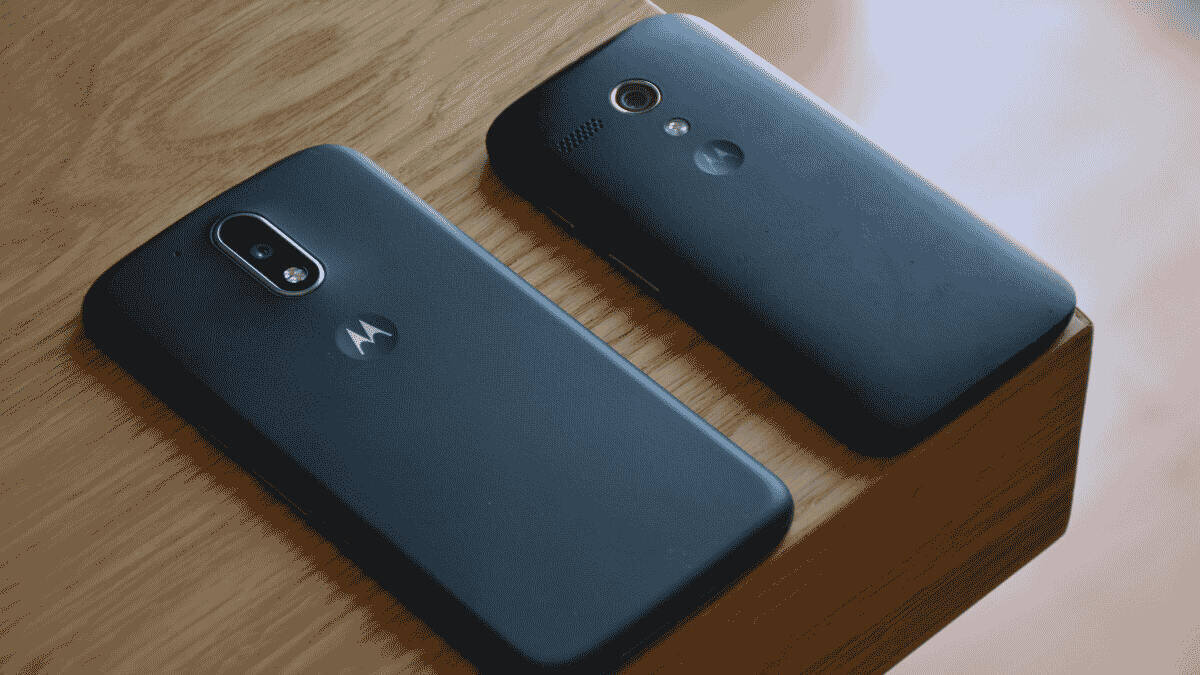
Before you get too far into setup, it helps to confirm whether your Motorola actually supports eSIM in the first place.
Check for an EID
Open the Phone app and dial:
*#06#
Look for an EID number.
An EID is the embedded SIM identifier. If the EID appears, the Motorola phone has eSIM hardware. However, if there is no EID, the phone may not support eSIM.
On some Motorola phones, EID may also appear under:
- Settings > About Phone
- Settings > About Phone > SIM Status
- Settings > Network & Internet > SIMs
- Settings > Network & Internet > SIMs & Mobile Network
This is one of the most useful checks before purchase because it avoids confusion around similar model names.
Check the SIM Settings
On many Motorola phones, go to:
Settings > Network & Internet > SIMs
or:
Settings > Network & Internet > SIMs & Mobile Network
Look for an option such as:
- Add eSIM
- Download eSIM
- Download a SIM instead
- Add mobile network
- Set up an eSIM
- Scan QR code
Note: Menu names vary by Android version and Motorola model. If the option is visible, the phone is a strong candidate for travel eSIM setup.
Check the Exact Model Number
Go to:
Settings > About Phone
Check:
- Device name
- Model
- Android version
- IMEI
- EID, where shown
- SIM status
- Carrier lock or network lock details, where shown
Two Motorola phones with similar names may not have the same eSIM support. A Motorola Edge model sold unlocked may behave differently from a carrier-branded version. Similarly, a Moto G model in one region may not match another region’s version.
Check Carrier Lock Status
A travel eSIM needs the Motorola phone to accept a mobile plan from another provider. If the phone is locked to a carrier, a TravelKon eSIM may not install or connect.
Carrier lock checks can vary by Android version and network provider. Useful signs include:
- The phone accepts SIMs from other providers.
- No network unlock warning appears.
- The current carrier confirms the device is unlocked.
- eSIM setup is not blocked by account or device restrictions.
Ensure that you check this before departure because carrier unlocks can take time, and airport arrival is the worst time to discover a lock.
Update Android Before Departure
Old software can hide eSIM options, break QR code scanning, or prevent carrier settings from updating correctly.
Before leaving Australia:
- Update Android.
- Restart the phone.
- Check the SIM settings again.
- Confirm the EID is still visible.
- Keep Wi-Fi available for installation.
- Save the TravelKon QR code or manual setup details somewhere accessible.
For a more thorough compatibility check, follow our guide on how to check phone eSIM support. It walks you through the key settings to review so you can confirm support in just a few minutes.
Using TravelKon eSIM with an Australian SIM on a Motorola
Many Australian travellers keep their normal Australian SIM active while using a travel eSIM for mobile data overseas.
That setup can work well when the Motorola phone supports dual SIM behaviour, but the settings need to be clear.
| Setting | Recommended Travel Use |
|---|---|
Mobile data | Set to the TravelKon eSIM |
Calls | Keep on Australian SIM if needed, or use apps over data |
SMS | Keep your Australian SIM active if banking codes or SMS are needed |
Data roaming | Turn on the TravelKon eSIM if required |
Australian SIM roaming | Leave off unless needed, to reduce roaming risk |
Automatic data switching | Review carefully so the phone does not jump to the wrong line |
The goal is to use TravelKon for travel mobile data while keeping the Australian SIM available only when needed. If the Australian SIM is left active overseas, check roaming settings carefully to avoid unwanted charges.
Already Confirmed Compatible? Go Straight to Setup
Once the Motorola phone shows EID, has Add eSIM or Download eSIM, and is unlocked, the setup path is simple:
- Install on a stable Wi-Fi before departure.
- Scan the TravelKon QR code or enter manual details.
- Label the eSIM clearly.
- Select TravelKon for mobile data.
- Enable data roaming for the TravelKon line if required.
- Restart the phone if it does not connect after landing.
- Check APN and manual network selection if needed.
How to Install or Prepare a TravelKon eSIM on Motorola
Travel eSIM setup is easiest when compatibility checks are complete before departure.
Before Buying
Check:
- The Motorola phone shows an EID.
- The phone has an Add eSIM or Download eSIM option.
- The phone is unlocked.
- Android is up to date.
- The destination is covered by the selected plan. So if you’re heading to Japan, see to it that the Japan eSIM plan chosen matches your needs.
- Wi-Fi will be available for installation.
- The plan’s activation timing is understood.
- Hotspot is checked if data sharing is needed.
Before Departure
Once the right plan is purchased:
- Keep the QR code or manual setup details safe.
- Connect the Motorola phone to stable Wi-Fi.
- Open Settings > Network & Internet > SIMs.
- Choose the option to add or download an eSIM.
- Scan the TravelKon QR code or enter manual details if provided.
- Label the plan clearly. You can go for something like Travel eSIM Europe if you are planning to visit there.
- Keep the Australian SIM active if needed for calls or SMS.
- Check whether the plan starts on installation or first network connection.
- Do not delete the eSIM unless TravelKon support confirms it is safe.
Avoid leaving installation until airport arrival. Airport Wi-Fi can be slow, login-gated, unstable, or unavailable exactly when the QR code needs to load.
On Arrival
After landing:
- Turn off Airplane Mode.
- Open Settings > Network & Internet > SIMs.
- Select the TravelKon eSIM for mobile data.
- Turn data roaming on for the TravelKon line if required.
- Check APN instructions if provided.
- Restart the phone if mobile data does not connect.
- Try manual network selection if automatic selection fails.
TravelKon eSIM Setup Methods on Motorola
Different Motorola models and Android versions may show slightly different setup wording.
| Setup Method | What It Means | TravelKon Relevance |
|---|---|---|
QR code | Scan the provider’s eSIM QR code | Common travel eSIM setup method |
Manual details / SM-DP+ | Enter activation details manually | Useful if QR scanning fails |
Download eSIM | Motorola downloads the eSIM profile through Android settings | Common Android setup path |
Add mobile network | Older wording for adding a mobile plan | May appear on some models |
Carrier activation | Carrier assigns an eSIM to the device | Usually for standard carrier mobile plans |
Transfer from another phone | Move an existing eSIM from another device | Not always available for travel eSIMs |
Provider app | Setup through a provider app | Only applies when supported by the provider |
For most TravelKon Motorola travel eSIM setups, QR code or manual installation details are the most relevant options. If QR scanning fails, enter the SM-DP+ address and activation code exactly as provided. Keep an eye out for any spacing, spelling, capitalisation, and copy-paste errors to avoid other problems.
Common Motorola eSIM Limitations and Edge Cases
Not Every Motorola Model Supports eSIM
Some Motorola phones look modern but still do not support eSIM. The EID and Add eSIM checks matter more than the model name.
Moto G Support Is Mixed
Moto G eSIM support depends heavily on the exact model, generation, region, and carrier version. Do not assume every Moto G phone supports eSIM.
Carrier-Locked Phones May Block Travel eSIMs
A carrier-locked Motorola phone may reject a TravelKon eSIM even when the device has eSIM hardware. Unlock the device before travel or use a different compatible phone.
Regional Variants May Behave Differently
The same Motorola product family can have different SIM support in different countries. Always check the phone in hand before buying.
Work-Managed Phones May Block eSIM Changes
A company-managed Motorola phone may block SIM changes, QR code installation, or mobile network settings. If the phone is managed by an organisation, check restrictions before departure.
Data-Only Plans Do Not Always Include Calls or SMS
Many travel eSIMs are data-only. That means mobile data works, but standard mobile calls and SMS may not be included. Apps such as WhatsApp, Messenger, FaceTime alternatives, email, maps, rideshare apps, browsers, and booking platforms can still use mobile data.
Hotspot May Depend on Plan and Network
Hotspot may work depending on the Motorola model, Android version, destination network, and plan conditions. Check the plan details before relying on hotspot for work, laptops, tablets, or other travellers. This becomes particularly useful on longer stays, whether you’re working remotely in Bali with an Indonesia travel eSIM plan or moving between cafes and hotels.
Deleting an eSIM Can Create Reinstallation Problems
Do not delete a travel eSIM during troubleshooting unless support confirms it is safe. Some eSIMs cannot be reinstalled after deletion.
Where Support Issues Usually Start
Most Motorola travel eSIM problems trace back to a handful of easy-to-miss setup details.
Assuming Every New Motorola Phone Supports eSIM
A new phone does not guarantee eSIM support. The phone needs eSIM hardware, visible setup options, and no carrier restrictions.
Buying a Travel eSIM Before Checking EID
Dialling *#06# and checking for EID takes less than a minute. No EID usually means no direct eSIM setup.
Installing the eSIM on the Wrong Device
If another phone is the main travel device, install your TravelKon eSIM there.
Leaving Roaming Off for the Travel Line
Travel eSIMs often need data roaming enabled on the travel line. Check the TravelKon eSIM settings, not only the Australian SIM.
Using Airport Wi-Fi That Blocks Setup
Some airport Wi-Fi networks use login pages, weak signals, or time limits. Install before departure on stable Wi-Fi where possible.
Deleting the eSIM Too Early
Do not delete the eSIM just because it does not connect immediately. Restart, check roaming, check APN, test manual network selection, then contact TravelKon support if needed.
Motorola Travel eSIM Troubleshooting Checklist
If the TravelKon eSIM is installed but mobile data is not working, check these items in order.
1. Confirm the Phone Supports eSIM
Dial *#06# and check for EID. Then check Settings > Network & Internet > SIMs for an Add eSIM or Download eSIM option.
2. Confirm the Phone Is Unlocked
A locked phone may block the eSIM. Contact the original carrier if there is any sign of network restriction.
3. Select the TravelKon eSIM for Mobile Data
Open SIM settings and make sure mobile data is using the TravelKon eSIM, not the Australian SIM.
4. Turn On Data Roaming for the Travel Line
If the setup instructions require roaming, turn it on for the TravelKon eSIM. Do not change unrelated SIM settings unnecessarily.
5. Check APN Settings
Some plans require a specific APN. Enter the APN exactly as provided.
6. Restart the Phone
A restart can clear a stuck network registration, SIM selection issue, or Android carrier settings delay.
7. Toggle Airplane Mode
Turn Airplane Mode on for 15 seconds, then turn it off again. This forces the phone to search for a mobile network again.
8. Try Manual Network Selection
If automatic selection fails, manually choose a supported network in the destination.
9. Check for Captive Wi-Fi Confusion
Public Wi-Fi login pages can make setup or testing confusing. Turn Wi-Fi off briefly and test the TravelKon mobile data line directly.
10. Contact TravelKon Support
Reach out to our support team with:
- Destination country.
- Motorola model name and model number.
- Android version.
- Screenshot of EID or *#06# screen, where safe to share.
- Screenshot of SIM settings.
- APN settings entered.
- Error message shown.
- Whether the phone is carrier-locked or work-managed.
- Whether the eSIM has been deleted.
Check Compatibility Before You Buy
Many travellers assume any recent Motorola phone will work, only to realise too late that their device lacks eSIM capability or has it restricted by region. That mistake tends to surface at the worst moment, right after landing.
With millions of Australians travelling overseas each month, reliable mobile data is not optional. It underpins everything from navigation to secure logins. A quick compatibility check before purchase avoids wasted spend and keeps your connection seamless from the moment you arrive.
FAQs
Are Motorola phones eSIM-compatible?
Some Motorola phones are eSIM compatible, but not all. Recent Razr and Edge models are more likely to support eSIM, while Moto G support varies by model, region, and carrier version.
Which Motorola Phones Are Most Likely to Support Travel eSIMs?
Recent Motorola Razr, Motorola Edge, ThinkPhone, and selected higher-end Moto G models are the most likely candidates. The exact model number and EID check are still required before purchase.
How Do You Check If a Motorola Phone Supports eSIM?
Dial *#06# and look for an EID. Then check Settings > Network & Internet > SIMs for Add eSIM, Download eSIM, or a similar setup option.
Does the Motorola Razr Support eSIM?
Many Motorola Razr models support eSIM, especially newer Razr generations. Compatibility can still vary by region and carrier version, so check the EID and SIM settings on the phone.
Does the Motorola Edge Support eSIM?
Many recent Motorola Edge models support eSIM. Confirm by checking for EID and an Add eSIM or Download eSIM option in settings.
Does Motorola support eSIM and Physical SIM at the Same Time?
Some Motorola models support eSIM alongside a physical SIM, but this varies by model and region. Check SIM settings and the device specifications before relying on dual SIM while travelling.
Can a Locked Motorola Phone Use a TravelKon eSIM?
A locked Motorola phone may reject a TravelKon eSIM. The phone should be unlocked before using a travel eSIM from another provider.
Does a TravelKon eSIM give a Motorola Phone a Phone Number?
Many travel eSIMs are data-only. The Motorola phone can use mobile data for apps, maps, browsing, email, rideshare, and internet-based calling, but standard calls and SMS may not be included.
Can Hotspot Be Used With a Motorola Travel eSIM?
Hotspot may work depending on the Motorola model, Android version, destination network, and TravelKon plan conditions. Check the plan details before relying on hotspot.
Should the eSIM Be Installed Before Departure?
Yes, installation before departure is usually best when connected to stable Wi-Fi. Check activation timing so the plan is not started earlier than expected.
Can a Travel eSIM Be Deleted and Reinstalled on Motorola?
Do not delete the eSIM unless TravelKon support confirms that reinstalling is possible. Some eSIMs cannot be reused after deletion.
Why is the eSIM installed but Not Working on Motorola?
Common causes include carrier lock, wrong mobile data line selected, roaming off, incorrect APN, unsupported network selection, old Android software, managed-device restrictions, weak coverage, or deleting the eSIM too early.
Takeaways
A few minutes of checking now can save hours of frustration later. Travel eSIMs only work when the device is ready for it, and assumptions are where most trips go off track. Before you buy, confirm the basics and remove the guesswork entirely. It is a small step that protects your connection when you need it most. If anything isn’t clear, contact our support team and sort it out before you travel.