Esim Guides

how-international-travel-esim-works

How Does an International eSIM Work? Complete Guide for Travellers

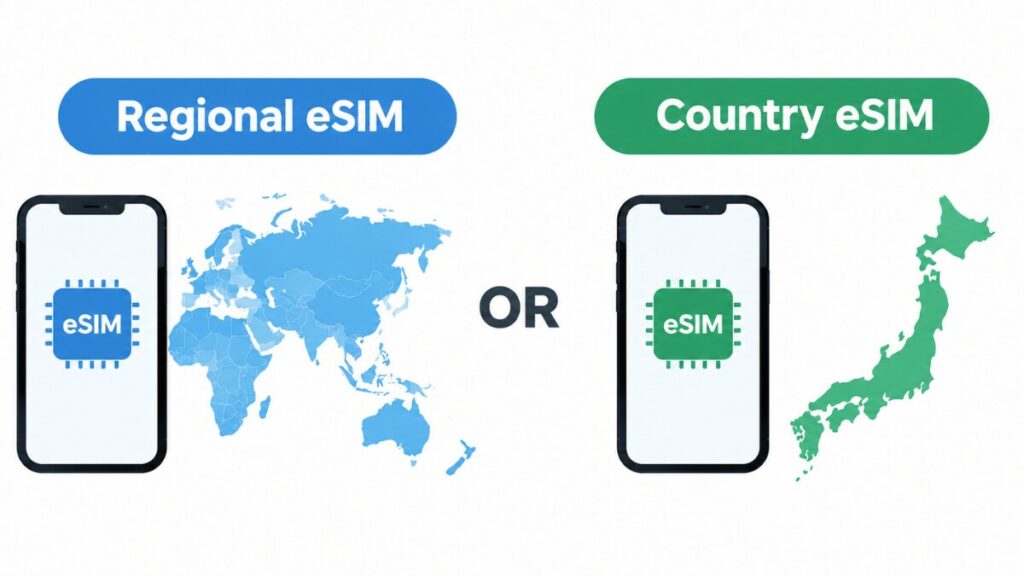
Travelling with mobile data used to mean one of three annoying choices: pay high roaming charges, hunt down a local SIM after landing, or spend part of the trip stuck without connection. Well, an international eSIM completely changes that. So how does an international eSIM work when you land in a new country and your phone just connects without the usual scramble for a local SIM? That’s exactly what we’re getting into. How to actually get an eSIM running on your phone, what the connection feels like once you’re on the move, and the little differences you start noticing the moment you cross into a new country. What is an International eSIM? An international eSIM is an eSIM designed for travel outside your home country. Depending on the plan, it may cover one destination, several countries in a region, or multiple regions around the world. That is the main thing to keep in mind from the start. However, not every travel eSIM works the same way. Some are built for a single trip to one country, while others are built for travellers moving through several destinations on the same journey. For anyone still looking for the simpler starting point, it helps to begin with what a travel eSIM is before getting into the finer details of international use. How Does an International eSIM Work in Practice? A traveller chooses a plan based on destination, trip length, and expected data usage. After purchase, the provider sends installation details, usually through a QR code or manual setup information. The eSIM profile is then added to a compatible phone before the trip or just before arrival, depending on the provider’s setup advice. Once the traveller lands in a covered destination, the phone connects to one of the supported partner networks tied to that plan. From there, the service works like mobile data normally does. Maps load, messages are sent, rideshare apps work, emails come through, and the trip feels far less dependent on airport Wi-Fi.  How International eSIMs Connect to Mobile Networks Abroad The simplest way to think about this is that the eSIM provider does the network arrangement. That way, you don’t have to source a separate SIM card in every country. As mentioned above, eSIM providers have access agreements with local partner networks in the places covered by the plan. When the phone arrives in one of those places, it connects to an approved network using the installed eSIM profile. That is how international eSIM connects to networks without requiring a new physical SIM each time. For the traveller, the process feels fairly straightforward. The phone recognises an available supported network, connects, and starts using the data included in the plan. In most cases, the device may choose the network automatically. However, in some scenarios, a manual network selection may be required if the default connection is weak. Single-Country vs Regional vs Global eSIMs This is one of the most important parts of choosing the right plan, and it is often where first-time buyers get caught out. Single-Country eSIM A single-country eSIM is built for one destination only. This is usually the best fit for travellers flying into one country, staying there for the whole trip, and wanting a simple, targeted option. For example, a traveller spending ten days in Japan and nowhere else usually does not need broader coverage. A single-country eSIM is often the cleaner choice. Regional eSIM A regional eSIM covers several countries within one area. This suits travellers moving through nearby destinations on the same trip, such as France, Italy, and Spain, or several countries across Southeast Asia. This is often the smartest choice for multi-stop holidays where border changes are part of the plan. Instead of buying a new SIM in each location, one regional eSIM can keep the trip connected across the region, provided those countries are included. Global eSIM A global eSIM is made for broader international coverage across many countries or regions. This works well for longer, more complex trips, or for travellers whose route includes destinations in different parts of the world. It can be convenient, but it is not automatically the best choice for every trip. Broader coverage can come with different pricing, data allowances, or network priorities, so it is worth checking exactly what is included. What Happens When You Cross Borders? If the plan includes the next country, the phone will usually switch from one supported network to another after arrival. In the best-case scenario, that feels seamless. You cross the border, land in the next city, or step off the train, and the service reconnects on a supported network in that destination. If the next country is not covered, the eSIM may stop working for data there until another plan is installed. That is why you must choose the right plan for your travel needs. A traveller going from Thailand to Vietnam with a regional eSIM that includes both countries may stay connected with little fuss. A traveller using a single-country eSIM for Thailand only should expect to buy another plan before using mobile data in Vietnam. The key point here is not whether the eSIM is digital but rather whether the plan covers the next destination. When Does an International eSIM Activate? Most plans begin on installation, while some begin on first connection to a supported overseas network, and others start when the service is first used under the plan’s validity rules. That means there is no universal answer to when international eSIM starts.  The only safe approach is to check the activation policy before purchase and again before installation. Keep in mind that if you install too early without checking the guidelines, you may start the validity clock before the trip even begins. Also, travellers who leave setup too late may arrive without a working connection. The sweet spot is usually to install in advance but activate in line with the provider’s timing guidance. Does an International eSIM Need Roaming Turned On? Sometimes, yes. This

How Does an International eSIM Work? Complete Guide for Travellers Read More »

instagram-data-usage

How Much Data Does Instagram Use? What to Know as a Traveller

Keeping mobile data under control while travelling sounds easy until the usual apps start chewing through it. Instagram is one of those apps that feels casual because it slips into spare moments: a quick scroll while waiting for a train, a few stories over breakfast, a reel or two before bed, a photo upload from the beach. Then the warning arrives, and suddenly your travel eSIM data plan looks a lot smaller than it did at the airport. And that is why Instagram deserves its own data check. For travellers trying to make a plan last across maps, messages, bookings, music and the odd video call, it helps to know where Instagram sits in the mix and which habits push it from manageable to heavy. Does Instagram Use a Lot of Data? Yes, it can. Instagram is not just a photo app anymore. It combines image-heavy feeds, autoplay video, Stories, Reels, direct messages with media, uploads, and constant refreshing. That mix makes it one of the more demanding everyday apps on mobile data, particularly on a trip where posting and checking in tend to happen more often. A few minutes here and there may not seem like much, but Instagram data usage adds up quickly when video is involved. For many travellers, it ends up using more data than expected because it feels lighter than it really is. How Much Data Does Instagram Use Per Hour? The honest answer is that it depends on what happens inside the app. Casual browsing is very different from watching Reels or uploading videos. As a rough guide, these ranges are useful for planning: Casual feed browsing Scrolling posts, opening a few profiles, and checking comments is usually the lightest kind of Instagram use. Even then, images still need to load, and some videos may autoplay. A light to moderate hour of browsing can use roughly 100MB to 300MB. However, that range can rise if the feed includes more video, ads, or repeated refreshing. Watching Stories Stories can be deceptively heavy because they load quickly and often contain short video clips, animations, stickers, and music. An hour of mostly Stories can sit around 200MB to 500MB. Short check-ins across the day may feel harmless, but several rounds of Story viewing can result in heavy usage. Watching Reels Reels are one of the biggest data drains on Instagram because they are video-first, fast-loading, and easy to keep watching without noticing the time. An hour of Reels can easily use 500MB to 1GB or more, depending on video quality and how aggressively the app preloads content. For travellers on a limited plan, Reels are usually the habit that empties data fastest. Uploading photos and videos Uploading is harder to estimate because the file size determines everything. A single photo post may not be too bad, but multiple photos, Stories, or video uploads can be expensive. As a rough guide: The heavier the media, the heavier the hit. Instagram Browsing vs Reels vs Uploading: Which Uses More Data? Static browsing is usually the lightest. Looking at photos, captions and comments without spending long on video is the safest way to use Instagram on mobile data. Stories sit in the middle. They are often short, but frequent video clips and quick transitions can make them heavier than expected. Reels are usually the heaviest viewing activity. They are built around continuous video consumption, and the app is very good at keeping that stream going. Uploading can also be heavy, especially when video is involved. A traveller who watches a few posts but uploads several Stories from sightseeing may use more data posting than browsing. In simple terms, casual feed browsing is moderate, Stories are moderate to heavy, Reels are heavy, and video uploads can be very heavy. How Much Data Does Instagram Use on a Travel Day? A traveller who checks Instagram three or four times a day, scrolls for a few minutes, views some Stories, and avoids long video sessions might only use 100MB to 300MB across the day. A traveller who checks Instagram often, watches Reels on buses or in queues, posts a few Stories, and uploads photos from a day out could easily reach 500MB to 1GB in a single day. A heavy user posting videos and spending real time in Reels may go well beyond that. On a normal trip, data also goes to maps, ride-share apps, translation tools, email, browser tabs, bookings, and messaging. Instagram may feel like background entertainment, but it can become one of the biggest drains in the whole stack. Does Instagram Use More Data Than TikTok, Maps, or Messaging? Compared with messaging apps, Instagram is often much heavier, particularly if messages are mostly text. Sending a few texts or voice notes uses far less data than scrolling a video-heavy social feed. Compared with maps, the answer depends on behaviour. Google Maps can use surprisingly little once a route is loaded, especially if offline maps are downloaded in advance. Instagram often overtakes maps very quickly. Compared with TikTok, the gap can vary, but they are both heavy when video use is high. TikTok is even more video-focused, so it can be heavier overall, but Instagram is close enough that it should still be treated as a serious data user. Anyone asking whether Instagram uses more data than TikTok is really asking the right planning question: either app can burn through a small travel plan fast. How to Use Less Data on Instagram While Travelling The easiest win is to avoid long Reels sessions on mobile data. Even twenty or thirty minutes can take a noticeable chunk out of a small plan. It also helps to leave uploads for Wi-Fi whenever possible. Hotel Wi-Fi, apartment Wi-Fi, cafe Wi-Fi, or airport Wi-Fi are better moments for posting Story batches, Reels, or photo dumps. Repeated refreshing is another problem. Opening Instagram every few spare minutes encourages new content to load constantly. Fewer, shorter check-ins are better for data control. Additionally, reducing background app

How Much Data Does Instagram Use? What to Know as a Traveller Read More »

Travelkon vs GoSIM

TravelKon vs GoSIM: Which Travel eSIM Is Actually Easier to Use on the Ground

Sorting your data before wheels-up can completely change your travel experience, and that is exactly where this comparison gets interesting. Both TravelKon and GoSIM step in early, even for first-time eSIM users, but they take very different routes to get you connected.  TravelKon feels like browsing a well-curated travel shelf. You pick your destination first, then match it with an eSIM or SIM that actually fits how you plan to move. Heading to Japan, hopping across Europe, or juggling a few stops in Asia? The options are laid out with that in mind, so you are not guessing at checkout. GoSIM, on the other hand, leans into speed and convenience. Everything revolves around the app. You download, scan a QR code, and manage your data on the fly. It is quick, clean, and clearly designed for travellers who prefer handling everything digitally in one place. Quick Answer Choose TravelKon if you want a more curated destination path, clearer product differences before checkout, or selected plans that go beyond basic data, such as Europe travel eSIM options with a number plus local calls and texts. Choose GoSIM if you want an app-led eSIM experience, broad international coverage, in-app management, and a provider that appears built for quick digital purchase and self-service. The trade-off is simple. TravelKon is stronger when a destination-specific plan is needed. GoSIM looks more appealing when app convenience and self-management matter more than a tightly curated destination catalogue. What Sets TravelKon Apart from GoSIM as a Brand Feature TravelKon GoSIM Why It Matters Provider Model Australian travel connectivity retailer with eSIMs and physical travel SIMs App-led travel eSIM provider TravelKon gives you more product formats; GoSIM is more purely digital. Coverage Style Country, regional, unlimited-style, and some global-style options International eSIMs for 170+ countries GoSIM has the broader app-led footprint on paper, though its coverage claims are not perfectly consistent across official surfaces. Plan Types Mix of fixed-data and unlimited-style products depending on destination Unlimited or flexible data plans Both offer more than one plan style, but TravelKon’s destination pages explain the differences more clearly. Calls and Texts Mostly data-only, but some plans include calls, texts, and a number Data-first mostly This matters if you want more than maps, WhatsApp, and browsing. Hotspot Supported on many relevant TravelKon eSIMs Not clearly documented  TravelKon is easier to verify here. Top-Up No general eSIM top-up; buy another eSIM if needed App-based management and top-up are promoted GoSIM looks better for mid-trip self-service. App Not the core pitch App is central to the product GoSIM is clearly the more app-first option. Support Live chat, WhatsApp, Messenger, email; 24/7 support language appears on TravelKon pages 24/7 support, multilingual help centre, in-app support Both promise support, but GoSIM makes app support central. Best For Travellers who want clearer destination-led choice Travellers who want app-led buying and management This is the clearest commercial split between them. What Actually Separates Them? At TravelKon, we don’t just sell eSIMs but provide a range of data plans for different trips. Japan alone is split into multiple lines, including a 5G fixed-data option and a KDDI unlimited-data option. Europe has a different proposition again, because the 3UK eSIM includes a UK number plus local calls and texts. Indonesia and Asia region are more straightforward data-first offers, but even there, we are keen to inform you about provider, validity, hotspot, and carrier details. GoSIM feels more like a universal app layer over international eSIM buying. It covers 170+ countries, supports 4G/5G in regions including Europe, the USA, Asia, Turkey, and Dubai, offers unlimited or flexible data plans, and lets users manage eSIMs inside the app.  So this is not a same-product-different-logo comparison. TravelKon looks more like a curated travel retailer. GoSIM, on the other hand, looks more like an app-led digital eSIM storefront. Why TravelKon Stands Out Our main advantage at TravelKon is that some of its strongest products are built around actual trip types. TravelKon’s Japan category includes more than one product family, including standard 5G options and a separate KDDI unlimited-data product.  Europe is another standout because the 3UK eSIM gives travellers a UK number, unlimited local calls and texts in the UK and Europe, and UK data tiers with separate roaming allowances outside the UK. Bali is useful for a different reason because TravelKon gives it a dedicated buying path instead of burying it inside a broader Indonesia flow. That is a big win because most travellers are not choosing an eSIM in the abstract. They are choosing a Japan setup, a Europe setup, a Bali setup, or a multi-country Asia setup. TravelKon is easier to understand when you look at it that way. Price and Plan Structure TravelKon makes exact destination examples easy to verify. GoSIM also confirms broad availability, unlimited or flexible plans, app management, and top-up-style functionality, but they do not expose clean, crawlable destination pricing in the same way. So this is not a precise like-for-like price shootout. What can be said with confidence is that TravelKon is highly transparent on worked examples. GoSIM appears more dynamic and app-driven, which may suit travellers who prefer browsing plans inside the app rather than comparing public product pages in advance. Japan: Where TravelKon Gives You More Choice Before You Fly Japan is one of the strongest reasons to choose TravelKon over GoSIM. For starters, TravelKon’s Japan category is extremely broad and will leave you spoilt for choice. The category offers KDDI’s unlimited-data product alongside a Japan 5G eSIM line with pricing from AU$4 and validity up to 90 days. That gives you a real decision to make before checkout. Pick a fixed-data plan with a clear allowance, or go for a separate unlimited-data path built around heavier use. GoSIM looks simpler in concept. It appears designed to let users choose Japan in the app, pick a plan, activate by QR code, and manage the rest from the interface. That may suit travellers who do not care much about provider-specific product families and just

TravelKon vs GoSIM: Which Travel eSIM Is Actually Easier to Use on the Ground Read More »

Travelkon vs Global Starlink

TravelKon vs Global Starlink: Picking the Right Travel eSIM for Smooth Connectivity

Forget the obvious. Yes, both TravelKon and Global Starlink will get you connected when you land. What really shapes the experience is everything that happens before that moment, when you’re choosing where to go, what to buy, and how flexible your plan needs to be. TravelKon leans into the way people actually plan trips. You start with the destination, whether it’s Japan, Bali, or a multi-country Europe run, allowing you to enjoy your trip without having to worry about roaming charges or forced data purchase. It feels curated, almost like someone has already done the sorting for you. There’s less second-guessing, more clarity. Global Starlink has a catalogue that covers 190+ countries, with a mix of supplier-backed plans presented side by side. If you like digging into options, comparing networks, and managing everything yourself, that approach has its appeal. So the choice becomes simple. TravelKon guides. Global Starlink hands you the controls. Quick Answer Choose TravelKon if you want a destination-first shopping path, selected plans with extra traditional mobile features, or a clearer split between fixed-data and unlimited-style options by region. It feels intentional, particularly across hotspots like Japan, Europe, Bali, and wider Asia, where everything lines up with how people actually travel. Choose Global Starlink if you want a broader eSIM catalogue with 190+ destination coverage, instant email delivery, and a more self-serve experience through its website or app. It is the stronger fit if you like comparing multiple supplier-backed plans within one region instead of following a tighter destination-led journey. At a glance, the choice comes down to curated trip-first buying versus storefront flexibility. A Closer Look at TravelKon and Global Starlink Category TravelKon Global Starlink Provider Model Australian travel connectivity retailer with destination-led eSIM categories and some physical SIM products Travel eSIM and travel SIM retailer with 190+ destination coverage and multiple network-backed offers Coverage Style Country, regional, and unlimited-style eSIM categories organised by destination Destination and regional collections with multiple plan types inside the same market Calls and Texts Plan-specific, not brand-wide; some products are data-only, while the UK and Europe 3UK eSIM includes local calls and texts Mixed by product; some plans are data-only, while selected Europe offers include calls Top-Up and Recharge There is currently no eSIM top-up feature Top-ups are available via website or app Activation Window Use most products within 180 days; Europe 3UK to be used within 1 year Shorter QR-code validity windows, such as 60 days for Japan and 90 days for Indonesia and Asia Explorer Best Fit Travellers who want a more guided, destination-specific purchase path Travellers who want broad catalogue coverage and a more self-serve management experience Why TravelKon Stands Out Scroll through TravelKon, and something clicks straight away. The plans are arranged with real trips in mind, not just stacked for volume. Heading to Japan? You will see a few well-matched choices instead of a cluttered wall of options. Europe comes with a practical 3UK plan that includes local calls and texts, which feels considered rather than generic. Even destinations like Bali are given their own lane, while Asia is neatly split between standard data and higher-usage options. It all feels deliberate, almost like someone has already filtered the noise for you. Global Starlink is still commercially strong, but its offer feels broader and more catalogue-driven. In Europe alone, it surfaces different options from providers such as Three, Orange France, Vodafone, Bouygues, and Orange Spain, each with different data sizes, durations, and call inclusions. That creates flexibility, but it also asks the traveller to do more of the sorting. Price and Plan Structure Both brands sell multiple product families, and the inclusions are not identical. TravelKon’s visible entry pricing is aggressive in several priority markets, including Japan 5G eSIM from AU$4 and UK and Europe 3UK from AU$27. Global Starlink’s visible entry examples include Japan from AU$11.17, Europe and UK from AU$34.89, and Europe with calls included from AU$23.73 or AU$34.89 depending on supplier and duration. The better way to read pricing is this: TravelKon often gives you a simpler destination-first starting point, while Global Starlink gives you more supplier variation inside the same market. Comparing them plan for plan still requires care because the currencies, durations, allowances, and call features do not line up neatly. Japan: Where TravelKon Gives You Value for Your Money TravelKon gives travellers a more useful split between plan types. Our Japan eSIM category includes a KDDI unlimited-data product and a Japan 5G eSIM starting from AU$4, with up to 100GB, data-only service, and use within 180 days. That gives buyers room to choose based on how they travel: light data use, heavier 5G use, or a more unlimited-style setup. Global Starlink’s Japan offer is solid, but it is more straightforwardly product-led. Its Japan Prepaid Travel eSIM Card – IIJmio starts at AU$11.17 for 5GB over 7 days, with options up to 50GB for 30 days. Also, it is data-only, supports hotspot, uses the IIJmio mobile network, includes unlimited 256Kbps continuation after the high-speed allowance, and does not support recharges on that specific product. For Japan-only travellers, TravelKon feels better for value because it gives you more than one clear route before checkout, rather than making Japan look like a single shelf product. If you want a simpler, tiered plan with clear allowance steps, Global Starlink still works well. But if you want Japan shopping to feel tailored to usage and trip style, TravelKon has the stronger hand. Japan Comparison TravelKon Global Starlink Positioning Destination-led with multiple plan families Product-led with tiered allowances Entry Example Japan 5G eSIM from AU$4 Japan IIJmio from AU$11.17 Notable Strength More choice before checkout, including unlimited-style paths Clear 5GB to 50GB structure on one product line Validity Before Use Up to 180 days 60 days  Best For Travellers who want a Japan-specific buying path with better value spread Travellers who want a simple, fixed Japan plan with minimal browsing Europe: Where TravelKon Feels More Like a Ready-to-Use Travel Plan TravelKon’s UK and Europe eSIM 71

TravelKon vs Global Starlink: Picking the Right Travel eSIM for Smooth Connectivity Read More »

Travelkon vs Roameo

TravelKon vs. Roameo: What Works Best When You’re on the Move?

Getting connected abroad is easy enough these days. The real choice comes down to how you like to travel and, more importantly, how you like to plan. And if you have been comparing eSIM with data roaming, this guide will help you make an informed decision. TravelKon leans into the journey itself. Open our site, and you are guided by destination first, not just data. Japan, Europe, Bali, wider Asia, it all feels curated, almost like picking your next stop rather than just an eSIM. There is a mix of fixed data and more flexible options, shaped around how long you are staying and how you plan to use your phone. That creates a clean split. TravelKon is often the better fit when the destination itself drives the purchase. Roameo keeps things neat and quick with fixed pricing, fast setup, and simple top-ups when you run low.  Quick Answer Choose TravelKon if you want a more curated, destination-first buying path, a dedicated Bali route, or selected plans that go beyond basic data-only service, particularly in Europe. TravelKon also gives travellers longer buy-ahead windows on many products, including 180 days on Japan 5G eSIM and up to one year on the UK and Europe 3UK eSIM. Choose Roameo if you want a cleaner data-first setup, visible top-up options, and an easier buy-now, add-more-later experience. It also has instant email delivery, OneTap installation, keeping your home number active for SMS, and 24/7 Australian support. The trade-off is simple. TravelKon is the best eSIM for travel when you want help choosing the right product before you leave. Roameo is stronger when you want flexibility after purchase. How TravelKon and Roameo Compare Category TravelKon Roameo What It Means for Travellers Provider Model Australian travel connectivity retailer with destination-led eSIM categories and some physical SIM options Dedicated travel eSIM provider with fixed-price plans across 100+ destinations TravelKon feels more like a guided travel shop; Roameo feels more like a streamlined eSIM store Plan Style Mix of destination categories, supplier-backed products, and selected unlimited-style options Straightforward fixed-data ladders by country and region TravelKon offers more product variety upfront; Roameo is easier to compare at a glance Calls and Texts Mostly data-only, with notable exceptions such as the UK and Europe 3UK eSIM, which includes local calls and texts Data-first setup that keeps your home SIM active for calls and SMS rather than bundling a local number TravelKon has more feature-rich options in select markets; Roameo is simpler but less like a full mobile plan Top-Ups There is currently no eSIM top-up feature Dedicated top-up products Roameo is easier to recommend for travellers who want flexibility after purchase Setup QR-code installation with strong instant-activation messaging OneTap installation, instant email delivery, and a more friction-free setup pitch Roameo leans harder into convenience and speed at setup Support 24/7 support via Messenger and WhatsApp in Australian Western Standard Time 24/7 Australian support Both perform well here, though Roameo makes response speed more visible Buying Experience Destination-first and more guided, with clear paths for places like Japan, Bali, Europe, Indonesia, and Asia Self-serve and plan-first, with clear ladders and extend-later logic TravelKon is better for choosing carefully before you go; Roameo is better for managing data on the move Why TravelKon Stands Out TravelKon does more of the browsing work for you. Japan, Europe, Bali, Indonesia, and Asia are clearly separated, so the site feels closer to trip planning than a generic global eSIM store. That matters because not every traveller wants to compare a stack of nearly identical data tiers before checkout. We also offer more distinctive product shapes. Japan includes multiple product families. Europe has a standout 3UK option with local calls and texts, UK data allowances, and roaming allowances across 71 destinations. Roameo is simpler, but it is also more uniform and more strictly data-led. Price and Plan Structure TravelKon’s Japan 5G eSIM starts from AU$4. Our Bali category offers entry-level pricing from about AU$5, while UK and Europe 3UK eSIM starts from AU$27. Roameo’s starting prices are AU$4.50 for Japan, AU$5.80 sale pricing for Europe and UK, AU$4.50 for Indonesia, and AU$10 for Asia-Pacific. So the practical difference is not that one always undercuts the other. Roameo is often sharper at the low end of simple prepaid data plans, especially in Europe-style entry tiers. TravelKon tends to offer more destination-specific variety and, in some cases, more features for the money. Japan: Where TravelKon Gives You More Choice for Your Money Instead of treating Japan as a single prepaid data ladder, TravelKon offers several Japan product types, including Japan eSIM Unlimited Data | KDDI, Japan eSIM, and Japan 5G eSIM. Most travellers prefer this because Japan has so many destinations.  Besides, each trip calls for different data styles. TravelKon leans into that reality, offering flexible picks for quick breaks, heavy usage, or side-by-side comparisons before locking anything in. The Japan 5G eSIM starts from AU$4, goes up to 100GB, is data-only, and can be used within 180 days. That gives it real flexibility for travellers who like to organise connectivity well before departure. Roameo’s Japan offer runs from 1GB for 7 days at AU$4.50 to 50GB for 180 days at AU$85, and you can add more data and days later. It is easy to read, easy to price, and easy to extend. So Japan comes down to buying style. Roameo is cleaner if you want a quick fixed-data decision. TravelKon is recommended if you want more product variety and more ways to match the eSIM to the trip itself. Japan Comparison TravelKon Roameo Entry Price From AU$4 From AU$4.50 Main Shape Multiple Japan product families Simple fixed-data ladder Largest Allowance Up to 100GB Up to 50GB Buy-Ahead Window Up to 180 days Up to 180 days Best For Travellers who want more choice before checkout Travellers who want simple pricing and top-ups Europe: Where TravelKon Gives You More Than Just Data Our UK and Europe 3UK eSIM starts from AU$27, covers 71 destinations, includes local calls

TravelKon vs. Roameo: What Works Best When You’re on the Move? Read More »

Travelkon vs OneSimCard

TravelKon vs. OneSimCard: What You Get, What You Don’t, and What Matters

TravelKon and OneSimCard are shaped around entirely different travel habits, and it shows the moment you start browsing. For starters, TravelKon is a destination-led travel eSIM retailer. Our products are easier to choose from when you already know where you are going and want a plan that matches that trip. Be it Japan, Bali, Indonesia, Europe, or Asia, all are presented as clear shopping paths. And some plans include standout options with extra mobile features that can help you avoid unnecessary roaming charges when abroad. OneSimCard takes a broader, more traditional international mobile approach. It sells physical SIM cards and travel eSIMs, but its bigger strength is the account-based service model behind them. That includes voice, text, phone-number options, top-ups, and a setup designed to keep working across multiple trips. So this is not just a simple head-to-head on data. It is really a choice between a cleaner, trip-first buying experience and a more reusable international mobile service. Quick Answer Choose TravelKon if you want a simpler destination-led buying path, especially for Japan, Bali, Indonesia, Europe, or wider Asia travel. It is easier to price by trip, browse by destination, and stronger when you want to sort your connectivity before you fly. On selected products, we also add more traditional mobile value, such as local calls and texts on its UK and Europe 3UK eSIM. Choose OneSimCard if you want a more flexible international service that you can keep using over time. It makes more sense for travellers who want voice and text support, optional numbers, account-based recharge, and a setup that can follow them from one country to the next. The real trade-off is straightforward: TravelKon is good at helping you buy for a specific trip, while OneSimCard is better at behaving like an ongoing international mobile account. Picking the Right eSIM for Your Trip Category TravelKon OneSimCard Provider Model Destination-led travel eSIM retailer with some SIM card products Hybrid international mobile brand with physical SIMs and eSIMs Coverage Style Built around destination and regional categories such as Japan, Europe, Bali, Indonesia, and Asia Built around broader international service across many countries Calls and Texts Mostly data-first, with calls and texts on selected plans only Stronger support for voice, text, and phone-number features Top-Ups and Recharges Simpler at the point of sale, but an in-app top-up is not available Clearer account-based recharge and package management Best Fit Travellers buying for a specific trip Travellers wanting a reusable international setup Why TravelKon Stands Out TravelKon’s biggest strength is how little effort it takes to understand. We do not push you into one sprawling international roaming framework and ask you to work it out from there. Instead, we separate common travel needs into clear destination paths. That split is practical because a destination like Japan requires a range of eSIM plans. Bali also has a dedicated route, while we treat Indonesia as its own destination, not buried inside a generic regional menu. Europe has a notably stronger product story through our dedicated 3UK option, which adds local calls and texts rather than stopping at data alone. For travellers who just want the right plan for the trip ahead, that structure is easier to trust. OneSimCard is broader, and in some ways more capable, but it often feels like a service platform first and a destination store second. Price and Plan Structure TravelKon keeps things refreshingly clear. Browse a destination and the numbers are right there, shown in Australian dollars, so there is no second-guessing. A Japan 5G eSIM can start from just AU$4, while the UK and Europe 3UK option starts from AU$27. It feels built for quick decisions. OneSimCard is less linear. Its pricing is spread across pay-as-you-go rates, account top-ups, and package structures. You might spot Japan data from around AU$0.07 per MB with a package, or come across older regional deals like 3GB for 30 days at AU$54.31. Put simply, TravelKon makes planning easy upfront. OneSimCard leans more toward ongoing use, though it asks for a bit more effort to piece everything together. Japan: Where TravelKon Gives You Better Trip-Ready Value Instead of offering Japan as just another stop on a global rate sheet, TravelKon treats it as a proper destination category. We offer Japan eSIM, Japan eSIM Unlimited Data | KDDI, and Japan 5G eSIM. The 5G option starts from AU$4, goes up to 100GB, and multiple Japan products allow use within 180 days. That last point matters for planners who want to buy early and stop thinking about it. Japan connectivity does not have to feel complicated. OneSimCard approaches it through a broader roaming setup, with layered pricing, account balances, and voice features shaping the experience. That can appeal to seasoned travellers. For a Japan-only trip, TravelKon lines up better with how most people actually shop. You pick the country, compare the plans, buy ahead, and go. Japan Comparison TravelKon OneSimCard Shopping Experience Clear Japan-specific category with multiple product types Japan sits inside a broader international service model Entry Pricing Shown From AU$4 on the reviewed 5G eSIM page Data package rates shown from AU$0.07/MB Buy-Ahead Value Multiple products usable within 180 days More service-account driven than trip-planning driven Best For Travellers wanting simple Japan-specific setup Travellers already using a reusable global account Europe: Where TravelKon Adds More Than Just Data Our UK and Europe 3UK eSIM is not just another regional data plan. It covers 71 destinations, starts from AU$27, runs for 30 days, includes local calls and texts in the UK and Europe, and can be activated within one year of purchase. That gives it a stronger value proposition than a standard travel-data product, especially for travellers who want some of the convenience of a more traditional mobile plan without dealing with a full telco-style account. There is an important caveat: roaming allowances outside the UK vary by tier, so this should not be read as blanket unlimited Europe-wide data. Still, the offer is much easier to understand than many competing regional products.

TravelKon vs. OneSimCard: What You Get, What You Don’t, and What Matters Read More »

Travelkon vs World Sim

TravelKon vs WorldSIM: Which eSIM Actually Matches How You Travel?

Some travellers plan everything down to the last cafe. Others just want their phone to work the second they reach their destination.WorldSIM and TravelKon both help travellers avoid traditional roaming, but they are built around different buying journeys. TravelKon leans into the way people actually plan trips. You pick a destination first, then choose from clearly laid out country or regional options. It feels intuitive. Japan, Europe, Bali, across Asia, it is all structured to match how you travel, not how telecom products are usually sold. There is also flexibility, with both fixed data and more generous unlimited-style plans depending on how connected you want to be. WorldSIM takes a different route. It casts a wider net with global eSIMs, physical SIM cards, and add-ons like numbers, calls, and SMS. Great if you prefer one setup you can keep topping up. Quick Answer Choose TravelKon if you want a more guided destination path, clearer product separation by trip type, or selected plans that add useful extras such as local calls and texts in Europe. Choose WorldSIM if you want a more global, rechargeable setup, optional numbers, and a provider that leans into pay-as-you-go travel connectivity rather than destination-specific shopping alone. The trade-off is simple: TravelKon is usually easier to understand before checkout, while WorldSIM is often more flexible once you are already travelling. A Closer Look at What You’re Actually Getting Feature TravelKon WorldSIM Why It Matters Brand Model Australian travel connectivity retailer selling eSIMs and physical travel SIMs. Travel connectivity brand selling global eSIMs, SIM cards, and MiFi devices. Both do more than sell one-off eSIMs, but WorldSIM presents itself more as a global telecom-style service. Product Style Mix of country, regional, and selected unlimited-style eSIMs, plus physical SIMs. Split between eSIM Pro for calls/data/SMS and eSIM Connect-style data eSIM pages, plus physical SIM cards. TravelKon makes it easier to shop by destination. WorldSIM gives you a more account-style setup. Calls and Texts Mostly data-only, though some local products may include calls and texts, including Europe. Calls and SMS are part of its international eSIM proposition, while country eSIM Connect pages are more data-led. This is one of the clearest practical differences between the two. Phone Number Included on selected products such as UK & Europe eSIM 71 Destinations | 3UK. UK number included on the international eSIM, with optional USA number on some offers. Important if you want something closer to a traditional mobile service. Top-Up No general eSIM top-up feature; travellers buy another eSIM if needed. Top-up and recharge are core parts of the offer. WorldSIM suits travellers who prefer topping up instead of locking everything in upfront. Activation Many products start when the eSIM connects; some also offer long use windows before activation. QR activation is central to the offer, and setup is positioned as quick and simple. Both are convenient, though TravelKon often gives more breathing room for travellers buying ahead. Hotspot Supported on most Travel SIMs and eSIMs, with product-specific rules. Data sharing is allowed on at least some country eSIM pages, and bundle management is built into the account flow. Useful if you need to connect a laptop, tablet, or another traveller. Best For Travellers who want the plan to feel tailored to the trip. Travellers who want a reusable global setup with recharge options and optional numbers. The better choice depends on whether you buy by trip or manage connectivity as an ongoing travel tool. Why TravelKon Stands Out TravelKon stands out because we dont force you into one product logic. Japan has multiple product families, Europe has a standout 3UK option with local calls and texts, Bali has its own dedicated category, Indonesia has a clearer country page, and Asia has both fixed-data and unlimited-style regional paths. WorldSIM is broader and, in places, more telecom-like. Its international eSIM leans on calls, SMS, a UK number, an optional USA number, pay-as-you-go usage, and top-ups, while its country data eSIM options focus on QR activation and flexible bundles. Put plainly, TravelKon is usually easier to shop by destination. WorldSIM is easier to treat as a reusable global travel line. Price and Plan Structure This is not the kind of comparison where one side can honestly be called cheaper across the board. TravelKon mixes fixed-data and unlimited-style products across different suppliers, while WorldSIM mixes a global eSIM with calls and SMS and country-level data eSIM pages with their own pricing ladders. Provider Example Plans Mentioned What Stands Out TravelKon Japan 5G eSIM from A$4; UK & Europe 3UK from A$27; Asia 5G eSIM Unlimited 13 Countries from A$39 for 5 days or A$109 for 30 days Easier to compare before checkout because plans are tied closely to destinations and trip type. WorldSIM UK eSIM at A$14.39 for 10GB / 30 days and A$67.98 for unlimited / 30 days More flexible for travellers who want top-ups, reuse, and a broader ongoing setup. Where TravelKon Gives You More for Your Money Destination What TravelKon Does Well Why That Matters Japan Multiple product families, from lower-entry 5G plans to longer-validity and unlimited-style options. You can match the plan to the trip instead of forcing every Japan traveller into the same bundle. Europe 3UK plan with local calls and texts in Europe, plus long validity before use. It feels closer to a traditional mobile service, which can be more useful for longer or multi-stop trips. Bali Dedicated Bali category with named coverage areas and network details. Bali-specific travellers get a direct answer instead of having to shop through broader Indonesia pages. Indonesia Clear product mechanics, network names, and activation timing on the product page. You know what you are buying before checkout, which removes a lot of guesswork. Asia Regional Distinct regional products and clearer explanation of fair-use rules on unlimited-style plans. That makes it easier to judge whether a multi-country plan actually suits your itinerary. Japan: More Choice, Less Guesswork TravelKon’s Japan category surfaces several product families, including Japan eSIM Unlimited Data | KDDI, Japan eSIM,

TravelKon vs WorldSIM: Which eSIM Actually Matches How You Travel? Read More »

Travelkon vs Saily

TravelKon vs Saily: Which Travel eSIM Is Better for Price, Coverage, and Ease of Use?

When you are abroad, the goal is always to find the best eSIM for travel so everything can work according to your needs. However, choosing how you get there is where it gets interesting. Some travellers want a tidy, app-first setup with easy top-ups. Others want to compare options before they leave, with clearer differences between fixed-data plans, unlimited-style products, and selected offers that include more than data. TravelKon is best understood as an Australian travel connectivity retailer with a broader, destination-led travel eSIM catalogue and several product families that you’ll find helpful in different scenarios. Saily, on the other hand, is a dedicated travel eSIM brand built around an app, with data-only plans, top-ups, and in-app management across 200+ destinations. Quick Answer Choose TravelKon if you want a more destination-led buying experience, longer buy-ahead windows on many plans, or selected products that go beyond a standard data-only setup. Europe is the clearest example. The current 3UK-based Europe product includes local calls and text in Europe and can be used within one year. Choose Saily if you want a dedicated travel eSIM app, data-only plans across 200+ destinations, built-in top-up support, and a more standardised way to manage plans as you travel. Saily positions itself as a data-only service provider while letting you keep your existing number for calls and texts on your primary line. The main split is product variety versus app convenience. TravelKon is stronger when the destination path and plan type matter before checkout. Saily is stronger when the priority is app-led plan management and topping up the same eSIM on the go. TravelKon and Saily Put Head-to-Head at the Brand Level Feature TravelKon Saily Why It Matters Provider Model Australian travel connectivity retailer with multiple supplier-backed travel products Dedicated travel eSIM app brand TravelKon gives travellers more product shapes, while Saily keeps the experience more standardised Coverage Style Country, regional, and selected unlimited-style destination-led offers 200+ destinations, plus regional and global eSIM plans Saily has the broader pure-eSIM footprint on paper. TravelKon feels more curated around key travel markets Plan Types Mix of fixed-data and selected unlimited-style offers, depending on destination and supplier Fixed-data and unlimited plans, mostly data-only Not all unlimited products work the same, so the product type matters more than the headline label Calls and Texts Available on selected plans only, not brand-wide Data-only plans in the app; you keep your existing number for calls and texts TravelKon can suit travellers who want more traditional mobile features on some routes. Saily is more clearly data-first Hotspot Hotspot/tethering is supported on most products Hotspot support is documented in the help centre Useful for laptops, tablets, or sharing data during the trip Activation Timing Often starts when connecting to a supported overseas network; most plans must be used within 180 days, and the Europe 3UK product within 1 year Plans commonly have a 30-day activation period before automatic activation; regional plans activate on arrival TravelKon gives more breathing room for buying ahead of time. Top-Up No general eSIM top-up feature currently Top-up supported in the Saily app Saily is easier for travellers who want to add data without buying a separate new eSIM App Service-led web retail model with setup guides and support App is central to purchase, setup, support, and top-up This is one of the clearest practical differences between the brands Support WhatsApp, Messenger, email, 24/7 Monday-Sunday AWST 24/7 support via live chat and email, with live chat available through the app Both brands promote round-the-clock support, but the support flow is different Best For Travellers who want clearer destination-led choice and selected non-data-only options Travellers who want an app-led, data-only, top-up-friendly eSIM setup The better option depends more on trip style than on headline plan counts Why TravelKon Stands Out TravelKon stands out because it does not funnel every trip through the same purchase flow. In Japan, the current range includes a Japan 5G eSIM, a KDDI unlimited-data product, and an official Docomo IIJ product page. In Europe, the current 3UK route includes local calls and texts in Europe. In Bali, TravelKon has a dedicated Bali category instead of pushing travellers through a generic Indonesia page. Saily is more streamlined, and that is part of the appeal. Its official pages push a simple app-first flow: pick a destination, install the eSIM, manage it in the app, and top up later if needed. For travellers who want that kind of self-service setup, Saily can suffice. TravelKon is easier to recommend when the buyer wants to compare the product type more deliberately before the trip begins. Who TravelKon Is Better For TravelKon vs Saily on Price and Plan Structure TravelKon usually lists prices in Australian dollars, while Saily lists them in US dollars. That means the figures below are better read as worked examples than direct like-for-like price claims. At TravelKon, our prices generally vary more by destination. The Japan range mixes fixed-data and unlimited-style products. Europe uses a more telco-like 3UK structure. Indonesia is a straightforward data-only product. Asia regional includes both fixed-data and unlimited-style routes. Saily, by contrast, keeps each destination more standardised inside the app, with fixed-data tiers and unlimited options now appearing on several destination and regional pages. Japan: More Choice Versus More Standardisation Our Japan pages currently offer several product options that you can choose from depending on your travel needs and budget. You can go for Japan 5G eSIM, Japan eSIM Unlimited Data by KDDI, or the Docomo IIJ option. That gives buyers more choice up front between fixed-data and unlimited-style setups. Saily’s Japan page is simpler and more app-led. It currently lists 1GB for 7 days at AU$5.56, 10GB for 30 days at AU$25.08, 20GB for 30 days at AU$34.84, and an unlimited option starting at AU$68.30, with a 30-day activation period before auto-activation. Japan TravelKon Saily Product Shape Multiple Japan product families, including Japan 5G eSIM, KDDI unlimited, and Docomo IIJ Standardised Japan data plans in the app, plus an unlimited option Worked Example 10GB

TravelKon vs Saily: Which Travel eSIM Is Better for Price, Coverage, and Ease of Use? Read More »

Travelkon vs Airalo

TravelKon vs Airalo: Which eSIM Is Better for Your Trip?

Choosing an eSIM shouldn’t feel like a high-stakes math problem. Sure, everyone chases the lowest sticker price, but what happens the moment you touch down and actually need a reliable signal? That’s the real moment of truth where the gap between TravelKon and Airalo becomes glaringly obvious. Airalo is one of the biggest names in the category, with eSIMs for more than 200 countries and regions. TravelKon takes a refreshing, curated approach. Instead of feeling like an endless marketplace, it leans into plans that are easier to compare, easier to understand, and in some cases, more useful once you are actually travelling. Take the Orange Global Explorer eSIM (Zone 2), which offers coverage in more than 180 countries, plus 15 minutes of calls and 50 SMS. This comparison guide looks at both brands through the lens that matters most to real travellers: simplicity, value, support, and how the product feels to use on the road.  Feature TravelKon Airalo Coverage 180+ countries 200+ countries Plan types Fixed and unlimited-style Fixed and some unlimited Unlimited rules Trip-based thresholds shown Daily fair-use model Calls and texts Included on some plans Mainly data-focused Activation Often 180 days Varies by package Top-ups Buy the right plan upfront Top-ups supported Support Live chat, service-led, local Australian More app-led Refunds No refund after delivery Case-by-case Cost examples Japan 10GB / 30 days AU$25 10GB / 30 days AU$26.24 Europe 40GB / 30 days AU$27 10GB / 30 days AU$53.93 USA 10GB / 30 days AU$29 10GB / 30 days AU$33.51 Global Orange Global Explorer up to 20GB / 30 days AU$41.30 sale price (from AU$59) Discover Global 20GB / 30 days AU$94.69 Why TravelKon Stands Out TravelKon is at its best when it plays to the things travellers actually care about. Not catalogue size, endless plan variations, or app screens full of tiny decisions. The real win is that TravelKon often feels clearer, calmer, and more practical from the start. Our eSIM plans are built to be readable at a glance, skipping the fine-print gymnastics. Some TravelKon products include calls and texts, which is still a genuine advantage for travellers who want more than data. For first-timers, the service-driven approach is not only practical but remarkably human.  It’s not about having the most options, but the right ones. Why settle for a maze when you can have a direct solution? Who TravelKon is Better For TravelKon makes the most sense for travellers who want less friction and more confidence before they fly. It is especially well suited to: Airalo is still a strong option for travellers who want the widest possible catalogue, frequent top-ups, and a more self-serve app experience. But for travellers who want to get connected quickly and move on with the trip, TravelKon is often the easier choice to go with. Comparing Japananese Esim Solutions Touchdown in Tokyo is better when your connection is already live. And Japan is one of the places where TravelKon feels especially well-suited to the job. We offer dedicated Japan eSIM plans based on KDDI, with both fixed-data and unlimited-style options. Airalo also has strong Japan options, but the experience is more marketplace-led and less guided. If you want a plan that feels easy to pick and easy to understand before touchdown, TravelKon has a real edge here. TravelKon’s Japan 5G eSIM is offered at AU$25 for 10GB for 30 days, while Airalo’s Japan page shows 10GB for 30 days at AU$26.24. Japan comparison TravelKon Airalo Coverage model KDDI-based plans Broad Japan store Fixed-data clarity Easy to compare More package variation Unlimited handling Thresholds clearly shown Daily fair-use thresholds in terms and conditions Example cost (30 days) 10GB: AU$25 10GB: AU$26.24 Best for Simple upfront choice App-style flexibility Europe: Seamlessly Crossing Borders with a Single, High-performance Connection Europe is where TravelKon’s practical side becomes even more appealing. Airalo gives travellers plenty of options, but that breadth can also mean more comparison, more scrolling, and more second-guessing. TravelKon feels more curated, particularly if you want a European eSIM that covers the trip without turning plan selection into homework. That matters even more when voice and SMS enter the picture. TravelKon’s Orange-backed global offering gives it a more complete travel story across Europe, particularly for travellers who want the convenience of data plus basic calling and texting in one product. TravelKon’s UK & Europe eSIM starts at AU$27 for 40GB over 30 days, with AU$37 for 100GB and AU$77 for unlimited data in the UK with up to 30GB roaming, while Airalo’s Europe page shows 5GB for 30 days at AU$29.17 and 10GB for 30 days at AU$53.93. Europe comparison TravelKon Airalo Shopping experience Curated and simple Broader store Calls and texts Included on key plans Mostly data-first Unlimited logic Trip-focused structure Daily fair-use framing Example cost 40GB / 30 days: AU$27; 100GB / 30 days: AU$37 5GB / 30 days: AU$29.17; 10GB / 30 days: AU$53.93 Best for Convenience and clarity Choice and flexibility USA: Dominating the Vast American Landscape with Confidence and Speed The United States is another market where TravelKon can make a strong practical case. Instead of asking travellers to work through a huge catalogue, it gives them a clearer path into USA eSIM plans that are easier to compare before departure. Airalo still has the advantage if you want more package variety and a more app-led buying flow, but TravelKon feels simpler to back if the goal is just getting connected without overthinking it. That makes the USA comparison less about catalogue size and more about ease of choice. For travellers heading to one country and wanting a straightforward setup, TravelKon feels more curated. Airalo still suits travellers who like self-serve flexibility, top-ups, and a broader range of plan combinations once they are on the road. TravelKon’s USA 5G eSIM costs AU$29 for 10GB for 30 days and 20GB for 30 days at AU$39, while Airalo’s United States page lists 10GB for 30 days at AU$33.55 and 20GB for 30 days at AU$53.97. USA comparison

TravelKon vs Airalo: Which eSIM Is Better for Your Trip? Read More »

TravelKon vs Optus Roaming

TravelKon vs Optus Roaming: Which Travel Setup Is Better for Your Trip?

Nobody wants their holiday vibes ruined by mobile data anxiety. You want to land, hail a ride or tell a loved one you’ve arrived safely; it should just work. However, it’s never that easy, given the number of travel eSIM options available to choose from. To make things easier, we’re going to compare TravelKon and Optus Roaming, both of which are designed to keep you connected overseas. Optus leans hard into simplicity for its postpaid crowd. For A$5 every 24 hours in Zone 1 destinations, you keep your Aussie number active and just go.  At TravelKone, we’ve always believed travel is better when your tech is actually tailored to the destination. As such, we offer destination-specific eSIMs and travel SIMs designed to help travellers avoid the day-by-day roaming model altogether. For travellers also comparing eSIM vs data roaming, that difference is a big part of the decision. Quick Answer Choose Optus Roaming if convenience is your top priority. On eligible postpaid plans, Optus Daily Roaming is A$5 per 24 hours in 150+ Zone 1 destinations and includes 5GB plus unlimited standard talk and text, with another 5GB added for another $5 if you keep using the service. Go for TravelKon if you want to avoid paying by the day, choose a destination-specific setup before departure, and buy a product that feels more closely matched to the trip itself. Our current products are especially strong for Europe, Japan, Bali, Indonesia, and Asia regional travel. That is part of what makes TravelKon so appealing for readers planning a real holiday rather than just looking for the most familiar option. The range feels built around where people are actually going. Europe has a standout 3UK option with local calls and texts. Japan has more than one product family, Bali has a dedicated Bali path, and Asia regional gives travellers a clear split between fixed-data and unlimited-style options. Note: We are only covering postpaid Optus products because the prepaid roaming option is different. The current prepaid page lists a A$5 one-day option with 1GB, 50 SMS, and up to 25 minutes, plus larger prepaid roaming packs. TravelKon vs Optus Roaming: The Honest Breakdown Feature TravelKon Optus Roaming Why it matters How it works Buy a travel eSIM or SIM for the destination Use your existing Optus service overseas TravelKon is more trip-specific. Optus is more plug-and-play. Cost model Upfront trip-based pricing A$5 per 24 hours on eligible postpaid plans TravelKon is easier to budget before you fly. Optus charges stack up day by day. Phone number Usually data-first, but selected plans include a number You keep your Australian number Optus is easier if keeping your usual number is the main priority. Included usage Depends on the plan you buy 5GB plus unlimited standard talk and text per 24 hours on eligible plans Optus is very convenient, but only while the daily roaming fee keeps running. Extra data Buy another eSIM if needed Another 5GB for another A$5 if you keep using the service Optus is easier mid-trip, but the cost can keep growing. Buy-ahead flexibility Many TravelKon products can be bought well ahead of departure Activates automatically on first eligible use overseas if roaming is enabled TravelKon suits organised travellers. Optus suits travellers who want to think less about setup. Best for Travellers who want cost control and destination-led choice Travellers who want maximum convenience with their existing number It comes down to travel-first value versus roaming-first convenience. The Optus side of this table is based on current postpaid Daily Roaming information from Optus’s roaming page, support page, and current Choice/Plus CIS. The TravelKon side is based on our current Europe, Japan, Indonesia, Bali, and Asia product pages. Why TravelKon Stands Out Optus Daily Roaming is clearly convenient. On eligible postpaid plans, it is auto-turned on, activates when you first use your service in an eligible destination if roaming is enabled in your device settings and My Optus, and gives 5GB plus unlimited standard talk and text for A$5 per 24 hours. If you keep using your service after that, an additional 5GB is added for A$5. TravelKon works differently. Instead of paying every day your service is active overseas, you buy a product built for the destination or the route. That makes the decision feel more like trip planning and less like accepting a running meter in the background. TravelKon also allows you to buy many products ahead of time and keep the QR code until you are ready to use it. And that is TravelKon’s real kicker. We give travellers a chance to sort out their setup before departure, choose something that actually fits the itinerary, and head off with a much clearer sense of what the trip will cost. Optus roaming fees: How They really Add Up Optus Daily Roaming can sound inexpensive because the daily fee is small. The problem is that most trips are not one day long. For a 7-day trip, Optus Roaming costs A$35. For 14 days, it becomes A$70. For 21 days, it becomes A$105. For 30 days, it becomes A$150. If you use your 5GB inside the 24-hour window and keep going, Optus adds another 5GB for another A$5. That is one of the clearest reasons TravelKon makes sense for many leisure travellers. It replaces the daily-fee mindset with a more straightforward travel product, which is often easier to justify before you even leave home. Trip length Optus Daily Roaming TravelKon example 7 days A$35 Indonesia 10GB / 30 days A$18 14 days A$70 Japan 10GB / 30 days A$25 30 days A$150 Asia 13 Countries 10GB / 30 days A$35 Those TravelKon comparison prices come from our Indonesia, Japan Docomo IIJ, and Asia 13 Countries product pages. Who TravelKon is Better For That is really the shape of the TravelKon sweet spot. It works best for travellers who want their mobile setup to feel like part of the trip plan rather than an extension of their home service at daily roaming rates. Europe:

TravelKon vs Optus Roaming: Which Travel Setup Is Better for Your Trip? Read More »

0
    0
    Your Cart
    Your cart is emptyReturn to Shop