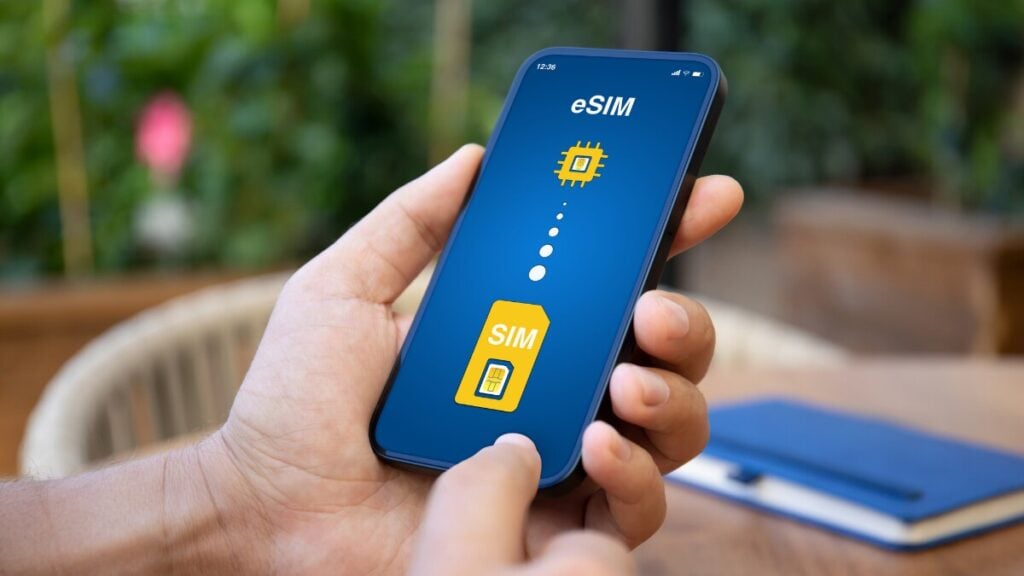
How do you set up an eSIM hotspot when travelling overseas? This is a practical question, particularly when a laptop needs internet at the airport, hotel Wi-Fi is unreliable, or a tablet needs mobile data on the move.
For any traveller using a travel eSIM, hotspot sharing can be one of the most useful ways to stay connected. A smooth eSIM hotspot setup comes down to the right device settings, a compatible eSIM product, and a quick check before departure, so there are no surprises after landing.
Quick Answer
You can use a hotspot with a travel eSIM by following these four direct steps:
Install the eSIM: Download and activate the travel eSIM profile on your device using the QR code or manual details provided.
Select the data line: Go to your device’s network settings and set the travel eSIM as your primary line for Mobile Data (Cellular Data).
Enable Data Roaming: Toggle Data Roaming to ON for the travel eSIM line if required.
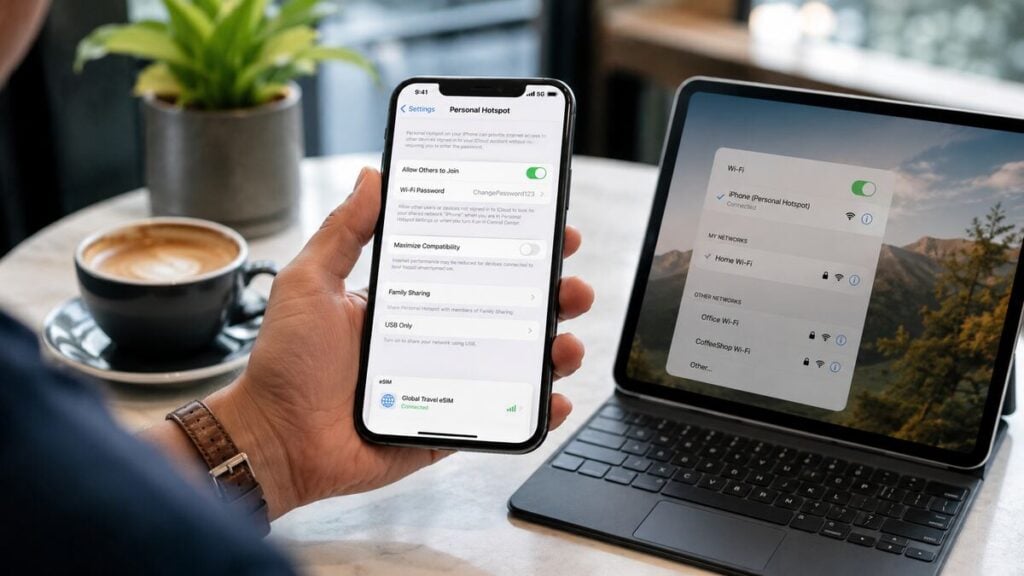
Turn on the hotspot: Navigate to your phone’s settings and turn on Personal Hotspot (iOS) or Mobile Hotspot (Android). Set a secure password and connect your secondary devices.
Note: If your connected devices have no internet access after following these steps, you may need to manually update the APN (Access Point Name) settings in your eSIM configuration.
However, keep in mind that hotspot support can depend on your device, destination, eSIM product, and local network. Before relying on it for work, study, maps, or family sharing, check the product instructions and confirm your device supports hotspot sharing with an eSIM.
What an eSIM Hotspot Means
An eSIM hotspot means your phone shares its mobile data connection with another device. Your phone connects to the overseas mobile network through the eSIM, then your laptop, tablet, or second phone connects to your phone by Wi-Fi, Bluetooth, or USB.
In a nutshell, the eSIM provides the mobile data and hotspot passes that data along. This is helpful when public Wi-Fi is slow, unavailable, or not ideal for everyday travel tasks. It can support emails, browsing, maps, messaging, document uploads, and light work on a laptop.
A travel eSIM is often data-only. That means it may not include standard calls or SMS, but that does not automatically stop hotspot use. The key is making sure the eSIM is connected to mobile data first.
eSIM Hotspot Setup Checklist
Use this checklist before departure or once you arrive overseas.
- Check your device compatibility
Make sure your phone supports eSIM and hotspot sharing. Some older phones, locked devices, or carrier-restricted devices may not work as expected. - Install your eSIM while you have stable internet
Complete the eSIM setup before you need it. This may involve scanning a QR code, using app setup, or following manual installation steps. - Label the eSIM clearly
Name it something simple, such as “TravelKon” or “Travel Data”. This makes it easier to identify when adjusting mobile data and roaming settings. - Set mobile data to the travel eSIM
This is one of the most important steps. The eSIM can be installed correctly, but your phone may still be using your home SIM for mobile data. - Turn on data roaming for the travel eSIM if instructed
Many international eSIM products need roaming switched on for the eSIM line. Keep roaming off for your home SIM unless you specifically intend to use it. - Check APN settings if your instructions mention them
Some eSIMs may require specific APN details. Only change these if your product instructions tell you to. - Confirm mobile data works on your phone first
Open a webpage, refresh email, or load maps. If mobile data does not work on the phone, fix that before testing the hotspot. - Turn on Personal Hotspot or Mobile Hotspot
On iPhone, go to Settings, then Personal Hotspot, and allow others to join. On Android, go to Settings, then Connections or Network and Internet, then Mobile Hotspot or Hotspot and Tethering. - Connect your laptop or tablet
Select your phone’s hotspot name, enter the password, and test with a basic webpage before starting a video call or large upload. - Keep an eye on battery and data use
Hotspot drains battery faster than normal phone use. Laptops can also use data quickly through updates, cloud syncing, desktop websites, and video calls.
Common Mistakes to Avoid

Do not assume the eSIM is being used for data just because it is installed. Always check which SIM is selected for mobile data.
Never turn off roaming for the travel eSIM unless the instructions say to. With many travel eSIMs, roaming settings are part of how the eSIM connects overseas.
Thirdly, don’t delete the eSIM if it does not connect straight away. Some eSIMs may not be reusable after removal, and deleting it can make troubleshooting harder. Restart the phone, check the selected data line, review the instructions, and test again first.
Do not expect hotspot speeds to be identical everywhere. Performance can change based on local network coverage, signal strength, network congestion, battery mode, and how many devices are connected.
Last but not least, never leave hotspot running all day if it is not needed because it can drain your phone quickly, especially when a laptop is connected.
TravelKon Connectivity Tips Before Departure
Before travelling, check the TravelKon product details for your destination and confirm whether hotspot use is supported for the eSIM you selected. Save your setup instructions somewhere offline, such as in your files, photos, or email app.
Install the eSIM before departure where possible, but follow the activation timing in the product instructions. Some eSIMs should only be activated close to travel or after arrival.
You can also have a look at our blog on how an eSIM works to familiarise yourself with everything before travelling. The guide makes the setup process easier to understand and helps avoid confusion between your home SIM and your travel eSIM.
When to Contact TravelKon Support
Reach out to us if your eSIM is installed but mobile data will not connect, the hotspot option is missing, your device settings do not match the instructions, or hotspot is not working after mobile data is confirmed.
Before contacting support, collect the details that will make troubleshooting faster. Helpful screenshots include your eSIM mobile data settings, roaming settings, APN settings if relevant, and any error messages. Also note your destination country, device model, eSIM product, and whether mobile data works on the phone before hotspot is turned on.
That final detail is important. If mobile data does not work on the phone itself, the issue is likely with the eSIM connection rather than hotspot sharing.
Final Thoughts
A good eSIM hotspot setup starts before departure. Install the eSIM, check compatibility, save the instructions, set mobile data to the correct eSIM, confirm roaming settings, and test mobile data before switching on hotspot.
Once your phone is online, sharing data is usually easy. The safest next step is to check the TravelKon eSIM instructions for your destination, then test the connection early so any settings can be fixed before you truly need it.
FAQs
Can You Use Hotspot With a Travel eSIM?
Usually, yes, if the eSIM product, device, and destination network support it. Always check the product instructions before travelling if hotspot is important for work, study, or sharing data with another device.
Can You Hotspot From a Data-Only eSIM?
Often, yes. A data-only eSIM can still share mobile data by hotspot when hotspot is supported. Calls and SMS are separate features, so a data-only plan may still work for internet sharing even if it does not include standard phone services.
Why Is My eSIM Hotspot Setup Not Working?
The most common causes are the wrong SIM being selected for mobile data, roaming being switched off for the travel eSIM, a weak local network signal, incorrect APN settings, or hotspot not being supported for that specific eSIM product or device.
Does Hotspot Use More Data?
Hotspot itself does not automatically use more data, but connected devices often do. Laptops may run software updates, sync files, load desktop websites, and stream higher-quality video, which can use data much faster than normal phone browsing.
Should Data Roaming Be On or Off?
For the travel eSIM, data roaming may need to be on. For your home SIM, it is usually safer to keep roaming off unless you intentionally want to use it. Follow the instructions for your specific eSIM and check which SIM is selected for mobile data.
Will an eSIM Hotspot Be Fast Enough for Work?
It can be, but there are no guarantees. Speed depends on the destination network, signal strength, local congestion, device settings, and how many devices are connected. Test the connection with a simple task before joining calls or uploading large files.