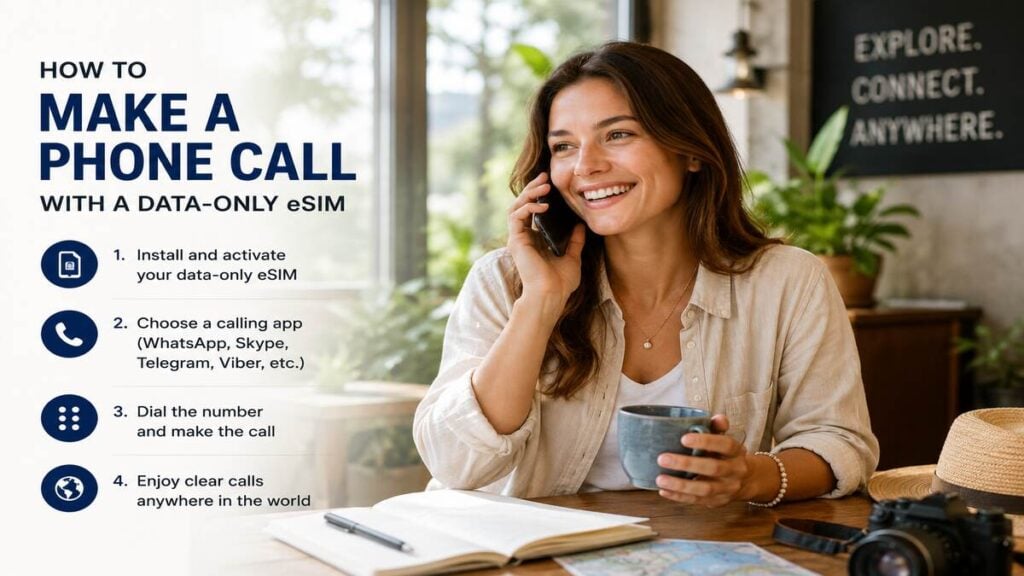
How do you make a phone call with a data-only eSIM? This is one of those questions that tends to appear when bags are packed, airport coffee is in hand, and one last thought about whether normal calls will still work overseas.
For any traveller using a Travel eSIM, the answer depends on the type of call being made. A WhatsApp call is not the same as calling from the normal phone dial pad. FaceTime Audio, Messenger and similar apps also work differently from a standard mobile call. And that difference determines a lot, as you are about to find out.
Quick Answer
Yes, you can make a phone call with a data-only eSIM, but it will normally be through an internet calling app rather than the phone’s standard dial pad.
A data-only eSIM gives your phone mobile data overseas. That means apps such as WhatsApp, FaceTime Audio, Messenger, Skype, Viber and WeChat can use that data connection for calls, provided the app is already set up and the eSIM is connected.
What it usually does not provide is a new phone number for regular mobile calls and SMS. Some travel SIM or international eSIM products may include local calls or texts, but this depends on the exact plan. Check the product details before departure if standard calling, SMS verification or emergency calling matters for your trip.
What a Data-Only eSIM Means
A data-only eSIM, as the name suggests, is built for internet access. It is best thought of as a travel data connection, not a full replacement for your usual mobile service.
Once active, it can power the apps that need internet access. That includes Google Maps, WhatsApp, FaceTime Audio, Messenger, email, web browsing, banking apps, rideshare apps and translation tools. If an app works over mobile data or Wi-Fi at home, it will usually work over travel eSIM data overseas.
The confusion usually comes when you start thinking about making calls. A standard phone call uses a mobile network voice service and normally needs a phone number. This is the type of call made from the phone’s regular dial pad.
An app-based call uses the internet. WhatsApp calls, FaceTime Audio calls and Messenger calls sit in this category. These calls do not need the travel eSIM to have its own phone number, but they do need working mobile data or Wi-Fi.
That is the key point. A data-only eSIM can help you call people through apps, but it may not let you dial a standard number unless the plan includes calls.
How to Make Calls on Different Apps With a Data-Only eSIM

The simplest way to make a phone call with a data-only eSIM is to use an app that calls over the internet. Before travelling, open the apps you plan to use and make sure they are already logged in. WhatsApp, FaceTime, Messenger and similar apps can become frustrating if they ask for SMS verification after your home SIM is switched off, out of service or unable to receive messages overseas.
For WhatsApp, keep your existing number active in the app. There is usually no need to change your WhatsApp number just because you are using an international eSIM for data. Once the TravelKon eSIM is connected to mobile data, WhatsApp can use that connection for messages and calls.
For FaceTime Audio, check that FaceTime is enabled and allowed to use mobile data. This is especially important on iPhone, where one small setting can stop the app from using your travel data connection.
For Messenger, make sure the app is updated, logged in and allowed to use mobile data. Messenger calls can work over mobile data, but they will use part of your data allowance.
Wi-Fi Calling is different again. It depends on your home mobile carrier, device, plan and settings. Some Australian providers support Wi-Fi Calling overseas, while others may have limits or conditions. Set it up and test it before leaving Australia, then check any costs or restrictions with your mobile provider.
What to Do Before You Leave for Your Trip
Start by confirming that your phone is unlocked and eSIM compatible. Some older devices do not support eSIM, and some models vary by region.
Install your eSIM using the instructions provided with your TravelKon eSIM. Keep Wi-Fi available during installation, as the first setup step usually needs an internet connection.
Give your SIMs clear names. For example, label your home SIM as “Australia” and your travel eSIM as “TravelKon” or the destination name. This makes it easier to choose the right SIM for mobile data, calls and messages.
Set mobile data to the travel eSIM. On iPhone, this is usually under Mobile or Cellular settings. On Android, look for SIM manager, mobile network or preferred SIM for mobile data.
Turn data roaming on for the travel eSIM if the product instructions say it is required. Many travel eSIMs need roaming enabled to connect to the correct overseas network.
Decide what to do with your home SIM. If avoiding roaming charges is the goal, turn off data roaming for the home SIM. If SMS codes are still needed, the home SIM may need to stay active, but any costs depend on your Australian carrier.
Open WhatsApp, FaceTime Audio, Messenger or your preferred calling app before departure. Make a quick test call while still in Australia, so there are no login surprises later.
Save important contacts inside your calling apps, not just in your phone contacts. Hotels, drivers, tour operators and restaurants often use WhatsApp, which can be easier than placing a standard international call.
Do This After You Land
Switch mobile data to your TravelKon eSIM and follow the product instructions. Some eSIMs connect automatically, while others may need manual network selection or APN settings.
Check that your phone shows signal bars and a data symbol such as 4G, 5G or LTE. Then open a browser and load a simple webpage. This confirms that mobile data is working before troubleshooting individual apps.
If WhatsApp or Messenger is not calling properly, test a normal message first. If messages work but calls fail, the issue may be app permissions, poor signal, restricted data mode or the other person’s connection.
If FaceTime Audio will not connect, check that FaceTime is allowed to use mobile data and that the person you are calling can receive FaceTime calls.
If you plan to use hotspot, check your product details first. Some plans support hotspot, while others may restrict it. Hotspot can also use data quickly, especially if a laptop starts syncing files, updating software or loading video calls.
Common Mistakes to Avoid When Travelling
Do not delete your eSIM profile unless support tells you to. Many eSIMs cannot simply be reinstalled after deletion, so removing it too early can make troubleshooting harder.
Never assume a data-only eSIM comes with a phone number. Some plans include calls and texts, but many do not.
Do not change your WhatsApp number just because you are travelling. Keeping your existing WhatsApp number is usually simpler and avoids confusing your contacts.
Ensure you don’t leave app setup until after departure. Apps that need SMS verification can be difficult to access if your home SIM cannot receive messages overseas.
Also, do not turn on roaming for every SIM without checking. The travel eSIM may need data roaming, but your home SIM roaming settings are separate and may create charges with your Australian provider.
Lastly, do not rely only on standard phone calls for important travel plans. Save WhatsApp, Messenger, email and hotel app contact options as backups.
TravelKon Connectivity Tips
Our eSIMs are designed to help travellers stay connected overseas through mobile data. For many people, that is enough for app-based calling, messaging, maps, bookings, email and general browsing.
The safest habit is to read the product instructions before departure. Check whether the plan is data-only, whether hotspot is supported, whether data roaming should be turned on, and whether any local calls or texts are included. For anyone new to eSIMs, our guide to how an eSIM works can help you get started.
When to Contact TravelKon Support
Contact our support team when the eSIM is installed but mobile data is not working after the basic settings have been checked.
Before reaching out, collect the key details. Include the destination country, phone model, eSIM product name, installation date and what has already been tried.
Screenshots can help. Capture the SIM settings page, mobile data selection, roaming settings, network selection screen, APN page if relevant, and any error message. Avoid sharing sensitive personal information in screenshots where possible.
Be specific about the issue. WhatsApp messages work but calls fail is more useful than calling does not work. Clear details make it easier to work out whether the issue relates to the eSIM connection, app settings, device settings or the home carrier.
Takeaways
The safest way to make a phone call with a data-only eSIM is to use the eSIM for mobile data, and place calls through apps such as WhatsApp, FaceTime Audio, Messenger or similar services.
Set the apps up before departure, check mobile data and roaming settings, and confirm whether your TravelKon eSIM is data-only or includes calls and texts. A few minutes of preparation before the flight can prevent most calling issues later, especially when SMS verification, app logins and roaming settings are involved.
FAQs
Can You Make a Phone Call With a Data-Only eSIM?
Yes, you can make a phone call with a data-only eSIM through internet calling apps such as WhatsApp, FaceTime Audio, Messenger, Skype, Viber or WeChat. A data-only eSIM usually does not support standard dial-pad calls unless the plan specifically includes calls.
Can a Data-Only eSIM Receive SMS?
Usually, no. A data-only eSIM generally does not include a phone number for SMS. If bank codes, login codes or two-factor authentication messages are needed, check whether your home SIM can receive SMS overseas and whether your Australian carrier charges for roaming.
Will WhatsApp Work With a TravelKon eSIM?
Yes, WhatsApp can work over a TravelKon eSIM when the eSIM has an active mobile data connection. Keep your existing WhatsApp number unless there is a specific reason to change it.
Can FaceTime Audio Work With an International eSIM?
FaceTime Audio can work over mobile data on supported Apple devices when FaceTime is enabled and allowed to use mobile data. Performance depends on the data connection, device settings and network conditions.
Is Wi-Fi Calling the Same as WhatsApp Calling?
No. Wi-Fi Calling uses your home mobile carrier’s calling service over an internet connection. WhatsApp calling uses WhatsApp’s app-based calling service. Wi-Fi Calling depends on your carrier and plan, while WhatsApp depends on the app and an internet connection.
Should Data Roaming Be On or Off?
For many travel eSIMs, data roaming needs to be on for the travel eSIM line. That does not mean roaming should be on for your home SIM. Keep the two settings separate and follow the instructions for your specific product.
Can Hotspot Be Used for App-Based Calls?
Yes, if your plan supports hotspot, another device can use that connection for app-based calls. Keep in mind that laptops and tablets can use data quickly, especially during video calls, cloud backups and automatic updates.