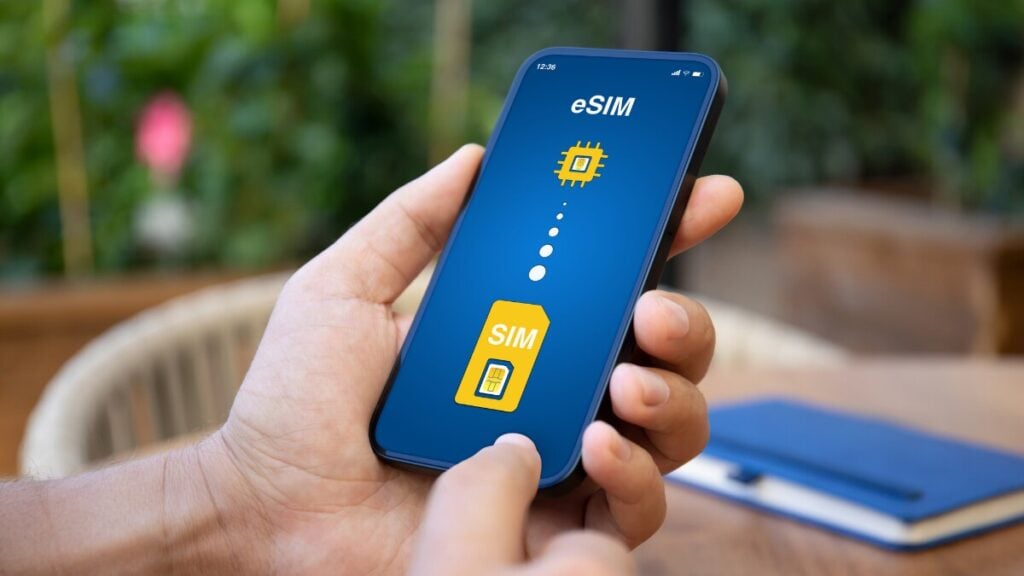
Landing overseas comes with a few small but important jobs, such as finding your luggage, checking your hotel address, working out the airport exit, and getting transport without wasting time. For many Australian travellers, Uber is the easiest option, particularly after a long flight.
A Travel eSIM can make that first arrival feel much less stressful by giving your phone mobile data once you are away from airport Wi-Fi. That can be super helpful when rideshare pickup zones are busy, maps need to load, and your driver is trying to find you.
Can You Use Uber With an eSIM?
Yes, Uber can work with an eSIM as long as your phone has working mobile data and your Uber account is already set up.
Uber needs an internet connection for booking rides, loading maps, confirming payment, receiving trip updates, messaging drivers, and tracking your journey. A data-only eSIM can provide that connection overseas, even though it usually does not include a local phone number.
The possible issue is verification. If Uber asks for an SMS code while you are overseas, that message may go to the phone number already linked to your account. A data-only eSIM may not receive that text, so it is best to log in and check your account before you fly.
How to Set Up Uber Before You Travel
Using Uber with an eSIM is very easy. Simply, open the Uber app and make sure you are logged in. If you have not used it for a while, update the app and check that your account details are current. Your mobile number and email address should be correct, as they may be used for account recovery or verification.
Next, review your payment methods. Remove expired cards, add a backup card if needed, and make sure your default payment option can be used overseas. Payment problems are annoying anywhere, but they are much worse when you are standing in an airport arrivals area with luggage and a low phone battery.
Save your first accommodation address before you travel. Hotel names can sometimes point to the wrong entrance, especially in large cities, resorts, or areas with several buildings under similar names. Having the full street address ready makes booking quicker and reduces the chance of choosing the wrong destination.
Also, check app permissions. Uber works best when location services, notifications, and mobile data are enabled. Notifications are useful if the driver changes position, sends a message, or arrives sooner than expected.
Using a Data-Only eSIM With Rideshare Apps
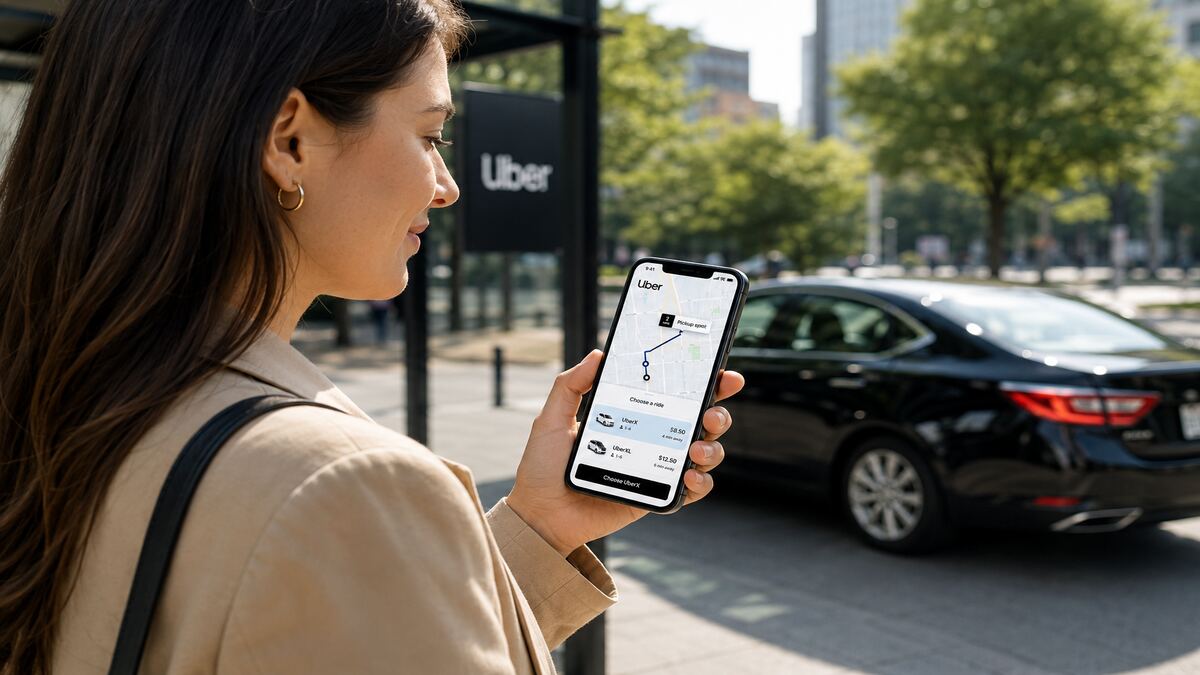
A data-only eSIM gives your phone internet access overseas. That connection allows Uber to load maps, send booking requests, show driver updates, and keep the trip active in the app.
The eSIM does not usually replace the phone number connected to your Uber account. Your Uber profile may still use your Australian mobile number, even while your phone uses an international eSIM for mobile data. That is normal.
Where travellers can run into trouble is with account verification. If Uber logs you out, detects a new device, or asks for a one-time password by SMS, the code may be sent to your usual Australian number. If your home SIM is turned off, removed, or unable to receive SMS overseas, the code may not arrive.
A simple approach is to log in before leaving Australia, keep your account details up to date, and avoid signing out while travelling. If this is your first time using an eSIM, it is also worth understanding how international eSIMs work before your trip.
Airport Arrival Checklist
Airport arrivals are where mobile data matters most because Wi-Fi can be unreliable once you leave the terminal. Plus, many airports have separate rideshare areas away from the main taxi rank.
Before booking your ride, run through these checks:
- Turn on your eSIM line and confirm mobile data is active.
- Make sure the travel eSIM is selected for mobile data.
- Check whether data roaming needs to be switched on for that eSIM.
- Open a map app and confirm your location is updating correctly.
- Open Uber only once the phone has a working connection.
- Choose the correct rideshare pickup point, not just the nearest map pin.
- Keep the app open after booking so you can see driver updates.
- Message the driver with a clear landmark if the pickup area is busy.
- Keep enough battery available until the ride has started.
Pickup zones can be confusing. Some airports use numbered doors, car park levels, terminal zones, or specific rideshare bays. A few extra seconds checking the pickup point can save several minutes of walking in the wrong direction.
Troubleshooting Uber With an eSIM
Most Uber problems overseas come down to login, payment, mobile signal, or pickup location. Here is how to handle the common ones.
Uber Will Not Load
Check that your eSIM is connected to mobile data. Turn flight mode on and off, confirm the eSIM is selected for data, and check the roaming setting for that eSIM.
If your phone is connected to weak airport Wi-Fi, switch Wi-Fi off and try mobile data only. Phones often stay connected to poor Wi-Fi even when mobile data would work better.
The SMS Code Will Not Arrive
Uber may send a verification code to the phone number already linked to your account. A data-only eSIM usually will not receive SMS.
If you need to receive texts on your Australian number, your regular SIM may need to stay active for SMS while the eSIM handles mobile data. Check this with your mobile provider before travelling, as international roaming settings and charges vary.
Payment Failed
Try another saved card or digital wallet if available. It is also worth checking whether your bank has blocked the transaction because it appears unusual or international.
This is why a backup payment method is useful before departure. Fixing payment settings is much easier at home than at a crowded airport pickup zone.
The Driver Is in the Wrong Place
Before cancelling, check the airport pickup instructions inside the app. The map pin may look close while actually being on another road level, across a car park, or outside a different terminal.
Send the driver a simple message with your exact location, such as “Terminal 1 rideshare zone, bay B” or “outside Door 4 near the taxi signs”.
The Signal Is Weak
Move away from basement arrivals areas, thick concrete walls, or crowded indoor spaces. Airports and train stations can have patchy signal in certain spots.
If needed, use airport Wi-Fi to place the booking, then keep the app open while moving to the pickup area. This is not ideal, but it can help when mobile coverage is temporarily weak.
Your eSIM Is Working but Uber Still Has Issues
Close and reopen the app. Check for app updates if you have enough connection, and make sure location permissions are enabled. If the app still does not behave properly, try switching between Wi-Fi and mobile data.
TravelKon eSIM Tip
A TravelKon eSIM can be useful because it gives travellers mobile data without needing to buy a physical SIM after landing. That is especially helpful during the first hour overseas, when airport transfers, hotel directions, maps, and messages all tend to happen at once.
For Uber, the benefit is simple: mobile data helps the app work beyond airport Wi-Fi. It lets you book the ride, track the driver, confirm the route, and stay in contact through in-app messages.
The eSIM provides the connection, but the rest is still important. Uber should be logged in, payment should be ready, app permissions should be enabled, and verification details should be checked before departure.
Final Thoughts
Knowing how to use Uber with an eSIM comes down to preparation. Before flying, update the app, log in, check your payment method, save your destination, and make sure your eSIM setup is ready.
After landing, turn on mobile data, check the pickup point carefully, keep the app open, and watch for driver messages.
A data-only eSIM can make the first ride overseas much easier, especially when airport Wi-Fi drops out, and the pickup zone is not where you expected it to be.
FAQs
Can Uber Work Without SMS?
Uber may work without SMS if you are already logged in and the app does not request a new verification code. If Uber asks for SMS verification, the code may be sent to the phone number linked to your account. A data-only eSIM usually will not receive that SMS.
Do You Need a Local Number to Use Uber Overseas?
Usually, no. Many travellers use Uber overseas with their existing account and Australian mobile number. The more important requirement is working mobile data. A local number may help in some cases, but it is not normally required for standard app use.
Is Airport Wi-Fi Enough to Book Uber?
Airport Wi-Fi can be enough to book a ride, but it is not always reliable once you move to a pickup zone or need to message the driver. Mobile data overseas gives you more control, especially when leaving the terminal.
How Much Data Does Uber Use?
Uber does not usually use much data compared with video calls, streaming, or social media. It mainly uses data for maps, booking, notifications, driver messaging, and trip tracking. Data use may increase if maps stay open for a long time or other apps are running at the same time.
Can You Use a Hotspot for Uber?
Yes, Uber can work through another device’s hotspot if the connection is stable. This can help if your own mobile data is not working. Just remember that hotspot connections can drop if the other device moves away, loses signal, or runs low on battery.