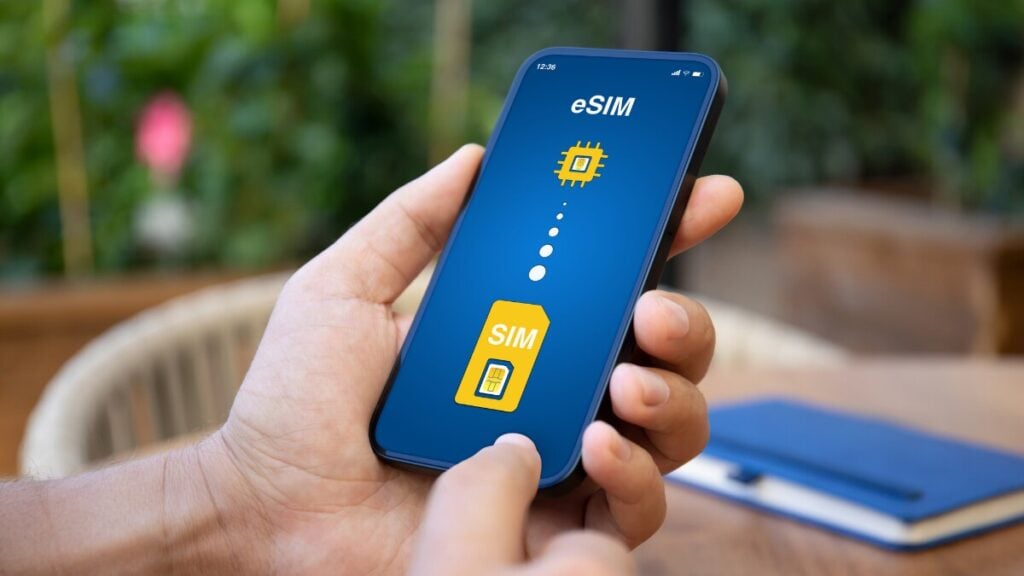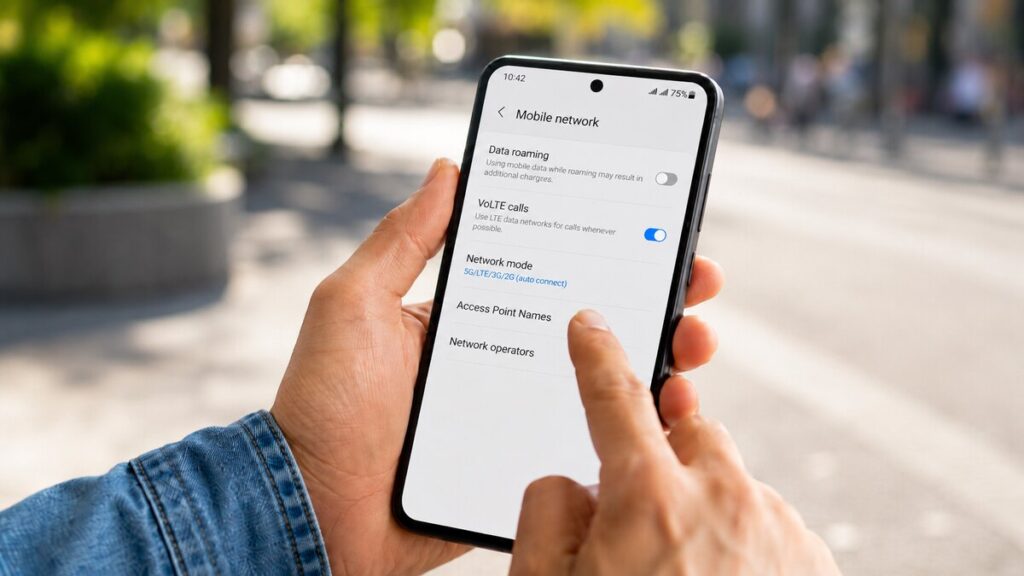
When your mobile data fails to load overseas, it is easy to think the eSIM has a problem. In many cases, the fix is much simpler. Your phone may just need the right APN, mobile data, or roaming settings. For international travellers who often use travel eSIMs, this is one of those setup checks worth knowing before departure, not while standing at the airport arrival trying to book a ride.
APN settings eSIM issues can sound technical, but the steps are usually straightforward, as you are about to find out.
Quick Answer
An APN, or Access Point Name, is the setting your phone uses to connect to mobile data through a mobile network. With an eSIM, the APN may be added automatically during installation, or it may need to be entered manually.
To update your APN, go to your phone’s mobile data settings, select the eSIM line, find the APN or Mobile Data Network section, and enter the APN shown in your eSIM instructions. The wording varies between iPhone and Android devices, so the exact menu name may look slightly different. Never try to guess the APN or delete the eSIM unless support tells you to.
What This Means for Travellers
A travel eSIM is usually used to access mobile data while overseas. Many plans are data-only, which means they are made for internet access rather than standard calls or SMS.
This is important because your phone may show signal bars but still fail to load maps, WhatsApp, email, or browser pages. The signal bar only shows that the phone can utilise the available network. However, it does not always mean the mobile data settings are correct.
For a data-only eSIM, the most common setup checks are simple: the eSIM must be installed, selected for mobile data, allowed to use roaming where required, and set with the correct APN if the product instructions provide one.
If you are still getting familiar with eSIM setup, you may find it useful to go through our blog on how an eSIM works before tweaking device settings.
APN Settings eSIM Checklist
Use this checklist before making major changes.
Check that the eSIM Is Installed
Open your SIM or mobile service settings and confirm the eSIM appears on your device. If it is not visible, go back to your installation email and product instructions before trying to scan the QR code again.
Select the eSIM for Mobile Data
Make sure your international eSIM is selected as the line for mobile data. If your Australian SIM is still selected, your phone may try to use your home provider instead.
Check Roaming Settings Carefully
Many travel eSIM products need data roaming switched on for the eSIM line. The important part is making sure roaming is enabled for the travel eSIM, not accidentally for your home SIM. Switching roaming on for your Australian SIM may lead to extra charges depending on your home plan.
Check the APN Field
Find the APN or Mobile Data Network section. On some phones, this may sit under Cellular, Mobile Service, Mobile Network, Access Point Names, or Mobile Data Network.
If your TravelKon product instructions provide a specific APN, enter it exactly as written. Even a small spelling mistake can stop mobile data from working.
Turn Wi-Fi Off When Testing
This is an easy one to miss. If your phone is connected to a hotel, cafe, or airport Wi-Fi, it may look like the eSIM is working when it is not. Turn Wi-Fi off briefly and test mobile data directly.
Restart Your Phone
After changing APN or roaming settings, restart the phone. This gives the device a clean chance to reconnect to the local network.
Try Manual Network Selection
If automatic network selection does not connect, try selecting a local network manually. Only choose networks listed or supported in your product instructions where that information is provided.
Check Hotspot Separately
If mobile data works but hotspot does not, the issue may be separate from the APN. Hotspot availability can depend on the eSIM plan, device, and network. Check the product details before changing unrelated settings.
What Not to Do When Using a Travel eSIM
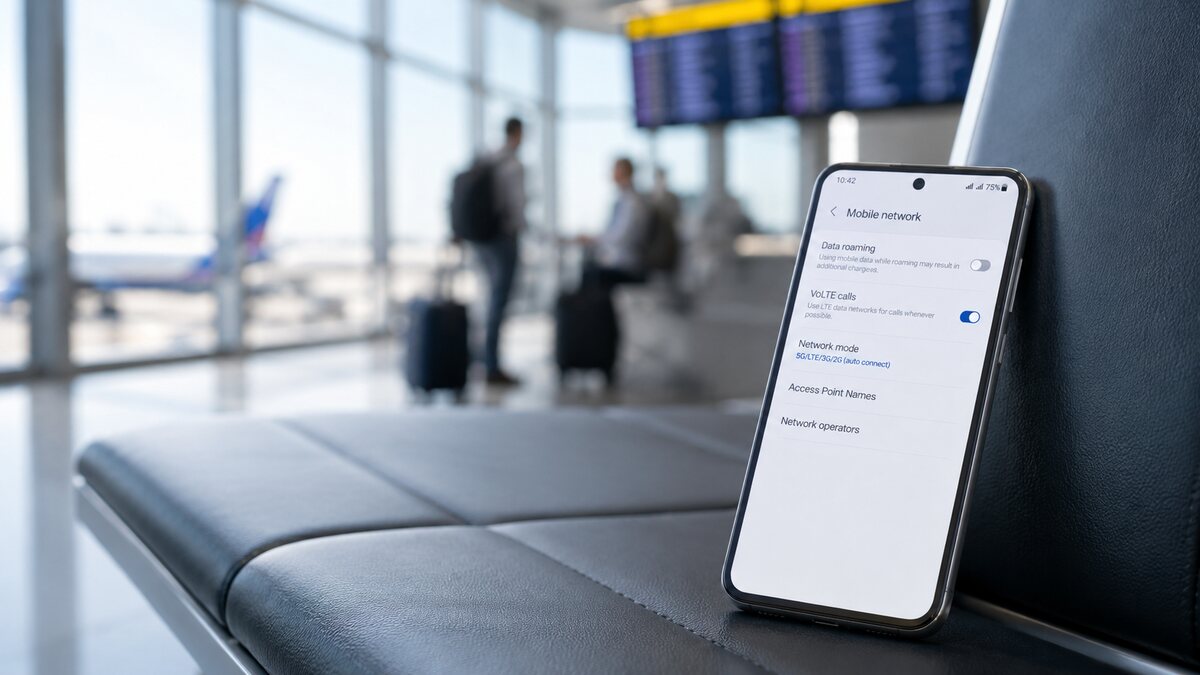
Never delete the eSIM too early. Some eSIMs cannot be reinstalled after deletion, even if the QR code is still available.
Do not rescan the QR code over and over unless the instructions or support team tell you to. If the eSIM is already installed, the problem is often in the settings rather than the QR code.
Also, do not switch roaming on for your home SIM unless you understand the charges. For most travellers, the safer approach is to use the travel eSIM for mobile data and keep the home SIM controlled carefully.
Try not to ignore carrier-lock warnings. If your phone is locked to a mobile provider, a travel eSIM may not work until the device is unlocked.
Do not assume emergency calls, SMS, or phone numbers work the same way with every travel eSIM. Many travel eSIMs are data-only. Keep a backup option for urgent contact, especially when arriving late, travelling alone, or relying on mobile data for transport.
Lastly, don’t keep changing random settings. Once the basic checks are done, contacting support is usually the next best step.
How TravelKon Users Should Prepare
Before departure, save your TravelKon installation email somewhere easy to access offline. Screenshots are useful, especially if airport Wi-Fi is slow or unreliable.
Check your device compatibility before buying or installing. Make sure your phone supports eSIM and is not carrier-locked. Compatibility can vary by model and region, so it is worth checking the exact device rather than relying on the phone name alone.
Install the eSIM on stable Wi-Fi, unless your product instructions say otherwise. Some plans may activate on installation, while others activate when they connect overseas, so the specific product instructions matter.
Keep the destination, product instructions, and order details handy. If you need our support, this information helps avoid back-and-forth and makes troubleshooting faster.
When to Contact TravelKon Support
Contact TravelKon support if the eSIM is installed but mobile data still does not work after checking APN, mobile data selection, roaming, Wi-Fi-off testing, and network selection.
It is also time to stop guessing if the QR code says it has already been used, the eSIM will not install, the APN field is missing, the phone shows no service, or the device displays a carrier-lock warning.
When contacting support, include your order details, destination, device model, screenshots of your eSIM settings, any error messages, and the steps already tried. That gives our support team the clearest starting point.
Takeaways
APN settings eSIM problems can feel stressful, particularly when they happen overseas, but the fix is often a simple settings check. Confirm the eSIM is installed, select it for mobile data, check roaming on the correct line, enter the APN from the product instructions if required, restart the phone, and test with Wi-Fi turned off.
The safest approach is to prepare before departure. Save your instructions, check compatibility, install on Wi-Fi, keep your order details handy, and contact TravelKon support if the basics do not solve the issue.
FAQs
What Are APN Settings on an eSIM?
APN settings on an eSIM tell your phone how to connect to mobile data through the network. Some eSIMs apply the APN automatically, while others may need the APN entered manually.
Do I Always Need to Update the APN?
No. Many eSIMs work without manual APN changes. You usually only need to check the APN if the product instructions ask for it, mobile data is not working, or support asks you to confirm it.
Can the Wrong APN Stop Mobile Data From Working?
Yes. Your phone may show signal but fail to load internet services if the APN is missing or incorrect. Enter the APN exactly as shown in the product instructions.
Should Data Roaming Be On for a Travel eSIM?
Often, yes. Many international eSIM products need data roaming enabled on the eSIM line. Just be careful not to turn roaming on for your home SIM unless you are comfortable with any possible charges.
Can I Use Hotspot With a Data-Only eSIM?
Sometimes. Hotspot depends on the plan, device, and network. If mobile data works but hotspot does not, check the product details or contact support before changing more settings.
Should I Delete and Reinstall My eSIM If It Does Not Work?
No, not unless support tells you to. Some eSIMs cannot be installed again after deletion. Check the APN, roaming settings, mobile data line, Wi-Fi status, and network selection first.