If you deleted your eSIM and the QR code now says already used, expired, or invalid, you may not be able to reinstall it without provider support.
In some cases, a deleted eSIM can be reinstalled using the original QR code or manual activation details. In others, the installation credentials can only be used once, meaning a replacement eSIM may be required.
This guide explains when you can reinstall a deleted eSIM, when you cannot, and the fastest way to get connected again. Once you are done here, check out our deep-dive blog on how an eSIM works to master the basics.
Quick Answer
You may be able to reinstall an eSIM after deleting it, but you should never assume the original QR code will work again.
Before attempting another installation:
- Check whether the eSIM is actually deleted or simply turned off.
- Review the installation email for QR code and manual installation details.
- Avoid repeatedly scanning the QR code.
- Contact support if the QR code no longer works.
If the eSIM is still installed but not connecting, do not delete it. Most travel eSIM issues are caused by network selection, roaming settings, activation timing, or mobile data configuration rather than the eSIM itself.
The Most Important Thing to Know
Deleting an eSIM is not the same as restarting a connection. According to industry projections by the GSMA, 50% of all smartphones will rely on eSIM technology by 2028. However, while the technology is spreading rapidly, actual consumer understanding of how to manage digital profiles lags behind.
If your eSIM is still installed on your device, troubleshooting your internal settings is always safer than removing the profile. The vast majority of travel connection failures are caused by minor setup oversights, including:
- Disabled Data Roaming: Many travellers turn roaming off to avoid fees from their home network, forgetting that a travel eSIM requires data roaming to be toggled on. For instance, if you are using a Europe eSIM plan, data roaming must be switched on so your device can connect to regional partner networks across different countries.
- Incorrect Mobile Data Selection: The phone may still be trying to pull data from your primary physical SIM card instead of routing traffic through the newly installed eSIM profile.
- APN Misconfiguration: While usually automatic, some devices require you to manually input the Access Point Name (APN) provided in your installation email to bridge the data gateway.
Deleted Your eSIM at the Airport? Do This First
If you have already landed and accidentally deleted your eSIM, follow these steps before buying another plan.
- Connect to airport, hotel, or public Wi-Fi.
- Check whether the eSIM is actually deleted or simply turned off.
- Review the original installation email.
- Look for manual installation details as well as the QR code.
- Take a screenshot of any error message.
- Avoid repeatedly scanning the QR code.
- Contact support before buying another plan, especially if the QR code has been used, expired, or is invalid.
Can I Reuse the Same eSIM QR Code?
Whether the same QR code can be used again depends on the provider and plan.
| Situation | Can You Reinstall? |
|---|---|
| eSIM still installed but switched off | Yes |
| eSIM deleted and QR code supports multiple installs | Yes |
| eSIM deleted and QR code is single-use | Usually no |
| eSIM transferred to another phone | Depends on the provider |
| QR code says already used | Support is usually required |
| QR code says expired | Support is usually required |
| Plan has already finished | Usually no |
| Device is carrier-locked | Usually no, unless unlocked first |
For many travel eSIMs, deleting the profile removes the installed mobile plan from the device. If you accidentally remove a single-use Bali eSIM while on holiday, you will likely need a replacement QR code from your provider to get back online.
Is the eSIM deleted or Just Turned Off?
Before trying to reinstall anything, check whether the eSIM is actually gone.
On iPhone, go to Settings > Mobile or Settings > Cellular. If the travel eSIM still appears as a line, it has not been deleted. It may simply be turned off or not selected for mobile data.
On Android, check SIM Manager, Connections, Mobile Network, or Network & Internet. The wording varies by device.
If the eSIM is still visible:
- Turn the line on.
- Select it for mobile data.
- Turn on data roaming if the plan requires it.
- Restart the phone.
- Test mobile data with Wi-Fi switched off.
Turning an eSIM off keeps the profile on the phone. Deleting it removes the profile from the device.
Turning Off vs Deleting vs Removing After Travel
| Action | What It Does | Safe During Travel? |
|---|---|---|
| Turning off the eSIM | Keeps the eSIM profile on your phone but disables the line | Yes, usually safe |
| Deleting the eSIM | Removes the eSIM profile from the phone | No, avoid unless the plan is finished |
| Removing after travel | Deletes the profile once you no longer need the plan | Yes, usually fine |
| Resetting network settings | Refreshes phone network settings without deleting the eSIM profile | Usually safer than deleting |
How to Reinstall a Deleted eSIM on iPhone
If your provider allows reinstallation, follow these steps:
- Connect to stable Wi-Fi.
- Open Settings > Mobile or Settings > Cellular.
- Tap Add eSIM.
- Select Use QR Code.
- Scan the original QR code or enter the manual installation details.
- Follow the prompts to download the eSIM profile.
- Enable the eSIM.
- Select the eSIM as the mobile data line.
- Turn on data roaming if required by the provider.
If the QR code says it has already been used, has expired, or cannot be activated, stop and contact support.
Common iPhone Installation Errors
This QR Code Is No Longer Valid
This usually means the installation credentials have already been used or have expired.
Unable to Complete Cellular Plan Change
This can be caused by activation restrictions, network issues, or provider limitations.
Cellular Plan Cannot Be Added
Check device compatibility, carrier lock status, and whether the installation details are still valid.
How to Reinstall a Deleted eSIM on Android
Android settings vary by manufacturer, but the general process is:
- Connect to stable Wi-Fi.
- Open Settings.
- Search for eSIM or SIM Manager.
- Select Add eSIM.
- Scan the QR code or enter manual activation details.
- Complete the installation.
- Enable the eSIM.
- Select it as the mobile data SIM.
- Turn on data roaming if required.
Depending on your device, the menu may appear under:
- SIM Manager
- Mobile Network
- Connections
- Network & Internet
- Cellular Network
If the phone cannot add the eSIM, check that the device supports eSIM and is not carrier-locked.
Common Android Installation Errors
Couldn’t add eSIM
This may indicate a compatibility issue, poor internet connection, or expired credentials.
Code Already Used
This usually means the provider does not allow the installation details to be reused.
Network Not Activated
This often means activation has not completed or the supported destination network has not yet been reached. For example, an Indonesia eSIM may show this status until your flight lands and the device connects to a local Jakarta or Bali carrier.
Manual eSIM Installation Details Explained
Some providers include manual installation details as well as a QR code.
These may include:
- SM-DP+ Address
- Activation Code
- Confirmation Code
These details perform the same function as the QR code and allow the phone to download the eSIM profile directly.
On iPhone, you can usually enter these details via Add eSIM > Use QR Code > Enter Details Manually.
On Android, the option is typically available during the Add eSIM process. The exact wording varies by device.
Manual installation may help if your camera cannot scan the QR code, but it will not always bypass single-use installation rules.
What If the QR Code No Longer Works?
QR Code Already Used
This usually means the QR code has already been used to install the eSIM profile. Some providers allow reuse, but many travel eSIMs do not.
QR Code Expired
Some installation credentials expire after a certain period. If this happens, support may need to review the order and provide updated instructions.
Unable to Add eSIM
Possible causes include:
Unsupported device
Carrier-locked phone
Incorrect activation details
Temporary activation issue
Expired or already-used credentials
eSIM Installed, but No Data
If the eSIM installs but mobile data does not work, the issue is often settings-related.
Check:
- Mobile data line selection
- Data roaming settings
- APN settings
- Manual network selection
- Activation timing requirements
- Supported destination network
Do not delete the eSIM again while troubleshooting.
Common Reasons Travellers Think Their eSIM Needs Reinstalling
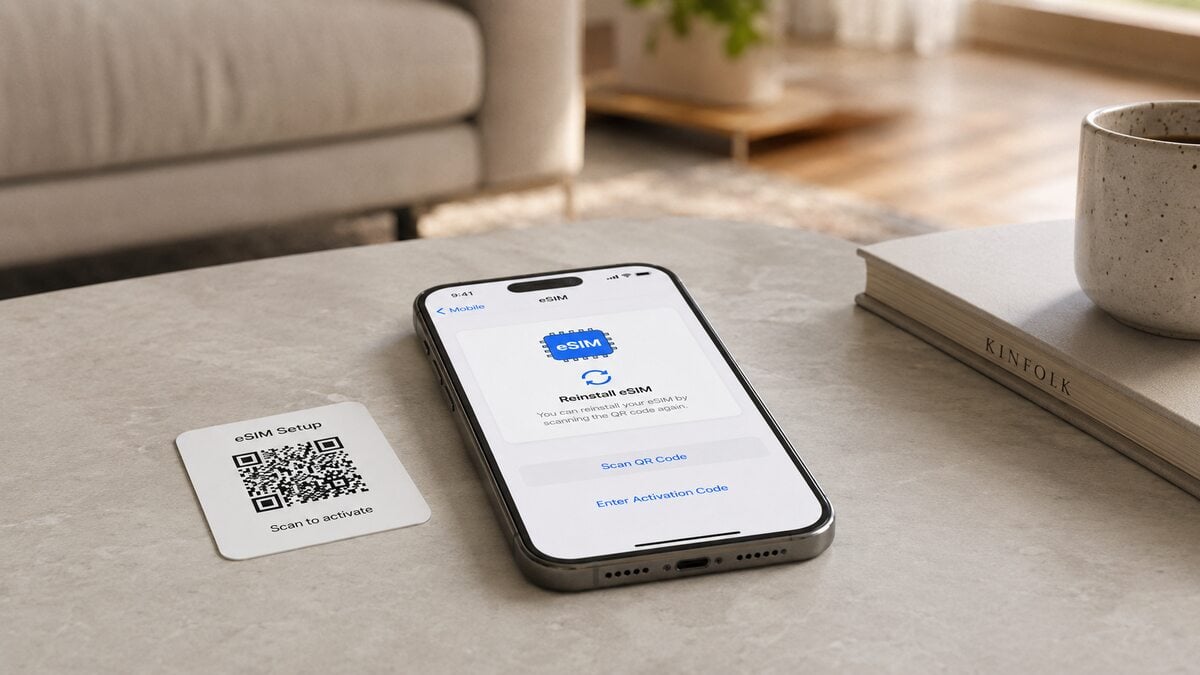
Many travellers assume the eSIM itself is broken when the issue is actually caused by device settings.
Common causes include:
- Data roaming disabled on the travel eSIM
- The home SIM still selected for mobile data
- Automatic network selection choosing the wrong network
- APN settings not configured where required
- A carrier-locked device
- The eSIM not yet activated according to the plan rules
In many cases, the eSIM does not need to be deleted or reinstalled at all.
Can a Deleted eSIM Be Reinstalled on a New Phone?
Many travellers delete an eSIM when upgrading or changing devices, but an eSIM is not always transferable after deletion.
Whether the eSIM can be installed on another phone depends on the provider’s transfer policy. Some providers allow the original installation details to be reused, while others require a new eSIM profile.
Before deleting an eSIM from your existing device:
- Confirm that the new phone supports eSIM.
- Check that the new phone is unlocked.
- Review the provider’s transfer policy.
- Keep the original device active until the transfer is confirmed.
If the eSIM has already been deleted from the original phone, contact support before attempting installation on another device.
What to Do Before Contacting TravelKon Support
Before contacting support, gather the information that will help resolve the issue faster.
Include:
- Device model
- Destination country
- Order number
- Product name
- Screenshot of eSIM settings
- Screenshot of mobile data settings
- Screenshot of roaming settings
- Screenshot of any error message
- Whether the issue occurred before departure or after arrival
- Whether the eSIM was deleted, turned off, or never installed
If your TravelKon eSIM has been deleted and the QR code no longer works, contact our support team before purchasing another plan.
What Not to Do When Using a Travel eSIM
Avoid these common mistakes:
- Do not delete the eSIM simply because data is not working.
- Do not repeatedly scan the QR code if it shows an error.
- Do not turn roaming on for every SIM without checking the plan.
- Do not assume a data-only eSIM can receive calls or SMS.
- Do not wait until airport arrival to check the setup email.
- Do not delete the eSIM before the plan is finished.
- Do not move the eSIM to another phone without checking provider rules.
A restart, aeroplane mode toggle, roaming check, APN check, or manual network selection is usually safer than deleting the eSIM.
How TravelKon Users Should Prepare Before Travel
Before travelling:
- Confirm that your device supports eSIM.
- Look for Add eSIM in settings.
- Check for an EID number. On many devices, dialling *#06# displays the EID.
- Confirm that the device is unlocked.
- On iPhone, check Settings > General > About > Carrier Lock. It should show No SIM Restrictions.
- Save the installation email offline.
- Review the product page before installation because rules for a Japan eSIM might differ from regional data bundles
- Check when the plan validity begins.
- Install using stable Wi-Fi.
- Label the eSIM clearly.
After arrival:
- Select the TravelKon eSIM for mobile data.
- Turn on data roaming if instructed.
- Keep roaming disabled on the home SIM unless required.
- Test a webpage with Wi-Fi switched off.
- Try manual network selection if automatic connection fails.
FAQs
Can I Reinstall an eSIM After Deleting It?
Sometimes, but not always. Many travel eSIMs cannot be reinstalled with the same QR code after deletion.
Can I Reuse the Same eSIM QR Code?
Only if the provider allows it. Many travel eSIM QR codes are single-use.
What Should I Do If the QR Code Says Already Used?
Contact support before attempting further installation attempts.
How Long Does eSIM Reinstallation Take?
If the provider allows reinstallation and the installation details remain valid, it may take only a few minutes. Replacement credentials may take longer.
Does deleting an eSIM cancel the Plan?
Not necessarily. Deleting the eSIM removes the profile from the device but may not cancel the purchased service.
Does Deleting an eSIM Delete My Phone Number?
Usually no. It removes the profile from the device but does not automatically remove the number from the provider’s systems.
Can I Reinstall My eSIM on a Different Phone?
It depends on the provider’s transfer policy and whether the installation credentials can be reused.
Should I Install the eSIM Before Departure?
Usually yes, provided the plan’s activation rules allow it.
Takeaways
You may be able to reinstall an eSIM after deleting it, but the original QR code may not work again. Many travel eSIMs use single-use installation details, so a deleted profile can require provider support, a replacement eSIM, or a new plan. If the eSIM is still visible on your phone, troubleshoot mobile data, roaming, APN settings, and network selection before deleting it. Turning an eSIM off is much safer than removing it.