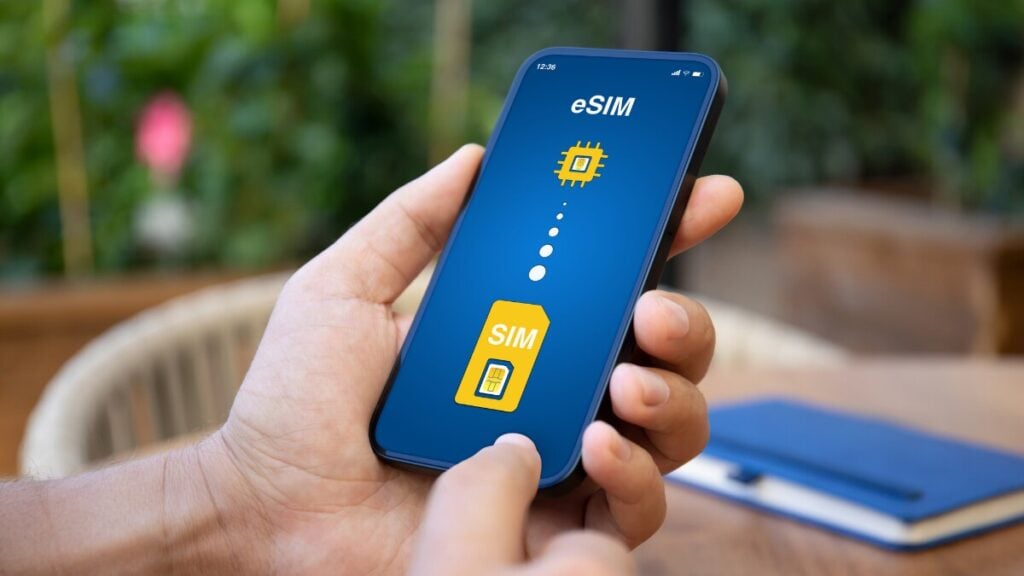
You can keep your usual phone number safe while travelling overseas by leaving your Australian SIM or eSIM installed, using a travel eSIM for mobile data, and keeping data roaming turned off on your home line unless your carrier plan includes suitable roaming.
Maintaining this connection is crucial for overseas travellers, given that our phones now act as the primary gatekeepers for banking verification codes, WhatsApp, airline updates, and work logins. According to the ABS, Australians made more than 8.4 million overseas trips between 2024 and 2025, so ensuring your SIM setup is configured correctly before departure is beyond important.
A Quick Overview of Travel Number Safety
To keep your phone number safe while travelling overseas:
- Keep your Australian SIM or eSIM installed.
- Add your travel eSIM before departure using stable Wi-Fi.
- Label each line clearly. For example, if you are heading to London, you might label your digital data line as UK eSIM to avoid confusing it with your home network.
- Set mobile data to the travel eSIM.
- Turn off data roaming on your home line unless roaming is included and understood.
- Keep the home line active for calls or SMS only if your carrier’s overseas rules are clear.
- Save your eSIM QR code, order details, and setup instructions offline.
- Protect your phone with a strong passcode, remote tracking, and secure account recovery.
- Contact support before deleting, rescanning, or resetting an eSIM.
This setup keeps your regular number separate from your overseas data and reduces the risk of roaming charges, account lockouts, and avoidable setup issues.
What Keeping Your Phone Number Safe Actually Means
Keeping your phone number safe while travelling means two things.
First, it means keeping the number working. You may need it for calls, SMS, WhatsApp, iMessage, banking apps, email, airline apps, accommodation bookings, and password recovery.
Second, it means protecting the number from avoidable risks. These include accidental roaming charges, lost phone issues, SIM swap scams, carrier account takeover, account lockouts, public Wi-Fi risks, and deleting the wrong eSIM.
Your phone number belongs to your home mobile service. A travel eSIM is usually a separate mobile data plan. If it is data-only, it gives your phone internet access but does not usually provide a normal phone number for calls and SMS.
| Item | What it controls |
|---|---|
| Home SIM or eSIM | Your usual phone number, calls, SMS, and carrier account |
| Travel eSIM | Overseas mobile data |
| Apps | WhatsApp, iMessage, banking, email, password manager, airline apps |
Travel eSIM vs Roaming vs Local SIM
| Option | Keeps the usual number? | Data cost risk | Best for |
|---|---|---|---|
| Travel eSIM + home SIM kept installed | Yes | Low if set correctly | Most travellers |
| Home carrier roaming plan | Yes | Medium to high, depending on plan | Short trips where convenience matters |
| Local physical SIM | Sometimes no, if the home SIM is removed | Low for data, but number access can be harder | Longer stays |
| Wi-Fi only | Yes, but only when connected | Low | Light users or backup only |
| VoIP or number parking | Depends on setup | Low | Long-term travellers or expats |
For most Australian travellers, the cleanest setup is: home SIM for your number, travel eSIM for data. Check out our guide to how an eSIM works to see exactly how easy it is to configure before you head to the departure gate.
Five-Minute Safety Check Before Departure
Most eSIM problems are easier to fix before you leave than after you land.
1. Confirm Your Phone Supports eSIM
Check that your exact phone model supports eSIM. Some devices vary by country, model version, or carrier.
2. Check That Your Phone Is Unlocked
A carrier-locked phone may not accept a travel eSIM. If you are unsure, check with your Australian carrier before leaving.
3. Save Your Setup Details Offline
Save:
- Installation email.
- QR code.
- Manual activation details.
- Order number.
- Destination details.
- Product instructions.
- Support contact details.
Take screenshots as well. Airport Wi-Fi is not the best time to discover your QR code is stuck inside an inbox that will not load.
4. Check whether the eSIM Is Data-Only
If the eSIM is data-only, use it for internet access. Do not expect normal calls and SMS unless the product details clearly say they are included. This is a common feature for regional data packages, such as a multi-country Europe eSIM, which provides seamless internet across borders but can, at times, skip traditional voice minutes.
5. Check Banking and Account Recovery
Open your banking apps, email, password manager, airline apps, accommodation apps, and two-factor authentication tools before departure.
Where possible, add:
- Authenticator app access.
- Backup codes.
- Secure email recovery.
- Password manager access.
- Trusted device approval.
Do not rely only on SMS codes if you are unsure whether your home number can receive SMS overseas.
Safe Setup vs Risky Setup
| Safe setup | Risky setup |
|---|---|
| Travel eSIM used for mobile data | Home SIM left on for roaming data |
| The home number kept installed | Home eSIM deleted by mistake |
| QR code saved offline | QR code is only stored in email |
| Support contacted before deleting eSIM | eSIM deleted during troubleshooting |
| Banking recovery checked before departure | SMS recovery assumed to work overseas |
| Mobile lines labelled clearly | Home and travel lines left unnamed |
| Mobile data switching turned off | Phone allowed to switch back to home data |
| Carrier account protected with a PIN or secure login | Carrier account left easy to access |
Most eSIM problems become harder when the wrong line is selected, the QR code cannot be accessed, or the eSIM is deleted too early.
How to Set Up Your Phone
iPhone
- Go to Settings > Mobile or Settings > Cellular.
- Label your home line and travel eSIM clearly. If you are about to land in Tokyo, renaming the data line to Japan eSIM makes toggling networks incredibly straightforward.
- Set Mobile Data to the travel eSIM.
- Turn off Allow Mobile Data Switching.
- Keep home-line data roaming off unless your carrier plan includes suitable roaming.
- Turn roaming on for the travel eSIM only if the instructions require it.
Samsung
- Go to Settings > Connections > SIM Manager.
- Name your home SIM and travel eSIM clearly.
- Set Mobile Data to the travel eSIM.
- Keep home-line data roaming off.
- Turn travel eSIM roaming on only if required by the plan instructions.
Google Pixel and Other Android Phones
- Go to Settings > Network & Internet > SIMs.
- Select the travel eSIM for mobile data. Keep in mind that certain destinations require specific network configurations; for example, a China eSIM might require you to enable data roaming within your phone’s settings to activate the local profile.
- Keep the home SIM active if you need calls or SMS.
- Turn off roaming for the home line.
- Follow any APN or network selection instructions supplied with the travel eSIM.
Note: Menu wording varies by device, but the goal is to always use the travel eSIM for data and the home line is protected from roaming data. This setup is particularly useful when using US eSIM plans, as North American networks rely heavily on LTE and 5G data bands for app-based communication rather than older GSM lines.
App and Account Access While Travelling
| App or service | Will it keep working? | What to check |
|---|---|---|
| Yes | Keep your existing WhatsApp number. Do not re-register unless you want to change numbers. | |
| iMessage | Usually yes | Check Send & Receive settings before departure. Avoid changing number settings overseas. |
| FaceTime | Yes | Confirm Apple ID and number settings before leaving. |
| Banking apps | Usually yes over data | Check SMS code requirements and backup login options. |
| Usually yes | Make sure you know the password and recovery method. | |
| Airline and hotel apps | Usually yes | Log in before departure and save bookings offline. |
| Two-factor authentication | Depends on method | Authenticator apps and backup codes are safer than SMS-only recovery. |
How to Protect Your Phone Number From Theft and Fraud Overseas
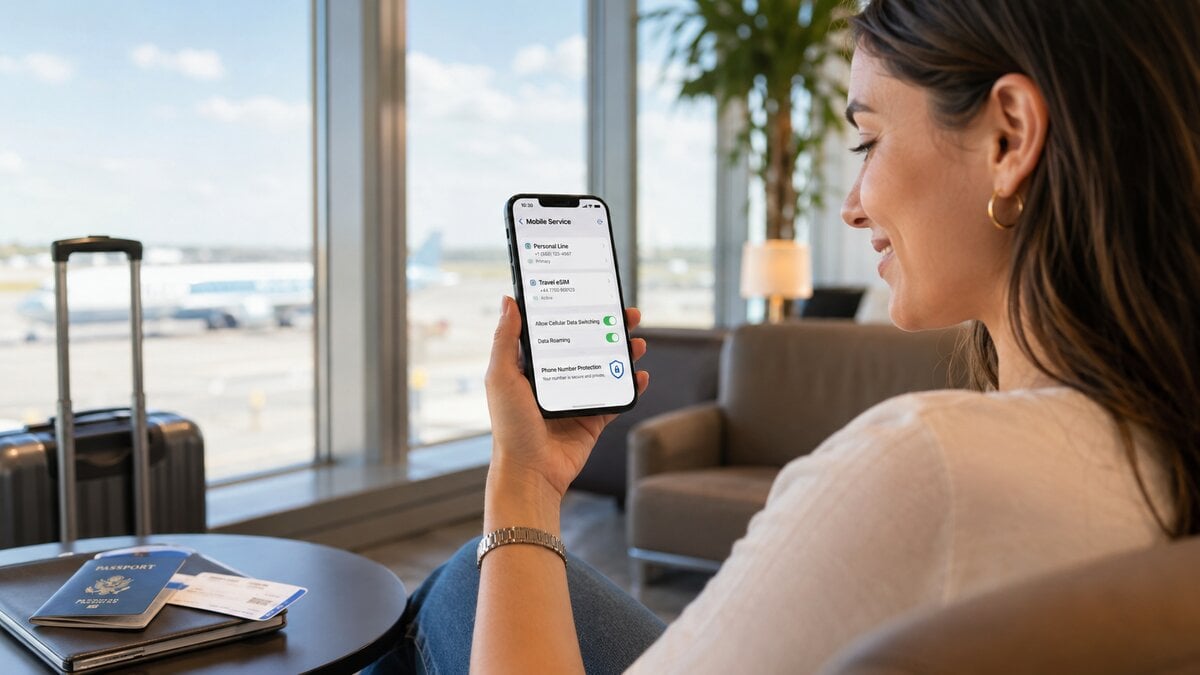
As mentioned earlier, keeping your number safe is not only about mobile data settings. It also means protecting the phone, SIM, carrier account, and recovery methods linked to that number.
Your phone number can also be targeted through SIM swap attempts or carrier account takeover, particularly if your mobile account is protected only by a weak password or easy recovery questions.
Before travelling:
- Set a strong screen lock.
- Enable Face ID, Touch ID, fingerprint unlock, or equivalent.
- Turn on Find My iPhone or Find My Device.
- Back up your phone.
- Protect your carrier account with a strong password and account PIN if available.
- Use an authenticator app where possible.
- Save backup codes securely.
- Avoid using public Wi-Fi for banking unless the connection is secure.
- Avoid clicking SMS links about missed deliveries, tolls, bank alerts, or travel refunds.
- Keep QR codes and activation details private.
- Save hotel, airline, insurer, and embassy details offline.
If your phone is lost or stolen overseas, contact your mobile carrier quickly so they can help protect the number and service attached to it. Additionally, you can use remote tracking or remote lock tools where available.
Common Mistakes Travellers Make
These are some of the most common setup issues travellers run into after landing.
Deleting the eSIM Too Early
One of the most damaging troubleshooting mistakes is deleting an eSIM as soon as data does not connect. In many cases, the eSIM profile is installed correctly and the issue is simply the data line, roaming toggle, APN setting, or network selection.
Assuming WhatsApp Needs a New Number
Travellers sometimes see a prompt and think they need to change their WhatsApp number. In most cases, they should keep the existing WhatsApp number and use the travel eSIM only for data.
Leaving Mobile Data Switching On
Mobile data switching can allow the phone to fall back to the home line when the travel eSIM signal changes. That can create roaming cost risk if the home line is not protected.
Relying Only on SMS Codes
Banking, email, and work logins can become difficult if SMS does not arrive overseas. Add backup login methods before departure.
Storing the QR Code Only in Email
If email access fails at the airport, you may not be able to access the setup details. Save the QR code and manual activation details offline.
What to Do at Airport Arrival
After landing:
- Turn off airplane mode.
- Turn on the travel eSIM line.
- Set mobile data to the travel eSIM.
- Enable roaming for the travel eSIM if the instructions require it.
- Keep home-line data roaming off.
- Test maps, messaging, and a basic web page before leaving the terminal.
If it does not connect, do not delete the eSIM. Check settings first, then contact support with screenshots.
Troubleshooting Table
| Problem | Likely cause | What to do |
|---|---|---|
| Australian number seems missing | Home line is off, renamed, hidden, or deleted | Check SIM settings and look for the original home line |
| WhatsApp asks to change number | WhatsApp detected a new mobile line | Keep your existing number unless you want to change accounts |
| SMS codes do not arrive | Home line is off or roaming SMS is unavailable | Turn on the home line and check carrier SMS roaming rules |
| eSIM has signal but no data | Wrong data line, roaming off, APN issue, or coverage issue | Set data to travel eSIM, check roaming and APN instructions |
| Phone uses home SIM for data | Mobile data switching is on | Turn off mobile data switching and select travel eSIM for data |
| QR code will not scan again | QR may be single-use or already installed | Stop rescanning and contact support |
| Hotspot does not work | Plan, device, or network restriction | Check product details before relying on hotspot |
| Data is slow | Congestion, signal, network selection, or allowance issue | Check coverage and manual network instructions |
| Phone is lost or stolen | Device theft or loss | Contact your carrier, lock the device remotely, and secure key accounts |
The key rule: check settings first, contact support next, delete only if instructed.
What You Shouldn’t Do When Using Travel eSIMs
Avoid deleting the travel eSIM too early. Many travel eSIMs cannot simply be scanned again after removal.
Be careful with the home eSIM as well. Deleting it can remove your Australian number from the device until your carrier helps you restore it.
Repeatedly rescanning the QR code can also make things worse. Some QR codes are single-use or become linked to the first device after installation.
Do not assume a locked phone will work. If your phone is locked to an Australian carrier, a travel eSIM may fail.
Watch mobile data switching. It can allow the phone to fall back to your home line for data.
Keep QR codes and activation details private. Treat them like travel documents.
Do not rely only on SMS for account recovery. Use backup codes, authenticator apps, secure email access, and a password manager where possible.
How TravelKon Users Should Prepare
TravelKon users should separate phone settings from product instructions.
Your phone settings control:
- Mobile data line.
- Calls.
- SMS.
- Roaming.
- Hotspot.
- SIM labels.
The TravelKon product instructions explain:
- When to install.
- When the plan activates.
- Whether roaming must be on.
- Whether hotspot is included.
- Whether APN settings are needed.
- Which destinations and networks are supported.
Before choosing a plan, check the destination, data allowance, validity period, hotspot rules, activation timing, and whether the eSIM is data-only. As such, holidaymakers heading straight to Kuta or Ubud will want to ensure their Bali eSIM covers their entire stay without requiring a top-up mid-trip.
If your broader itinerary includes exploring other islands across the archipelago, upgrading to a comprehensive Indonesia eSIM data plan ensures you stay connected outside the main tourist hubs. Also, save your order number, setup email, QR code, manual activation details, destination coverage, APN notes, and support contact details before departure.
If the eSIM is installed but does not connect after arrival, keep it installed. Take screenshots of the eSIM profile, mobile data selection, roaming toggle, network selection, and any error message.
When to Contact TravelKon Support
Contact our support team before doing anything permanent, especially if:
- The QR code will not scan.
- The eSIM appears installed but will not connect.
- Mobile data does not work after arrival.
- The wrong destination or plan may have been selected.
- The eSIM has been deleted.
- The phone says the eSIM is unsupported.
- The device may be carrier-locked.
- APN settings are unclear.
- Hotspot is not working.
- The phone shows an error message.
Send:
- Order number.
- Destination country.
- Device model.
- Operating system version.
- Screenshot of the installed eSIM profile.
- Screenshot of mobile data settings.
- Screenshot of roaming settings.
- Screenshot of any error message.
- Whether the phone is carrier-unlocked.
- Whether the eSIM has already been deleted.
- Whether Wi-Fi is available.
- Whether the issue began before departure or after arrival.
Good screenshots can reduce back-and-forth and help support diagnose the issue faster.
Final Checklist
Before relying on your phone overseas, confirm:
- Home SIM or eSIM is still installed.
- Travel eSIM is installed.
- Both mobile lines are labelled clearly.
- Mobile data is set to the travel eSIM.
- Home-line data roaming is off unless roaming is included and understood.
- Travel eSIM roaming is on only if the instructions require it.
- Important apps have been opened and tested.
- QR code and setup details are saved offline.
- Phone lock and remote tracking are enabled.
- Backup login methods are saved.
- Hotspot rules have been checked.
- Support details are easy to access.
FAQs
Can a travel eSIM change my regular phone number?
No. A travel eSIM should not change your regular phone number by itself. Your number stays attached to your home mobile service.
How do I keep my phone number safe with a data-only eSIM?
Keep your home SIM or eSIM installed, set mobile data to the travel eSIM, turn off data roaming on the home line, and avoid deleting either SIM profile during troubleshooting.
Will WhatsApp still work with my usual number?
Yes, usually. WhatsApp can keep using your existing number while your phone gets internet through a travel eSIM. Do not re-register WhatsApp with a different number unless you want to change accounts.
Can I receive calls on my normal number overseas?
Possibly. It depends on your carrier, roaming settings, plan type, and destination. Receiving or making calls overseas may create roaming charges, so check before departure.
Will I get charged for receiving SMS overseas?
It depends on your carrier and plan. Some carriers allow incoming SMS overseas without extra charges, while others may apply roaming conditions. Check your carrier’s overseas SMS rules before relying on SMS codes.
Does turning off roaming disable SMS?
Usually, turning off data roaming only stops mobile data roaming. Calls and SMS are controlled separately, but exact behaviour can vary by device and carrier.
Should I turn my home line off overseas?
Only if you do not need calls or SMS. If you need SMS codes, your home line may need to stay active, but home-line data roaming should still be off unless roaming is included and understood.
Can I transfer my eSIM to a new phone while travelling?
Not always. Some travel eSIMs cannot be moved once installed. Contact support before deleting or trying to transfer the eSIM.
What should I do if the eSIM does not work at the airport?
Check that airplane mode is off, the travel eSIM is on, mobile data is set to the travel eSIM, and roaming is enabled if required. If it still fails, use Wi-Fi and contact support with screenshots and order details.
Takeaways
Leaving your primary mobile number vulnerable while overseas isn’t just an inconvenience; it is a major security risk to your digital footprint. Today, your phone number is the master key to your bank accounts, multi-factor authentication (MFA) logins, secure messaging, and critical travel itineraries.
Swapping out your regular SIM or relying on unsecured public Wi-Fi leaves this vital link exposed. By separating your home line from your holiday data using a dedicated travel eSIM, you build a digital firewall around your identity.
Finalising your dual-SIM configuration and securing your carrier account before heading to the departure gate ensures you maintain absolute control. Treat your mobile identity with the same care as your physical passport.