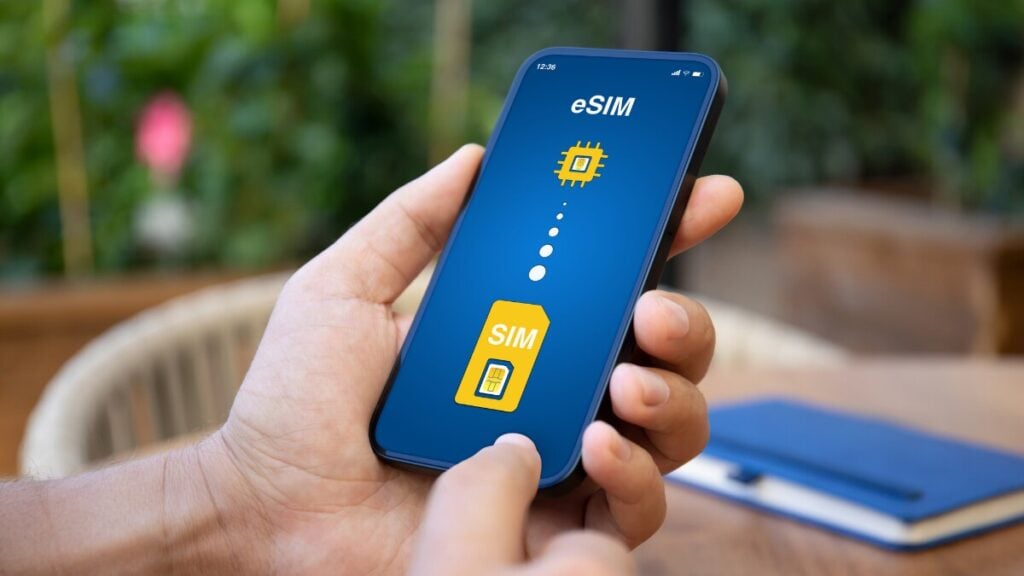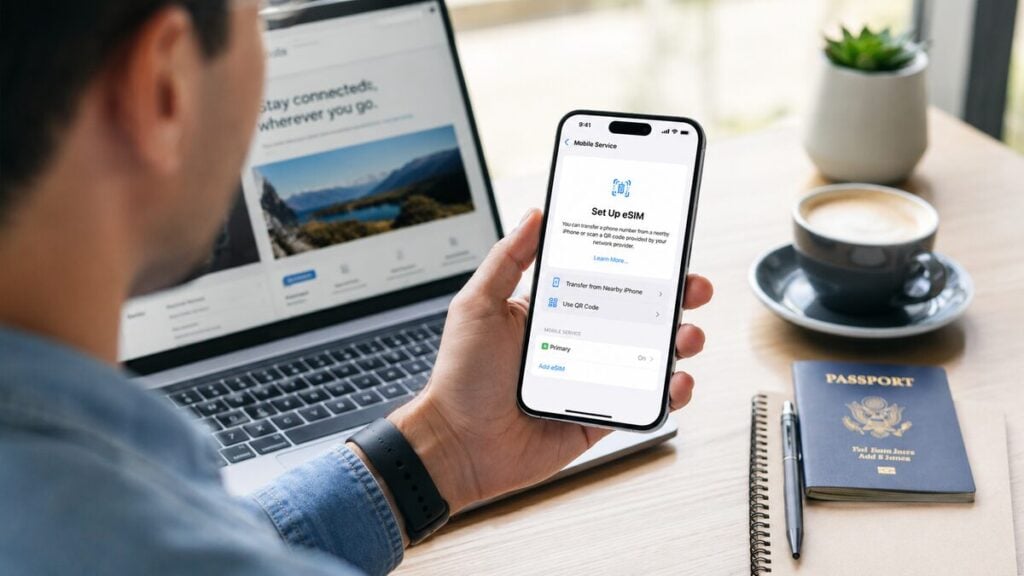
A travel data plan can be ready before departure, but the device you are using still has to pass the right checks first: model, region, carrier lock, mobile data settings and activation timing. If you have used a travel eSIM before, you must be aware that the safest setup starts before the QR code is scanned, not after the airport arrival screen says No Service.
Does iPhone 17 Support eSIM?
Yes. An Australian-bought iPhone 17, iPhone 17 Pro or iPhone 17 Pro Max supports eSIM and can use a TravelKon eSIM when the phone is unlocked, updated and set up correctly.
The key detail is that iPhone 17 does not provide enough information by itself. Your region is equally important. Australian models support nano-SIM and eSIM, while models bought in some overseas markets are eSIM-only. Mainland China, Hong Kong and Macao models need extra checking before buying any travel eSIM.
Use this quick rule before purchase:
| Device Situation | TravelKon eSIM Readiness | What to Check |
|---|---|---|
| iPhone 17 bought in Australia | Strong | EID, No SIM Restrictions, iOS version and destination plan |
| iPhone 17 Pro or Pro Max bought in Australia | Strong | Same checks, plus dual SIM settings |
| iPhone Air bought in Australia | Strong, but eSIM-only | No physical SIM fallback, so install carefully |
| iPhone 17 bought in the US or selected overseas markets | Strong, but eSIM-only | Unlock status and QR code setup details |
| iPhone 17 bought in mainland China | Not safe to assume | Confirm EID and eSIM support before buying |
| iPhone 17 bought in Hong Kong or Macao | Needs extra checking | Check EID, model number and SIM type |
An iPhone 17 eSIM setup is usually straightforward for Australian travellers, but only after the phone passes the region, lock and settings checks.
Is iPhone 17 eSIM-Only?
It depends where the iPhone 17 was bought. In Australia, iPhone 17, iPhone 17 Pro and iPhone 17 Pro Max support both nano-SIM and eSIM. That means an Australian traveller can usually keep a physical Australian SIM active and use a TravelKon eSIM for mobile data overseas.
In selected overseas markets, iPhone 17 models are eSIM-only. Current SIM rules place iPhone 17, iPhone 17 Pro, iPhone 17 Pro Max, iPhone 17e and iPhone Air models bought in 12 markets into the eSIM-only group: the United States, United States Virgin Islands, Canada, Mexico, Japan, Guam, United Arab Emirates, Saudi Arabia, Bahrain, Kuwait, Qatar and Oman.
For Australian travellers, the important point is simple: an Australian iPhone 17 is not eSIM-only, but many overseas iPhone 17 models are.
iPhone 17 eSIM Compatibility by Region
| Where the iPhone 17 Was Bought | SIM Type | TravelKon eSIM Compatibility |
|---|---|---|
| Australia | nano-SIM + eSIM | Yes, if unlocked |
| United States | eSIM-only | Yes, if unlocked |
| Canada, Japan, Mexico and selected Gulf markets | eSIM-only | Yes, if unlocked |
| United States Virgin Islands and Guam | eSIM-only | Yes, if unlocked |
| Mainland China | iPhone 17, 17 Pro and 17 Pro Max should not be assumed eSIM-ready | Check EID and eSIM settings before purchase |
| Hong Kong and Macao | Model-dependent; some models use two physical SIMs | Check EID and model details before purchase |
| Other countries | Usually nano-SIM + eSIM | Confirm model number and EID |
Do not confuse iPhone 17 with iPhone 17e or iPhone Air. SIM and eSIM rules can differ by model and region. Whether you are planning a trip to a nearby hub like Europe or further afield, always verify your model’s regional support first.
Australian iPhone 17 Model Numbers to Check
For an Australian-bought device, these are the key model numbers to check in Settings > General > About.
| Australian Model | Model Number | SIM Support |
|---|---|---|
| iPhone 17 | A3520 | nano-SIM + eSIM; Dual eSIM support |
| iPhone 17 Pro | A3523 | nano-SIM + eSIM; Dual eSIM support |
| iPhone 17 Pro Max | A3526 | nano-SIM + eSIM; Dual eSIM support |
If the model number is different, the phone may still support eSIM, but the region rules should be checked before buying a travel eSIM.
An Australian iPhone 17 is a good match for a TravelKon eSIM when the device shows EID, says No SIM Restrictions, and the TravelKon plan covers the destination. The main setup risk is not the iPhone 17 itself. It is usually carrier lock, overseas model variation, wrong mobile data line, roaming being off, or scanning the QR code at the wrong time.
Why This Matters for Australian Travellers
Australian residents recorded 12,261,080 short-term overseas returns in 2024–25. Holidays made up 60.0% of those trips, with a median trip length of 15 days.
The eSIM market is growing quickly too. Global eSIM shipments reached 605 million in 2025, and consumer eSIM profile downloads rose 43%. That growth makes eSIM compatibility a normal pre-travel check, not a technical afterthought.
How to Check Whether Your iPhone 17 Supports eSIM
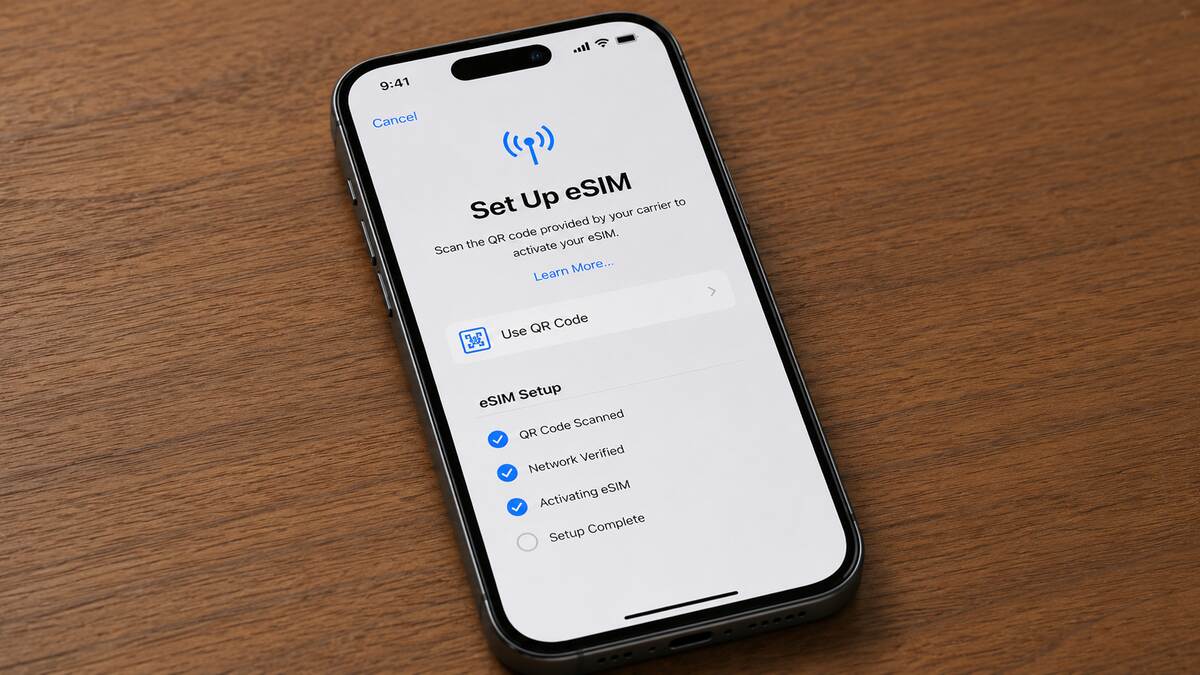
Start with the phone in hand. Do not rely only on the box, a marketplace listing or the words “unlocked iPhone” in a reseller description.
Check the Model and Region
Go to Settings > General > About and review:
- Model Name
- Model Number
- Service Provider Lock or Carrier Lock
- EID
The EID is the clearest quick sign that the phone has eSIM hardware available to iOS. If the EID does not appear, stop and confirm the exact model before buying a travel eSIM.
Check the Carrier-Lock Status
Under Settings > General > About, look for Service Provider Lock or Carrier Lock.
The safe result is No SIM Restrictions. If the phone is locked to a carrier, a TravelKon eSIM may not activate or connect, even when the iPhone itself supports eSIM. Carrier unlocking must be handled by the original provider.
Update iOS Before Departure
Install the latest available iOS update before travel. An outdated iOS version can affect eSIM installation screens, transfer options and mobile service behaviour.
Avoid major system updates during a layover or at airport arrival unless the phone has stable Wi-Fi, battery and time.
Use the EID Check Before Buying
For the fastest “does my phone support eSIM” check:
- Open Settings.
- Tap General.
- Tap About.
- Look for EID.
- Check Service Provider Lock.
- Confirm the iPhone model and region.
If EID is visible and the phone shows No SIM Restrictions, the device is usually ready for a TravelKon eSIM, subject to destination coverage and product instructions.
For a wider walkthrough, use our detailed guide on how to check phone eSIM support before purchase.
How Many eSIMs Can iPhone 17 Store?
An iPhone can manage up to 8 or more eSIMs, which is useful for frequent travellers. Supported iPhones can also use two active lines at once.
For travel, that usually means:
- The Australian SIM or eSIM can remain active for calls, SMS and banking codes.
- The TravelKon eSIM can be selected for mobile data.
- Only one mobile data line should be used at a time unless there is a clear reason to allow mobile data switching.
- Old travel eSIMs should be removed only after the trip is finished and the plan is no longer needed.
What Australian Travellers Should Check Before Buying
Again, eSIM compatibility is determined by device, region, carrier lock and plan fit. A compatible iPhone can still fail at setup if the phone is locked, the wrong mobile data line is selected, data roaming is off for the TravelKon eSIM, or the plan does not match the destination.
For Australian travellers comparing travel eSIM Australia options, the better question is not only whether the device can install an eSIM. The better question is whether that exact phone can install that exact travel plan, use it in the destination country, and keep the Australian number controlled during the trip.
Before Purchase
Check these items before payment:
- The iPhone has an EID.
- The phone shows No SIM Restrictions.
- The destination appears on the TravelKon product page.
- The trip dates fit the validity window.
- The plan type matches the use case: maps, messaging, work apps, hotspot or heavy video use.
- The installation instructions can be accessed from another device if the iPhone is offline.
Before Scanning the QR Code
Check these items before installation:
- Wi-Fi is stable.
- The iPhone has enough battery.
- The QR code and manual setup details are saved.
- The Australian SIM remains controlled, especially for roaming.
- The TravelKon eSIM can be clearly labelled, such as TravelKon, Travel Data or the destination name.
iPhone 17 eSIM Setup Methods
Not every eSIM setup method is used for travel data. Some methods are for home carriers, while others are more relevant to a prepaid travel eSIM.
| Setup Method | Best For | TravelKon Relevance |
|---|---|---|
| QR code | Installing a prepaid travel eSIM | Main TravelKon setup method |
| Manual setup details | QR code cannot be scanned | Useful backup method |
| Carrier app | Activating a home carrier plan | Usually not used for TravelKon travel data |
| eSIM Quick Transfer | Moving a home number from an older iPhone | Not usually used for travel eSIMs |
| Carrier activation | New phone plans from supported carriers | Usually not relevant to TravelKon setup |
For a TravelKon eSIM, the usual path is QR code setup or manual setup details from the installation email.
How to Install or Prepare a TravelKon eSIM
A good travel eSIM setup starts at home, not at the gate.
Buy the Correct Destination Plan
Choose the TravelKon eSIM that matches the country or region of travel. Check the data allowance, validity, supported networks where shown, roaming settings, APN notes and hotspot information. For example, if you are heading to a tech-forward destination, a dedicated Japan eSIM can often provide better local network prioritisation.
Save the QR Code and Setup Details
Keep the QR code, manual installation details, order number and product name somewhere accessible offline. A second device, printed copy or saved PDF can help if the iPhone loses internet during setup.
Install on Stable Wi-Fi
On iPhone, go to Settings > Mobile Service > Add eSIM. Select Use QR Code, scan the code and follow the prompts.
If scanning is not available, use the manual setup details from the TravelKon installation email.
Label the eSIM Clearly
Use a simple label such as TravelKon, Travel Data or Japan Data. Clear labels make it easier to choose the correct mobile data line later.
Set Mobile Data Carefully
Before departure, keep the Australian SIM as the default line if it is still needed for calls, SMS or banking codes. At destination, set the TravelKon eSIM as the mobile data line.
Turn On Roaming for the Travel eSIM
Many travel eSIMs require data roaming to be switched on for the travel line. This is not the same as enabling roaming on the Australian SIM. Check the line name before changing roaming settings.
Connect After Arrival
At airport arrival, turn off aeroplane mode, wait for the local network to appear, then test mobile data with Wi-Fi switched off.
Some plans complete activation only after the phone reaches a supported destination network.
Which TravelKon eSIM Should You Choose for iPhone 17?
The right TravelKon eSIM depends on trip type, not only device type.
| Travel Need | Better Fit |
|---|---|
| One-country holiday | Single-country eSIM |
| Multi-country trip | Regional eSIM |
| Heavy maps, social media and messaging | Higher data plan |
| Laptop or tablet use | Plan with hotspot support where available |
| Setup before departure | Plan with clear activation timing |
| Unclear device compatibility | Support check before purchase |
A TravelKon eSIM is usually the cleanest option when the iPhone 17 is unlocked, the destination is covered, and the traveller wants mobile data ready without relying on expensive roaming.
Mobile Data, Roaming Settings and Dual SIM Behaviour
The iPhone 17 can use only one mobile data network at a time. That matters when an Australian SIM and TravelKon eSIM are both active.
The cleanest travel setup is usually:
- Australian SIM kept on for calls, texts or banking codes if needed.
- TravelKon eSIM selected for mobile data.
- Data roaming enabled only on the TravelKon eSIM unless the home plan includes safe international roaming.
- Mobile data switching turned off unless there is a clear reason to let iOS switch between lines.
If the Australian SIM is still selected for mobile data after landing, the TravelKon eSIM may be installed correctly but unused. This is one of the most common setup mistakes.
Common Limitations and Edge Cases
Locked Phones
A locked iPhone can block a travel eSIM even when the model supports eSIM. Unlocking must be handled by the original carrier.
Overseas Region Variants
Two iPhone 17 devices can look identical but have different SIM behaviour depending on where they were bought. Australian models are generally easier for Australian travellers because the local specs and service wording match local expectations.
iPhone Air and eSIM-Only Travel
iPhone Air is eSIM-only and does not support physical SIM cards. That can work well for travel, but it removes the physical SIM fallback. Setup discipline matters more: keep setup details, avoid deleting the eSIM mid-trip, and confirm transfer rules before changing phones.
Wi-Fi-Only Tablets
A Wi-Fi-only iPad cannot use a mobile eSIM. Only Wi-Fi + Cellular iPad models can use cellular plans. This matters when travellers try to use an iPhone eSIM plan on a tablet instead.
Apple Watch Pairing
An Apple Watch cellular plan is not the same as a travel eSIM for an iPhone. Watch support depends on carrier pairing and plan rules. Treat the iPhone as the primary travel data device unless the product instructions clearly say otherwise.
Hotspot and Tethering
Hotspot support can depend on the eSIM plan, local network and device settings. If hotspot matters for a laptop or tablet, check the product details before buying. A plan can have working mobile data while hotspot still needs a separate check.
Deletion and Transfer Limits
Some travel eSIM QR codes are single-use or have transfer restrictions. Deleting the eSIM can remove the installed profile from the phone. Turning the line off is safer than deleting it while the trip is still active.
Corporate or Managed Phones
Work-managed iPhones can have restrictions on adding mobile plans, changing APN settings or using hotspot. Check with the device administrator before buying a travel eSIM.
Troubleshooting Checklist
Use this sequence before changing multiple settings at once.
| Problem | First Check | Next Step |
|---|---|---|
| eSIM will not install | Wi-Fi, QR code and EID | Try manual setup details if provided |
| eSIM appears but has no service | Destination network and activation timing | Wait after arrival, then restart |
| eSIM has signal but no data | Mobile data line | Select the TravelKon eSIM for mobile data |
| Data still fails | Roaming setting | Turn roaming on for the TravelKon line |
| Data works on Wi-Fi only | Wi-Fi masking the issue | Turn Wi-Fi off and test mobile data |
| APN error or no data | APN field | Enter only the APN from product instructions |
| Network keeps failing | Automatic network selection | Try a supported local network manually |
| QR code says already used | eSIM may already be installed | Stop rescanning and contact TravelKon support |
| Phone shows SIM not supported | Carrier lock | Check No SIM Restrictions |
| Hotspot fails only | Plan or network tethering rules | Check hotspot availability separately |
If the eSIM is visible under Mobile Service, the installation probably succeeded. The issue is usually mobile data selection, roaming settings, APN, network selection or destination activation timing.
What TravelKon Support Will Ask For
Before contacting our support team, prepare these details:
- iPhone model name
- Model number
- Whether EID is visible
- Service Provider Lock status
- Destination country or region
- TravelKon order number
- Product name
- Screenshot of the Mobile Service screen
- Whether the eSIM was purchased, installed, activated or deleted
- Whether mobile data, roaming, APN and network selection have already been checked
Do Not Delete the eSIM During Travel
Deleting a travel eSIM during an active trip can create a bigger problem than the original connection issue.
Turn the line off instead of deleting it unless:
- The trip is finished.
- The plan has expired.
- TravelKon support has advised deletion.
- The eSIM was installed incorrectly and support has confirmed the next step.
If the QR code is single-use, deleting the eSIM may prevent reinstallation.
FAQs
Does iPhone 17 eSIM Work with TravelKon?
Yes. An Australian-bought iPhone 17 should work with a TravelKon eSIM when the phone is unlocked, supports eSIM in Settings and is configured with the correct mobile data and roaming settings.
Is iPhone 17 eSIM-Only?
In Australia, iPhone 17, iPhone 17 Pro and iPhone 17 Pro Max are not eSIM-only. They support nano-SIM and eSIM. In the US and selected overseas markets, iPhone 17 models are eSIM-only.
Does iPhone 17 Have a SIM Card Slot in Australia?
Yes. The Australian iPhone 17, iPhone 17 Pro and iPhone 17 Pro Max support nano-SIM and eSIM. The answer can change for overseas models, so check the model number and EID before buying a travel eSIM.
Can You Use Two eSIMs on iPhone 17?
Yes. Supported iPhones can use two active eSIM lines, but only one line should be selected for mobile data unless mobile data switching is intentionally enabled.
Can You Keep an Australian Number Active?
Yes. The Australian SIM or eSIM can usually stay active for calls, SMS and banking codes while the TravelKon eSIM handles mobile data. Keep roaming controlled on the Australian line to avoid unwanted charges.
Can You Set Up a TravelKon eSIM Before Departure?
Yes. Installing before departure is usually sensible when the product instructions allow it. Some plans activate on installation, while others activate when the phone connects to a supported overseas network. Check the product instructions before scanning.
Should the Travel eSIM Be Turned On at Airport Arrival?
At airport arrival, the TravelKon eSIM should be switched on, selected for mobile data and allowed to roam if the product instructions require roaming. Turn Wi-Fi off briefly when testing so the phone is forced to use mobile data.
Can You Use Hotspot with an iPhone 17 Travel eSIM?
Hotspot may work when the eSIM plan, local network and iPhone settings allow it. Check hotspot availability on the product page before relying on it for work, maps on another device or a laptop connection.
Will a TravelKon eSIM Change the Australian Phone Number?
A travel data eSIM does not usually replace the Australian phone number. The Australian SIM can remain active for calls or SMS if needed, while the TravelKon eSIM handles mobile data.
Why Does an iPhone 17 eSIM Show No Service After Landing?
The most common causes are mobile data still being assigned to the Australian SIM, data roaming being off for the travel eSIM, the phone not yet connecting to a supported local network, or the plan activating only after arrival.
Is It Safe to Delete an iPhone 17 eSIM?
Deleting a travel eSIM is risky before the trip is finished. Some eSIMs cannot be reinstalled with the same QR code. Turn the line off instead of deleting it unless the plan is finished or TravelKon support gives that instruction.
Can You Transfer an iPhone 17 eSIM to Another Phone?
Transfer rules depend on the eSIM provider, product type and carrier system. Some eSIMs support transfer, while others are single-install. Confirm transfer rules before wiping, selling or replacing the phone.
What If the iPhone 17 Was Bought Overseas?
Check the model number, EID and lock status before purchase or installation. Overseas iPhone 17 variants can differ by SIM tray, eSIM-only design and regional support. The safest proof is the phone showing EID and No SIM Restrictions in Settings.
Takeaways
Treat iPhone 17 eSIM compatibility as a practical travel check, not a simple model-name answer. An Australian-bought iPhone 17 is usually a strong match for a TravelKon eSIM, but the real pass comes from four checks: eSIM support, region variant, carrier-lock status and correct travel eSIM setup.
Before departure, confirm the EID, update iOS, save the QR code, check the TravelKon product instructions and understand which SIM line will handle mobile data. If the result is unclear, contact TravelKon support before buying or scanning. Whether you need a US eSIM for a cross-country road trip or a smaller regional plan, the setup principles remain the same. And that is the simplest way to avoid a roaming mistake, a used QR code problem or a stressful airport arrival with no data.