Running two SIMs should feel like freedom, not a guessing game with roaming charges. Yet one wrong toggle can shift your data line and start billing on the wrong network while you scroll, stream, or map your way around a new city. There’s real precedent behind that risk. Across recent telecom consumer research, around 18% of users report experiencing bill shock, with international roaming consistently ranked among the top contributing factors. Before your next trip, it helps to compare TravelKon travel eSIMs and understand how your device decides which SIM handles data.
A few deliberate settings, a quick pre-flight check, and a habit of locking your preferred line can keep costs predictable and your connection steady wherever you land.
What is Cellular Data Switching?
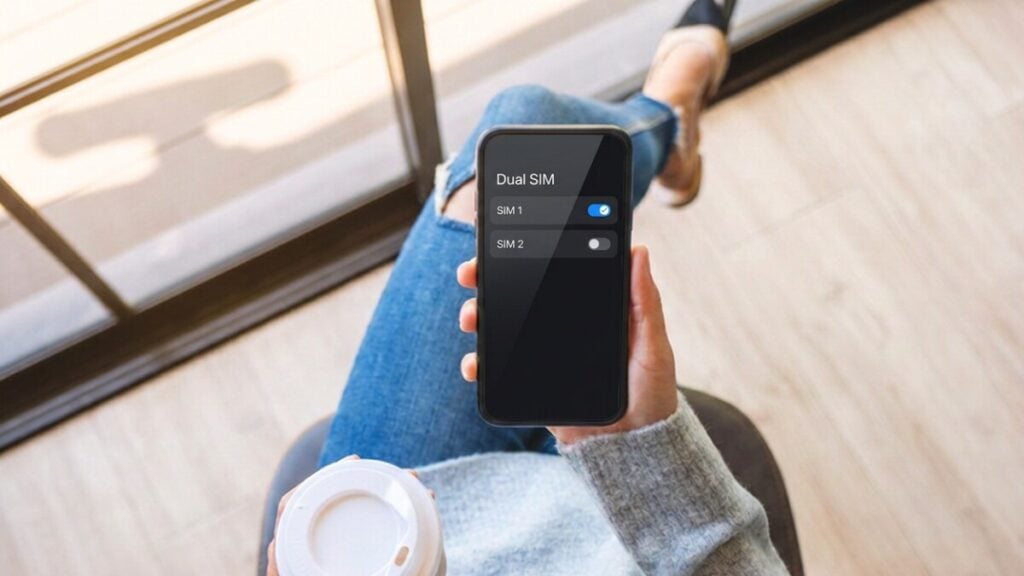
Cellular data switching is when a compatible dual-SIM phone uses another active line for mobile data when the selected line cannot connect or, on iPhone, during certain calls.
When travelling, select the travel eSIM for mobile data, turn automatic switching off and disable data roaming on the Australian line. Your home number can remain active for calls, SMS and one-time passwords, although calls, voicemail and outgoing messages may incur separate roaming charges.
Data Switching Versus Data Roaming
These settings control different parts of the connection:
| Setting | What It Controls |
|---|---|
Cellular or mobile data switching | Which active SIM supplies mobile data |
Data roaming | Whether an individual SIM can use an overseas partner network |
Your phone cannot compare plan prices, roaming rates or remaining data allowances. Automatic switching is a connectivity feature, not a cost-control feature. It does not know which SIM is cheaper.
How to Switch Mobile Data Between SIMs
Changing the mobile data line does not automatically disable your other number. Calls and messages can remain assigned to the Australian SIM while the travel eSIM supplies data.
A dual-SIM iPhone can use one cellular data network at a time. Pixel and Samsung phones generally work the same way, although Android menu names vary.
On iPhone
- Open Settings.
- Tap Mobile Service, Mobile or Mobile Data.
- Tap Mobile Data or Cellular Data.
- Select the travel eSIM.
- Turn off Allow Cellular Data Switching or Allow Mobile Data Switching.
On iOS 26, a Turn On Travel eSIM notification may offer Travel eSIM Only or Travel eSIM and Current eSIM. Selecting both keeps the Australian line active while assigning the travel eSIM to data. You must still check the Australian line’s roaming settings.
Leave Default Voice Line on the Australian SIM if you want to place calls from that number.
On Google Pixel
- Open Settings > Network & Internet > SIMs.
- Confirm that Mobile Data is enabled.
- Select the travel eSIM as the mobile data line.
- Turn off Automatic Data Switching unless fallback is intentional.
On Samsung Galaxy
- Open Settings > Connections > SIM Manager.
- Under Preferred SIMs, tap Mobile Data.
- Select the travel eSIM.
- Turn off Data Switching, Auto Data Switching or Data Switching and Backup Calling if it appears.
Some Galaxy phones also allow you to change the preferred SIM through the Quick Panel. Menu names depend on the phone, Android version, carrier and region.
If both lines have generic names, label them accordingly before changing anything. On iPhone, select the line and change its Mobile Plan Label. On Pixel and Samsung, rename it through the SIM settings.
If the travel profile is missing, check whether you still need to install an eSIM. Before purchasing another plan, you need to check whether your phone supports eSIM and is unlocked for another provider.
Calls through WhatsApp, FaceTime and similar services can use the travel plan’s internet connection. Our blog on how to make calls with a data-only eSIM can help you avoid unexpected charges.
Safe Dual-SIM Settings for Overseas Travel

Use these settings when the travel eSIM should provide all mobile data:
| Setting | Recommended Setup |
|---|---|
Mobile data line | Travel eSIM |
Australian-line data roaming | Off |
Travel-line data roaming | Follow the plan instructions; often on |
Automatic data switching | Off |
Australian line | On only if calls, SMS or OTP access is needed |
Default calls | Home or Ask Every Time |
Selecting the travel eSIM is the first safeguard. Turning off data roaming specifically on the Australian line provides a second.
On iPhone, open Settings > Mobile Service, select the Australian line, tap Mobile Data Options and turn Data Roaming off.
If you are using a Pixel phone, open Settings > Network & Internet > SIMs, select the Australian SIM and turn Roaming off.
On Samsung, check Settings > Connections > Mobile Networks and SIM Manager. Confirm which SIM the roaming control applies to before changing it.
Many travel eSIMs require data roaming on the travel line because they connect through partner networks. Follow the instructions for the specific plan rather than copying the Australian line’s setting.
For most travellers, automatic switching should remain off. If the travel eSIM loses coverage, data should stop instead of falling back to the Australian line. This layered setup helps avoid roaming charges overseas.
On iPhone, switching to the voice line during a call is not universal. Call-time switching does not work when the current data line is using Data Roaming, and carrier support also affects the behaviour.
Note: Do not delete the travel eSIM, rescan its QR code or reset all network settings because the wrong line is supplying data. Those actions will not correct the selected line and may remove a profile connected to a single-use activation code.
Run the 60-Second Dual-SIM Roaming Test
After arriving at the destination:
- Confirm that Australian-line roaming and automatic switching are off.
- Check if the travel eSIM is on and selected for mobile data.
- Turn Wi-Fi off.
- Load a new webpage or request fresh directions in a map app.
- Temporarily turn off the travel eSIM. Mobile data should stop.
- Turn the travel eSIM back on and confirm that the connection returns.
Do not rely on signal bars alone. Both SIMs can show reception even though only one is supplying mobile data.
If data continues after the travel line is switched off, enable Aeroplane Mode and recheck the assignments before using more data.
If the Setting Is Missing or Data Still Fails
A missing or greyed-out switching option usually means that only one line is active, the second profile has not finished activating or the device does not support simultaneous dual-SIM operation.
Confirm that both lines are installed and turned on. If the travel eSIM has no service, enable Aeroplane Mode for about 30 seconds, turn it off once and test again.
Contact the appropriate support team if the problem continues:
- TravelKon support: The travel profile has disappeared, the activation code shows as already used, the plan remains stuck on Activating, or a valid plan still has no data after the required settings have been checked.
- Australian carrier: Roaming data has been recorded despite roaming being disabled, or an account-level international roaming block is required.
- Phone manufacturer or device carrier: The switching option remains unavailable even though two compatible lines are active.
Provide the destination, phone model, software version, plan name, order number where relevant and screenshots of the SIM settings.
Device paths were checked against current Apple, Google and Samsung support documentation in August 2026. Menu wording may vary by model, carrier and region.
FAQs
What Does Allow Cellular Data Switching Do?
It lets a compatible dual-SIM phone use another active line for mobile data in supported coverage or call situations. It does not compare prices or remaining allowances.
Should Data Switching Be Off When Travelling?
Usually, yes. Turn it off when the Australian line could incur roaming fees and the travel eSIM should provide all mobile data.
Can You Keep Your Australian Line On for Calls and Texts?
Yes. It can remain active while the travel eSIM supplies data. Calls, voicemail and outgoing messages may still attract roaming charges.
How Do You Stop Your Home SIM From Using Mobile Data Overseas?
Select the travel eSIM for mobile data, disable roaming on the Australian SIM and turn off automatic data switching. Ask the home carrier about an account-level roaming block if maximum protection is required.