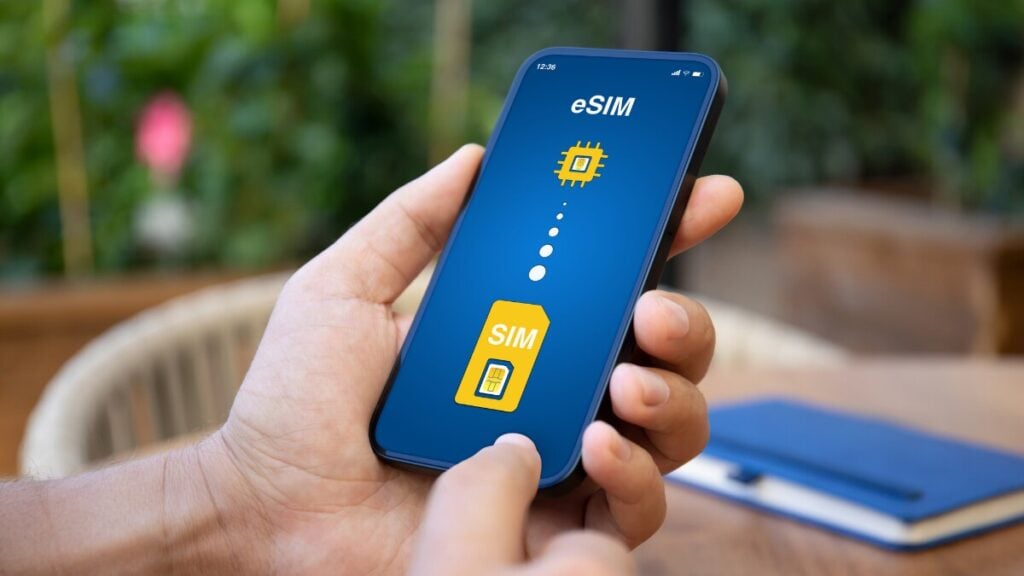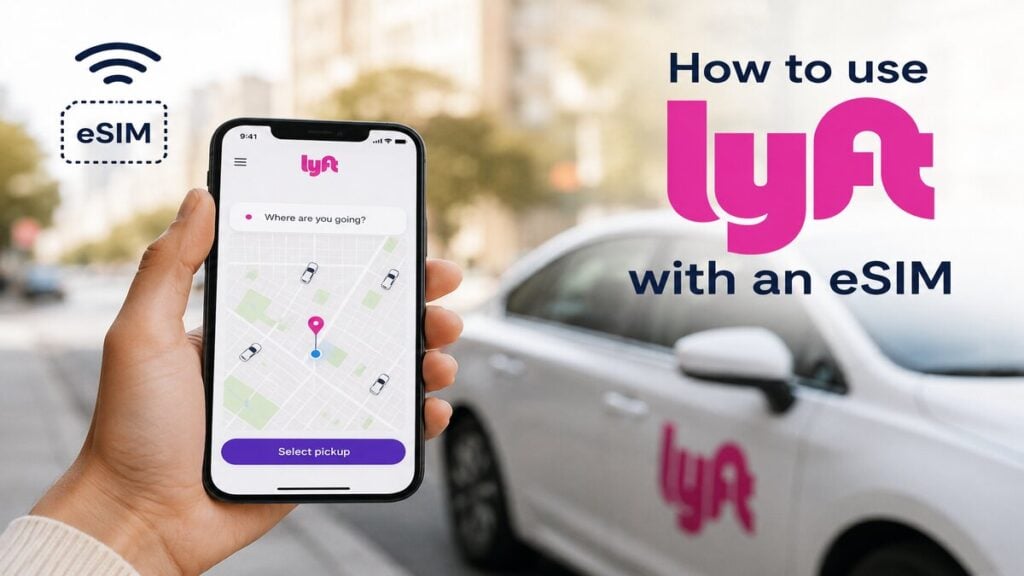
Landing after a long flight is never the best time to sort out app logins, payment errors, or patchy airport Wi-Fi. For Australian travellers heading to the US or Canada, the right Travel eSIM can make that first rideshare booking much easier by keeping mobile data available once airport Wi-Fi drops away.
That does not change when using Lyft. The app relies on an internet connection for maps, pickup points, driver messages, payment screens, and trip tracking. The part that catches some travellers out is account verification. A data-only eSIM can give your phone mobile data overseas, but it does not always replace the phone number linked to your Lyft account.
Can You Use Lyft With a Travel eSIM?
Yes, Lyft can work with a travel eSIM if your phone has working mobile data and your Lyft account is already set up correctly.
The eSIM provides the internet connection. Lyft uses that connection to load the map, confirm your pickup point, request the ride, show driver details, send in-app messages, and track the trip.
The main thing to remember is that a data-only eSIM usually does not receive SMS for your Australian number. If Lyft asks you to verify your account by text message, you may still need access to your regular SIM or another recovery option.
So the safest approach is to set up Lyft before you travel, stay logged in, and use the eSIM for mobile data once you arrive.
How to Set Up Lyft Before You Travel
To use Lyft with a TravelKon eSIM, begin by updating the Lyft app if it is out of date. Then log in and make sure the account opens normally. If the app asks for verification, it is far easier to handle that before departure than at a busy airport pickup zone.
Next, check your payment method. Make sure your card is current, accepted, and suitable for overseas transactions. Adding a backup card is a smart move if the app allows it. A declined card after landing can turn a simple ride into an annoying delay.
It also helps to save your first destination. Add your hotel, apartment, or meeting location to your maps app or notes. That way, you are not searching through emails while standing outside arrivals.
Before departure, check:
- Lyft is installed and updated.
- You are logged in.
- Your payment method is current.
- A backup card is saved if possible.
- Location access is enabled.
- Notifications are switched on.
- Your first destination is saved.
- Your eSIM setup instructions are available offline.
- Your regular SIM is available in case SMS verification is needed.
The less your phone has to sort out after landing, the smoother that first ride tends to be.
Using a Data-Only eSIM With Rideshare Apps
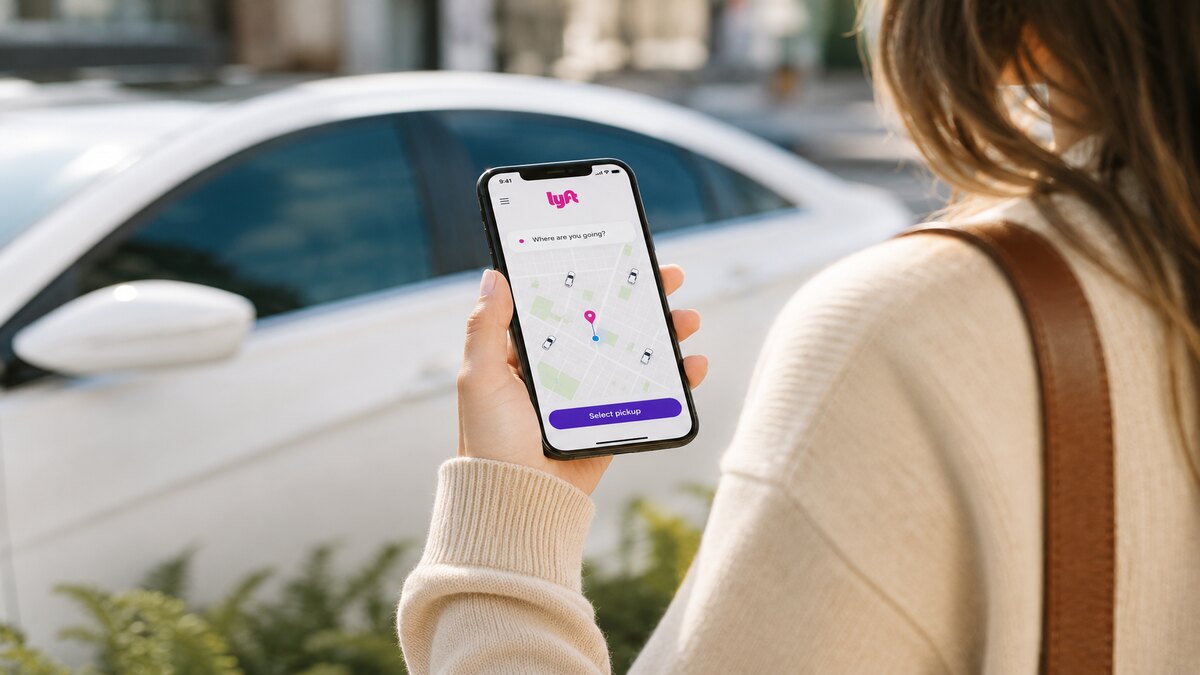
A data-only eSIM gives your phone internet access overseas. However, it usually does not give you a new local phone number for standard calls or SMS.
For Lyft, that means the eSIM can support the app’s main functions, while your account remains linked to your existing number, email, and payment details. In normal use, that works well. The app simply needs internet access to operate.
The possible issue is verification. If Lyft asks for an SMS code, that code normally goes to the phone number already attached to your account. A data-only eSIM will not usually receive it.
That does not mean you need a local US number. It just means your account should be ready before you fly, and your regular SIM should remain available if you think a text code may be needed. For a clearer breakdown of the connection side, our blog on how international eSIMs work is a useful read before setting up your phone.
How to Use Lyft With an eSIM After You Land
Once you land, turn on your eSIM and set it as the line for mobile data. If the eSIM instructions say data roaming must be enabled, switch it on for the eSIM line only.
Keep an eye on your Australian SIM settings. Unless you intend to use your home provider’s roaming, avoid letting your regular SIM handle mobile data overseas.
Before opening Lyft, test the connection. Open your maps app and check whether your location loads. If maps are working, Lyft is more likely to load properly too.
Then open Lyft, enter your destination, and check the pickup options. Airports often have dedicated rideshare pickup zones, which may be on a different level or outside the main arrivals area. Follow the app instructions and airport signs rather than guessing from the closest exit.
Do not request the ride too early. Wait until you have your bags and are close to the pickup area. That gives the driver a better chance of finding you and avoids rushed messages while still walking through the terminal.
A good arrival flow looks like this:
- Turn on the eSIM.
- Set mobile data to the eSIM.
- Enable roaming for the eSIM if required.
- Confirm maps are loading.
- Open Lyft.
- Enter your destination.
- Select the correct pickup point.
- Request the ride when you are close to the pickup zone.
- Check the driver’s name, car model, and number plate.
- Keep enough battery for pickup and trip tracking.
Airport Arrival Checklist
Airport arrivals are where mobile data overseas becomes genuinely useful. Wi-Fi may work near baggage claim, then disappear near the rideshare area. With a TravelKon eSIM, you can keep using maps, messages, and ride tracking while moving through the airport.
Before booking your Lyft, check that:
- The TravelKon eSIM is active.
- Mobile data is assigned to the eSIM.
- Roaming is set correctly for the eSIM.
- Location access is enabled for Lyft.
- The pickup pin is in the right place.
- You are near the correct rideshare zone.
- Your phone has enough battery.
- App notifications are coming through.
Once matched with a driver, check the vehicle details carefully. Busy airports often have several rideshare cars arriving at once, so match the name, car model, and number plate before getting in.
Troubleshooting Lyft With a Travel eSIM
Most Lyft issues overseas come down to login, SMS verification, payment, signal, or pickup location.
App Login Issues
If Lyft asks you to log in again after landing, check whether your normal number can receive SMS before changing account settings. Repeated failed attempts can make the situation more frustrating.
This is why staying logged in before travel is helpful. If the app works before departure, there is less to fix once you arrive.
SMS Verification Problems
A data-only eSIM usually cannot receive SMS for your Australian number. If Lyft sends a code to that number, it will normally go to your regular SIM.
Keep your usual SIM available where possible. You may not need it for mobile data, but it can still help with app logins, banking checks, and travel bookings.
Payment Failures
If the ride request fails at payment, try another saved card if one is available. Also check whether your bank has blocked the transaction as unusual overseas activity.
Payment issues are much easier to avoid by checking your card before departure and saving a backup option.
Weak Signal or No Data
If Lyft will not load, check whether other apps are working. Open maps or a browser first. If nothing loads, the issue is likely your connection rather than Lyft.
Check that the eSIM is selected for mobile data. If your phone is clinging to weak airport Wi-Fi, turn Wi-Fi off and try mobile data instead. Moving away from underground areas or thick terminal walls can also help.
Incorrect Pickup Point
A small pickup pin error can send your driver to the wrong door, level, road, or terminal.
Before booking, zoom in and check the pin. If it looks wrong, adjust it before requesting the ride. At airports, follow the rideshare signs and app instructions carefully.
Hotspot Issues
If you are sharing your eSIM data through hotspot, other devices may use data in the background. Laptops and tablets can quietly sync files, photos, or updates.
For the first airport ride, keep the main phone connection stable. Turn hotspot off if the signal is weak or your data allowance is limited.
TravelKon eSIM Tip
Our travel eSIM is most useful in the moments between airport Wi-Fi and proper arrival. That is usually when travellers need their phone most: finding the pickup zone, checking the driver’s location, confirming the car, or loading directions to accommodation.
For Lyft, the benefit is not huge data usage but having a reliable enough connection when timing matters. The app can load, the map can update, and driver messages can come through while you are moving through the airport.
Final Thoughts
Knowing how to use Lyft with an eSIM makes airport arrivals easier, particularly when travelling to the US or Canada. The key is to prepare before you fly. Ensure you update the app, log in, check payment, save your destination, and set up your travel eSIM.
Once you land, use the eSIM for mobile data, check the pickup point carefully, and keep your regular SIM available in case verification is needed. Do that, and your first ride overseas becomes much simpler.
FAQs
Can You Use Lyft With a Data-Only eSIM?
Yes. Lyft can work with a data-only eSIM if your account is already set up and your phone has working mobile data. The eSIM handles the internet connection, while your Lyft account keeps its existing login, phone number, and payment details.
Do You Need a Local US Phone Number for Lyft?
Usually, no. Many travellers use their existing account without getting a local US number. The main thing is being able to access your account if Lyft asks for verification.
Will Lyft Work Without SMS?
It can work without a new SMS if you are already logged in and the app does not ask for verification. If Lyft sends a code by text, a data-only eSIM will not normally receive that code for your Australian number.
Is Airport Wi-Fi Enough for Lyft?
Airport Wi-Fi can help, but it is not ideal as your only connection. It may drop near exits, pickup zones, car parks, or shuttle areas. Mobile data is more practical for booking, messaging, and tracking the ride.
How Much Data Does Lyft Use?
Lyft does not usually need a large amount of data for one ride. It mainly uses data for maps, location, ride matching, messages, payment screens, and trip updates. Data use can increase if you are also using maps, email, hotspot, video, or other apps at the same time.
Should Data Roaming Be On or Off?
For the travel eSIM, data roaming may need to be on, depending on the setup instructions. For your Australian SIM, keep roaming off unless you have chosen to use your home provider’s roaming. The cleanest setup is usually to assign mobile data to the eSIM and follow the provider’s instructions.