Esim Guides

zoom data usage

How Much Data Does Zoom Use?

Zoom has a habit of feeling harmless until the meeting runs long, a reality shared by over 300 million active users worldwide. A quick call from a hotel lobby, an online class from a cafe, or a work check-in between flights can all pull from the same data plan. If you are using a Travel eSIM, Zoom is one of those apps worth understanding before it eats through more data than expected. This guide breaks down how Zoom data usage works, what uses the most data, and how to keep meetings manageable while travelling. Does Zoom Use a Lot of Data? Yes, Zoom can use between 500MB and 3GB of data per hour. The main reason for this is that Zoom is sending and receiving live data the entire time. Messaging apps might only use data when a message, photo, or file is sent. Maps may use short bursts while loading directions. Zoom keeps working continuously for the whole call. Audio-only Zoom calls are usually much lighter. Video meetings are heavier. Group video meetings, screen sharing, HD video, and long calls can become one of the biggest drains on a travel data plan. How Much Data Does Zoom Use per Hour? Zoom data usage depends on the type of call, video quality, screen sharing, number of people, and connection quality. As a practical guide, these are sensible approximate ranges: Zoom Activity Approximate Data Use per Hour Audio-only Zoom call 30 MB to 100 MB One-on-one video call 500 MB to 1.5 GB Group video meeting 800 MB to 2.5 GB Screen sharing 300 MB to 1.5 GB HD or higher-quality video meeting 1 GB to 3 GB+ That means a short audio call may barely touch your plan, while a long group video meeting can make a serious dent. If you are asking how much data Zoom uses per hour, the safest answer is that audio is light, standard video is moderate to heavy, and long group video calls can be very heavy. What Uses the Most Data on Zoom? The biggest Zoom data users are video, call length, and meeting complexity. Turning your camera on makes a major difference because Zoom has to upload your video feed while also downloading everyone else’s. Group meetings usually use more data than one-on-one calls because there are more video feeds, more movement, and more live information being processed. HD video can also increase usage quickly. A meeting may feel ordinary on screen, but higher-quality video can push data use much higher over an hour. Screen sharing can add another layer, particularly if slides, websites, software demos, or moving visuals are involved. Long meetings are the quiet killer. A 10-minute check-in is easy to manage. Three one-hour meetings in a day is a very different story. A weak connection can also make things messier. When signal quality drops, apps may work harder to keep the call stable. Add background apps, cloud syncing, email refreshes, and file uploads into the mix, and your mobile data can disappear faster than planned. Zoom Audio Calls vs Video Calls vs Screen Sharing: Which Uses More Data? Audio-only Zoom calls are usually the best option for saving mobile data. They still use data, but the usage is much lower because there is no live video stream. One-on-one video calls use more because your camera is sending video out while Zoom is receiving video from the other person. Group video meetings usually use more again, particularly when multiple cameras are active. Screen sharing sits somewhere in the middle to heavy range, depending on what is being shared. A static slide deck may be manageable. A fast-moving software demo, video playback, or shared browser session can use more. For travellers, the best way of saving data is to join by audio when the meeting does not need your face, keep your camera off when mobile data is limited, and save screen sharing for Wi-Fi whenever possible. How Much Data Does Zoom Use on a Travel Day? Zoom data use becomes easier to understand when it is tied to real travel habits. A 30-minute audio-only work check-in might use very little data. A one-hour one-on-one video call could use around half a gigabyte or more. A one-hour group meeting may use closer to 1 GB or 2 GB, depending on quality and how many people have cameras on. An online class can be heavier again if video, screen sharing, and chat are all active for a full session. A family video call at night might feel casual, but if it runs for an hour with video on, it can still use a noticeable chunk of your plan. For remote workers, students, and business travellers, Zoom should be treated as a planning item, not an afterthought. One short meeting is rarely a problem. Several video meetings a day can change how much travel data you need. Does Zoom Use More Data Than FaceTime, TikTok, Maps, or WhatsApp? Zoom can use more data than many everyday travel apps when video is enabled. Maps, email, browsing, and messaging are usually easier to manage because they tend to use data in smaller bursts. WhatsApp messages and audio calls are generally much lighter than Zoom video meetings. Video-heavy apps are a different story. TikTok, Instagram Reels, YouTube, Netflix, FaceTime, and Zoom video calls can all drain mobile data quickly because they rely on continuous video. The difference with Zoom is that it often runs for work, study, interviews, or appointments, so people may not think of it as heavy in the same way they think of streaming or social video. But from a data point of view, long Zoom video meetings can be just as important to manage. How to Use Less Data on Zoom While Travelling The best way to save data on Zoom is to reduce video wherever possible. As earlier mentioned, join by audio if the meeting does not need video. If you need to appear briefly, turn your camera on at

How Much Data Does Zoom Use? Read More »
youtube data usage

How Much Data Does YouTube Use?

You don’t usually plan to use much YouTube while travelling; it simply slips into spare moments. A quick video while waiting in line, another during a delay, then a few more in the evening. Before you notice it, those small moments turn into a steady stream of data use. And it rarely feels like heavy internet use in the moment, but for anyone using a Travel eSIM, YouTube can become one of the fastest ways to burn through mobile data. It is easy to see how it happens. With roughly 2.5 to 2.7 billion people logging into YouTube every single month, it is our default global entertainment. Does YouTube Use a Lot of Data? Yes, YouTube can use between 200MB and 3GB of data per hour, depending on the video quality settings in use. Messaging, maps, email, weather checks, basic browsing, and music streaming are usually much lighter. YouTube is different because it is built around video. Every minute of playback carries visual and audio data, and the higher the quality, the heavier that stream becomes. It is also easy to underestimate because YouTube does not always feel like streaming. A quick travel tip video, a restaurant review, a music clip, a tutorial, a few Shorts, or background content while getting ready can all add up. One video rarely feels like a problem. Ten videos on mobile data can be. How Much Data Does YouTube Use Per Hour? As a rough guide, YouTube can use anywhere from a few hundred megabytes per hour to several gigabytes per hour, depending on playback quality. Lower-quality streaming may use around 200MB to 500MB per hour. This can be manageable for occasional viewing, particularly if the screen is small and the video does not need to look perfect. Standard-definition streaming often sits closer to 500MB to 1GB per hour. This is where regular YouTube watching starts to matter on a limited travel plan. High-definition streaming can use roughly 1GB to 3GB per hour, depending on the resolution and compression. Watching at 720p or 1080p on mobile data can drain a small eSIM plan quickly. Very high-resolution viewing, such as 1440p or 4K, can use several gigabytes per hour. For most travellers, this is best left for hotel Wi-Fi. YouTube Shorts can be lighter per video, but heavier than expected per session. The danger is the scroll. A few minutes is fine. Half an hour of nonstop Shorts can turn into a surprisingly data-heavy habit. Livestreams can also use a lot of data because they run continuously. Unlike a short video, there is no natural stopping point. If the quality is high and the stream stays open, usage can climb fast. What Affects YouTube Data Usage? The biggest factor is video quality. Higher quality means more data. A video at 1080p will usually use much more than the same video at 360p or 480p. Watch time is another factor. A single five-minute video is not an issue, but a long session during a layover, train ride, or quiet night in the hotel room can quickly increase data usage. Also, long-form videos, music videos, livestreams, and background viewing usually use more data because they keep running. Shorts can feel lighter, but the endless feed makes it easy to watch far more than planned. YouTube’s autoplay function is equally data draining. Leave it on, and YouTube may keep serving videos after the one you came to watch. That is fine on Wi-Fi. On mobile data, it can waste a plan without much thought. Your phone settings and YouTube app settings also play a role. Some devices allow higher-quality playback on mobile data unless you tell them not to. Others may adjust automatically, but automatic does not always mean data-friendly. YouTube Streaming vs Downloading: Which Uses More Data? Streaming and downloading both use data if they happen on mobile data. The difference is control. Streaming uses data while the video plays. Watch one video, data is used once. Rewatch it later, data is used again. Keep watching through autoplay, and usage keeps climbing. Downloading uses data upfront. If the video is downloaded on mobile data, it can still use a lot of data. But if it is downloaded on Wi-Fi before heading out, it becomes one of the easiest ways to make YouTube travel-friendly. That is especially useful for flights, long train rides, airport waits, bus trips, ferry rides, or areas where coverage may be unreliable. Download before leaving the hotel, then watch without touching the travel data plan. For travellers, streaming on mobile data is convenient, but downloading on Wi-Fi is safer. How Much Data Does YouTube Use on a Travel Day? A light YouTube day might be a few Shorts while waiting for transport, one or two travel tip videos, and a quick restaurant review. If playback quality is low, that may be manageable at around 300MB of data per hour. A moderate YouTube day could include a few destination guides, music videos in the background, and a longer video during transit. This can start to eat into a small travel data plan, consuming over 1GB of data each hour. A heavy YouTube day is when things change quickly. Think airport delays, long train rides, livestreams, autoplay sessions, and night-time viewing without hotel Wi-Fi. At higher quality, this can use between 2GB and 3GB of data or even more per hour. This is why YouTube on mobile data is less about opening the app and more about the habit around it. Short, low-quality viewing is one thing. Long, high-quality sessions are another. Does YouTube Use More Data Than Netflix, Instagram, or FaceTime? YouTube can be lighter or heavier than Netflix, depending on quality and watch time. Netflix is usually associated with longer viewing sessions, but YouTube can catch up quickly if autoplay, HD, Shorts, or livestreams are involved. Compared with Instagram, YouTube can use more data when watching longer videos or high-quality streams. Instagram can still be data-heavy, especially with Reels, Stories, and video-heavy browsing,

How Much Data Does YouTube Use? Read More »

whatsapp data usage

How Much Data Does WhatsApp Use?

With more than 3.3 billion monthly active users, WhatsApp is one of those apps that can easily become part of almost every overseas travel. A quick message to family, a note to the hotel, a photo in the group chat, a call back home before bed. None of it feels especially heavy at the time, which is why WhatsApp data usage can catch people out when media and calls start adding up. That said, WhatsApp is usually much easier on mobile data than video-first apps. If you are using a limited plan or a travel eSIM, it is still worth knowing what uses almost nothing, what uses a moderate amount, and what can chew through data faster than expected. Does WhatsApp Use a Lot of Data? WhatsApp can use 1 MB to 400 MB of data per hour, depending on what you are doing. Text messages use very little data, so sending updates, confirming bookings, chatting with family, or messaging tour operators is unlikely to make a major dent in a travel plan. However, this can change when WhatsApp becomes more than a messaging app. Voice calls, video calls, photo sharing, video sharing, large group chats, automatic media downloads, and cloud backups can all increase usage up to 1GB for heavy usage. So, does WhatsApp use a lot of data? For text, not really. For calls and media, it can. How Much Data Does WhatsApp Use Per Hour? How much data WhatsApp uses depends on what you are doing inside the app. A quiet text chat is very different from a long video call or a group chat full of photos and videos. The figures below are best treated as practical ranges rather than exact numbers, because mobile data use can vary by phone, network, settings, file size, and call quality. Text Messaging Sending text messages through WhatsApp uses between 1KB and 1MB of data. Even frequent messaging throughout the day is usually manageable on a smaller travel plan. This is why WhatsApp is so useful overseas. You can confirm a hotel address, message a driver, check in with family, or coordinate plans without worrying too much about data. Sending Voice Notes Voice notes use more data than text, but are still usually fairly light, often ranging between 150KB and 200KB per minute. A short voice note is unlikely to matter much. Long back-and-forth voice notes throughout the day will use more, but they are still generally easier to manage than video calls or sending large clips. Sending and Receiving Photos Photos can use about 300KB to 1MB of data, depending on how many are sent and whether they download automatically. One or two photos will not usually be a problem. A busy family group chat, however, can turn into a steady stream of images from every meal, beach, hotel room, and boarding gate. That is when WhatsApp photo data use becomes more noticeable. Sending and Receiving Videos Videos are much heavier than photos or text and often use up to 20MB of data, depending on the quality of the video Sending one short clip may be fine, especially on a larger plan. Sending several travel videos over mobile data can quickly become one of the biggest WhatsApp data drains. Also, if videos auto-download while you are using mobile data, your plan can take the hit before you have even watched them. WhatsApp Voice Calls WhatsApp voice calls can use between 20MB and 60MB of mobile data in an hour. It uses more data than text or voice notes, but much less than most video calls. A short call to family, a hotel, or a tour provider should be easy to manage. Long daily calls can add up, especially on a smaller eSIM plan. WhatsApp Video Calls WhatsApp video call data usage is usually the heaviest common WhatsApp activity. A typical video call can use roughly 3–5 MB per minute, meaning a 1-hour WhatsApp video call might consume around 200MB to 400 MB of data, depending on call quality and network conditions.  A short video call may be fine, but longer calls back home can use a meaningful chunk of data. If your plan is small, video calls are best saved for Wi-Fi. What Uses the Most Data on WhatsApp? The biggest WhatsApp data users are video calls, videos, long voice calls, auto-downloaded media, and cloud backups. Text messages sit at the light end. They are simple, small, and easy to manage. Video calls sit at the other end. They stream audio and video continuously, which means data use keeps climbing for as long as the call continues. Videos are another major one. Sending or receiving clips can use much more data than sending photos or voice notes. This is especially relevant while travelling, because people naturally want to share short clips from beaches, food markets, hotels, trains, tours, and airports. Automatic media downloads can also cause trouble. If WhatsApp is set to download photos and videos over mobile data, group chats can start using data in the background of your day. You may not even notice until your allowance drops. Cloud backups over mobile data should be avoided on smaller plans. Backing up chats and media can involve large files, especially if your WhatsApp account stores lots of videos and photos. Messaging vs Voice Calls vs Video Calls: Which Uses More Data? Messaging is the lightest, voice calls sit in the middle, while video calls are usually the heaviest. That simple split is the easiest way to plan your WhatsApp use while travelling. Text-based chats are ideal for mobile data. They are fast, practical, and unlikely to cause issues unless you are also downloading lots of media. Voice calls are still reasonable, particularly for short conversations. They are a good alternative when you want to speak properly but do not need video. Video calls need more care. They are useful, personal, and sometimes worth it, but they can drain a smaller plan quickly if they become a daily

How Much Data Does WhatsApp Use? Read More »

tiktok data usage

How Much Data Does TikTok Use?

TikTok has a way of turning spare travel moments into surprisingly heavy data use. With the platform rapidly growing to reach 1.99 billion adult users worldwide, it is safe to say a massive chunk of us are guilty of that quick scroll. One look while waiting for coffee can turn into another at the airport, then a few clips in a rideshare, then an upload once you reach the hotel. Because every swipe loads video, the app can use mobile data far faster than it feels in the moment.  That is especially important if you are using a travel eSIM. TikTok is not off-limits overseas, but it is one of the first apps to watch when your data needs to last. Does TikTok Use a Lot of Data? Yes, TikTok can use between 800MB and 1.2GB of data in just an hour or even more in some cases. This is mainly because the app is almost entirely video-based. Messaging apps usually send small pieces of text, maps can be managed with cached routes, and light browsing often loads one page at a time. TikTok keeps serving video after video, often before you even decide whether you want to watch the next one. That is where TikTok mobile data usage can creep up. A short scroll can be harmless, but a 40-minute session at the airport, followed by another session on the train, then a few uploads later in the day, is a very different story. How Much Data Does TikTok Use Per Hour? The exact amount depends on video quality, connection speed, app settings, how quickly you scroll, and whether TikTok is preloading videos in the background. As a practical estimate, TikTok may use anywhere from a few hundred megabytes to over 1GB per hour. Here is a useful way to think about it. Casual Scrolling Light TikTok use may sit around 300MB to 700MB per hour, depending on video quality and how fast new videos load. This kind of use might include checking the app for 10 or 15 minutes a few times a day. For travellers, that can be manageable, but it still adds up faster than messaging, email, maps, or basic web browsing. Heavy Scrolling Longer TikTok sessions can easily reach 1GB per hour or more. This is where travellers often get caught. TikTok does not feel like watching a full movie or streaming a long YouTube video, but the app is still loading continuous video content. If you scroll for an hour during a layover, your data plan may feel it. Watching Higher-Quality Videos Higher-quality playback generally uses more data, often exceeding 1.2GB. If your connection is strong, TikTok may automatically load higher-quality videos for a smoother experience. However, this can trigger a data usage warning, as the app may consume significantly more data without clearly notifying you.  Uploading TikToks Uploading videos can use a noticeable amount of data, particularly if the clips are longer, high-resolution, or edited with multiple elements. Posting one short video may not be a major issue. Uploading several travel clips across the day can make a bigger dent, particularly on a small eSIM plan. Watching TikTok Live TikTok Live can be one of the heavier activities because it involves continuous streaming. A quick look at a livestream might be fine. Sitting through a long live session on mobile data is a much easier way to drain your plan. What Uses the Most Data on TikTok? The biggest data drivers on TikTok are video loading, video quality, uploads, livestreams, and repeated feed refreshes. The app is designed to keep content moving, which makes it fun to use but harder to control on mobile data. Continuous video scrolling is the main one. Every new video needs to load, and TikTok often prepares upcoming videos before you watch them. That means passive scrolling can still use a lot of data. Autoplay also plays a role. You do not have to press play each time. Videos start automatically, so data usage continues as long as the app is open and the feed keeps moving. Higher-quality playback can increase usage as well. Clearer videos are better to watch, but they come with a data cost. Uploading is another big factor. Travel videos are often filmed in high quality, and uploading them on mobile data can use far more than expected. TikTok Live is also worth treating carefully. Livestreams behave more like continuous video streaming than normal browsing. Background app activity may also contribute in smaller ways, depending on your phone settings. It is not usually the main issue, but reducing background refresh can still help when every megabyte matters. TikTok Scrolling vs Uploading vs Livestreams: Which Uses More Data? Normal scrolling can already be data-heavy because TikTok is built around video. Even if each clip is short, the app keeps loading new content, and a long session can use a surprising amount of mobile data. Uploading can use more data in bursts. The larger and higher-quality the video, the more data it needs to send. If you are posting travel clips throughout the day, uploads can become one of the main drains on your plan. Livestreams are often the heaviest when watched for long periods. Unlike normal scrolling, where videos change quickly, a livestream keeps running continuously. That makes TikTok Live risky on mobile data if you are trying to make a small travel plan last. In simple terms: short scrolling is manageable, long scrolling adds up, uploads can spike usage, and livestreams can drain data quickly. How Much Data Does TikTok Use on a Travel Day? A normal travel day can make TikTok data usage climb without feeling excessive. You might open TikTok over breakfast while planning the day. Then again in an Uber, at the airport, on a train, or while waiting for hotel check-in. Later, you might upload a clip from sightseeing, check comments, scroll through travel recommendations, and watch videos before bed. None of those moments feels huge on its own.

How Much Data Does TikTok Use? Read More »

esim data 101

eSIM Data 101: How to Track Usage, Top Up Smart, and Make Your Data Last Longer

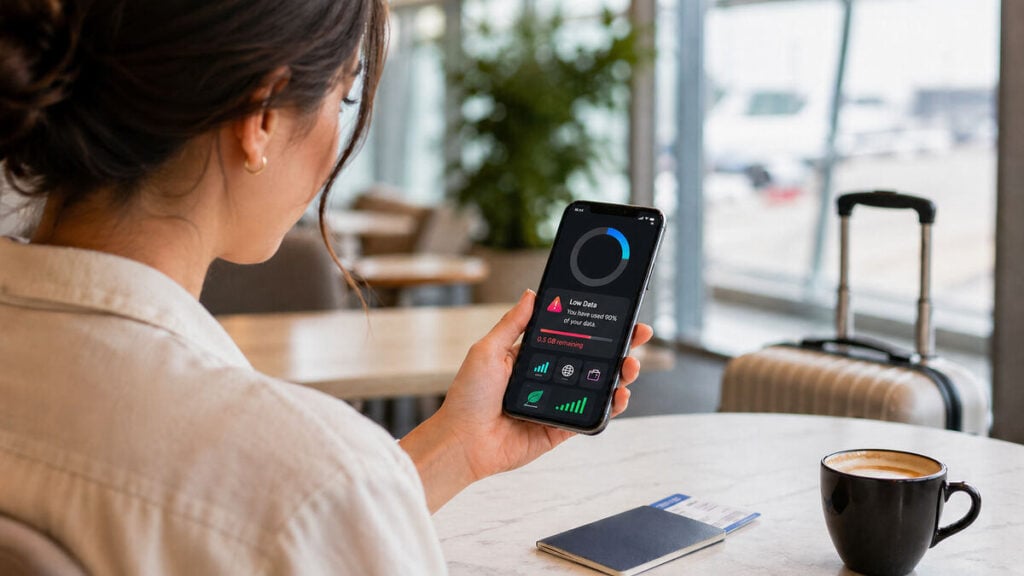
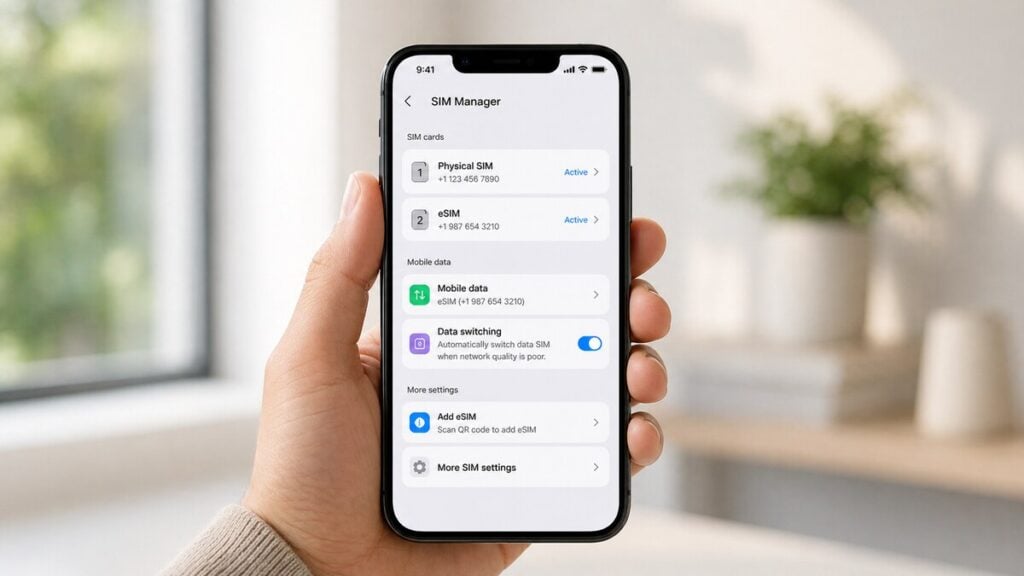
You do not usually notice travel data until it is nearly gone. One morning, you are using maps, replying to messages, checking restaurant reviews and uploading a few holiday photos, and by the afternoon, you are staring at an eSIM low data warning in the middle of a city you do not know. And that is exactly where this eSIM data 101 guide can come in handy. It is built for travellers who want to check remaining eSIM data quickly, understand where it is going, and make better decisions before they need an urgent top-up. Whether you are using your first Travel eSIM or trying to make your current plan last until the end of a trip, the goal is to track usage early, cut obvious waste, and top up before it becomes stressful. Why Travel eSIM Data Runs Out Faster Than You Expect Most travellers do not burn through data because of one big mistake. It usually happens through a pile-up of small habits that feel harmless on their own. Live maps stay open for hours, Instagram uploads in the background, your phone starts syncing photos, a hotel Wi-Fi connection drops out, then your laptop uses your hotspot for software updates. By the time you notice, your travel eSIM data usage is much higher than expected. That is why the best way to manage mobile data while travelling is not to wait until you are almost out. You need to check your balance early, understand the biggest drains, and make a few setting changes from day one. What eSIM Data Actually Covers A travel eSIM usually covers mobile data rather than traditional calls and texts, although inclusions can vary by plan. In practical terms, that means every app using the internet over cellular can chip away at your allowance. Maps, messaging apps, video calls, social media, cloud backups, music streaming, email attachments and hotspot use all count. If you are wondering why eSIM data runs out fast, the answer is often simple: modern phones are doing far more in the background than most people realise. How to Check Your eSIM Data Balance If you want to know how to track eSIM data properly, use more than one method. Device-level figures and provider-level balances are both useful, but they do not always refresh at exactly the same time. Treat them as two helpful reference points rather than expecting a perfect match. There are three main ways to check remaining eSIM data: How to Check eSIM Data Usage on iPhone To check eSIM data usage on an iPhone, the fastest path is through cellular settings. Go to Settings > Mobile Service or Cellular, then look for your active eSIM line. From there, you can usually see total cellular usage and which apps are consuming the most data. This is one of the easiest ways to spot hidden drains, such as cloud storage, social apps or streaming platforms. Useful iPhone controls include: On iPhone, a good habit is to reset your cellular statistics just before your trip or just after your eSIM activates. That gives you a cleaner view of travel-only usage rather than a mix of old and new data. How to Check eSIM Data Usage on Android Android menus vary slightly by brand, but the main path is usually Settings > Network & Internet, Connections or SIM Manager, then Data Usage or Mobile Data Usage. Once you are in the right area, you can normally see how much data has been used overall and which apps are responsible. This is where Android is especially useful for travellers. You can often set a warning threshold, a hard limit, or both. That means your phone can alert you before you run low, rather than after you have already used most of your allowance. The most useful Android controls for travel are: How Much Travel Data Do You Actually Need? The answer to this depends less on trip length and more on how you use your phone each day. Light use suits travellers who mostly use messaging, email, occasional map checks and basic browsing. If you mostly stay on Wi-Fi and do not stream much, a smaller plan may be enough. Moderate use suits travellers who use maps regularly, scroll social media daily, upload some photos and rely on mobile data for a decent part of the day. This is where many people underestimate their needs. Heavy use suits travellers using hotspot, video calls, regular video streaming, frequent uploads, or long navigation sessions. If that sounds like your trip, a bigger plan is usually cheaper and less stressful than repeated emergency top-ups. A simple rule is that if your phone is doing more than maps, messages and quick searches, you are probably not a light user. When You Should Top Up Your eSIM If you are trying to decide how to top up eSIM data at the right time, do not wait until you are down to your final sliver of allowance. That is when travellers make rushed choices, buy the wrong pack, or discover their plan rules are different from what they assumed. You should usually think about a top-up when: The practical approach is to top up while you still have enough data to do it comfortably. Waiting until you are almost disconnected is rarely worth it. How eSIM Top-Ups Usually Work Top-up rules vary by destination and provider, so the smartest move is to check the details before paying. If you want to top up travel eSIM data without surprises, look at three things first. If you are travelling across multiple countries, also check whether the top-up follows the same regional coverage as your existing plan. How to Use Less Data While Travelling If your goal is to use less data while travelling, small habits make a bigger difference than most people expect. You do not need to baby your phone all day, but you do need to stop the obvious waste. Best Phone Settings to Make Your Data

eSIM Data 101: How to Track Usage, Top Up Smart, and Make Your Data Last Longer Read More »

esim phone support

Does My Phone Support eSIM? How to Check If Your Device Is eSIM Compatible

Does my phone support eSIM? This is a common question among those planning overseas travels. The short answer is that many newer phones do support eSIM, but not every device does. Compatibility can depend on your phone model, the country or region it was made for, your software version, and whether the device is locked to a carrier.  With the help of this guide, you’ll get a better understanding of how you can pair your phone to an eSIM for the best service. And if you are still new to the basics, it may also help to read our what is a travel eSIM blog before moving on to compatibility. What Does eSIM Compatible Mean? An eSIM-compatible phone has built-in support for a digital SIM. That means you can download and activate a mobile plan without inserting a physical SIM card. That sounds simple, but there are a few catches. A phone can be fairly new and still need checking. Some models support eSIM only in certain regions, some need the latest software, and some carrier-locked phones may not let you use a different provider’s eSIM straight away.  How to Check If Your Phone Supports eSIM If you want the fastest way to check if your phone supports eSIM, start here. First, look in your phone settings for an option to add an eSIM, mobile plan, or cellular plan. If that option appears, that is usually the clearest sign your phone supports eSIM. Second, check your exact model against the manufacturer’s specifications. This is important because support can vary even within the same phone range. Third, make sure your phone is unlocked and that eSIM is supported for your regional model. A phone may technically support eSIM but still run into problems if it is carrier-locked or sold in a market with different SIM features. If you want a broader reference point, you can also review our list of eSIM-compatible phones and devices. How to Check eSIM Compatibility on iPhone and Android Before setting anything up, it helps to know exactly where to look on your iPhone or Android to confirm whether eSIM is supported and ready to use. iPhone On iPhone, checking is usually quite straightforward. Go to Settings, then Mobile Data or Cellular. Look for an option such as Add eSIM, Add Cellular Plan, or Convert to eSIM. If you can see one of those options, your iPhone likely supports eSIM. Most newer iPhones support eSIM, but it is still worth checking the exact model and region. Some features vary by market, and a carrier-locked phone may limit what you can do even if the hardware supports eSIM. Android Android can take a bit more checking because support varies more between brands and models. Start by opening Settings and going to Network & Internet, Connections, Mobile Network, or a similar menu. Then look for options such as SIM Manager, Add eSIM, Download SIM, or Mobile Plan. If you find one of those, your phone may support eSIM. After that, check the exact model on the manufacturer’s site or official product page. With Android, two phones that look almost identical can still have different eSIM support depending on the region or carrier version. Does My Phone Have eSIM or Just Dual SIM? Dual SIM does not always mean eSIM support. Some phones have dual SIM through two physical SIM slots. Others use one physical SIM and one eSIM. Some newer devices support multiple eSIM profiles as well. So if you see dual SIM mentioned in your phone specs, do not assume that means eSIM is available. You still need to confirm the exact type of SIM support your phone has. What Can Stop an eSIM From Working Even If the Phone Supports It? A phone can support eSIM and still not work properly during setup. One common reason is carrier lock. If your phone is locked to one network, it may not accept another provider’s eSIM. Another issue is regional model restrictions. Some devices are sold with different SIM capabilities depending on where they were made. Software can also get in the way. If your phone is not updated, the eSIM option may not appear, or the setup may fail. Then there are basic setup problems. Sometimes the phone supports eSIM, but the wrong line is selected for mobile data, the QR code was scanned incorrectly, or the plan was installed but not turned on properly. What to Do If Your Phone Does Not Support eSIM If your phone is not eSIM compatible, you still have options. You may be able to use a physical SIM instead, depending on where you are travelling. You can also check whether your provider offers roaming that makes sense for a short trip. If you already have another unlocked device that supports eSIM, using that phone may be the easiest fix. The important thing is to check before you buy. It saves time, avoids refund requests, and helps you choose the right option from the start. What to Do Next If Your Phone Does Support eSIM Once you have confirmed compatibility, the next step is simple. Choose a plan that suits your trip, install the eSIM, and follow the setup instructions on your device. At that point, you are no longer asking, “Will an eSIM work on my phone?” You are simply choosing the right plan and getting ready to use it. Final Thoughts Before you rely on an eSIM, it is worth confirming your phone actually supports it and that it is unlocked for international use. Once that box is ticked, the convenience becomes obvious. A TravelKon eSIM keeps things simple by getting you connected as soon as you land, without the usual hassle of swapping SIM cards or risking roaming charges.  For travellers moving between countries, it offers a straightforward way to stay online while keeping data costs predictable and under control. FAQs Does my phone support eSIM? Many newer phones do, but not all of them. The best way

Does My Phone Support eSIM? How to Check If Your Device Is eSIM Compatible Read More »

facetime data usage

How Much Data Does FaceTime Use?

When travelling, staying connected often comes down to how you use your phone rather than whether you can use it at all. Video calls, messaging, and background apps all draw from the same pool of data, and it is easy to lose track of how quickly it is being used once you are on the move.  Calls over apps like FaceTime are a big part of that when switching between Wi-Fi and mobile data abroad. Knowing how these services behave, particularly when using a travel eSIM, can help you avoid surprises and keep your connection steady throughout the trip. Does FaceTime Use a Lot of Data? A FaceTime video uses between 180 MB and 420 MB of data per hour. A short audio call to confirm an arrival time or check in with home is unlikely to trouble most plans. However, a 30-minute or 1-hour video call every day is a different story. That is where travellers start noticing their allowance dropping faster on smaller eSIM plans.  Industry estimates vary, but they point in the same direction: FaceTime audio is the lighter option, while video is a moderate to heavy drain depending on call quality and connection strength. How Much Data Does FaceTime Use Per Minute and Per Hour? The most useful way to look at FaceTime data usage is by splitting it into audio and video. FaceTime audio data use Again, FaceTime audio is usually the safer choice on mobile data. A sensible planning estimate is roughly 1 to 2 MB per minute, or around 60 to 120 MB per hour. Some published estimates push a little higher, but this range is a fair guide for travellers who just want to know whether a quick call is harmless or not. In practical terms, that makes audio calls light enough for occasional use on most travel plans.  FaceTime video call data use FaceTime video is where things take a different turn. A workable estimate is roughly 3 to 7 MB per minute, or about 180 to 420 MB per hour, with higher-quality connections often sitting toward the upper end. Some estimates go even higher for HD or group calling, which means long video chats can chew through a modest plan faster than many people expect. That is why FaceTime video call data use feels reasonable in short bursts but expensive when it becomes routine.  What Affects FaceTime Data Usage? Call type is the biggest factor, but it is not the only one. Other factors, such as call length and connection quality, also have an impact on data usage. A stronger, cleaner connection can support higher video quality, which may mean more data use. Group calls can also be heavier than one-to-one calls.  On top of that, background app activity can eat into the same plan while a call is happening. Apple’s iPhone settings let users see cellular usage by app, which is useful when FaceTime on mobile data seems to be costing more than expected. How Much Data Does FaceTime Use on a Travel Day? This is where planning gets easier. A 10-minute FaceTime audio call may only use around 10 to 20 MB. A 30-minute video call could land somewhere around 90 to 210 MB. A full 1-hour video call may take 180 to 420 MB, and possibly more on a strong connection or group call.  That means a traveller on a 5 GB plan could get by comfortably with occasional short calls, but daily long video chats would take a proper chunk out of the allowance. As you can see, the real answer is that one hour of video can represent a meaningful share of a smaller travel eSIM. FaceTime vs WhatsApp vs Zoom: Which Uses More Data? FaceTime generally sits in the same broad category as other calling apps: audio is fairly light, video is where the data goes. The exact winner changes with settings, resolution, network quality, and whether the call is one-to-one or a group session.  For most travellers, the bigger point is not whether FaceTime is dramatically worse than every alternative, but whether video calling itself fits the size of the plan. In other words, the app matters less than the habit. A few short check-ins are one thing, but frequent long video calls are another. How To Use Less Data on FaceTime While Travelling The easiest fix is to save longer video chats for Wi-Fi and use audio when video is not necessary. That one change can stretch a plan much further. It also helps to keep calls shorter on mobile data, shut down unnecessary background activity, and turn on Low Data Mode on iPhone when trying to reduce mobile usage overall.  Apple says Low Data Mode is designed to restrict background network use, which makes it a sensible setting for travel days when every gigabyte counts. You can also opt for unlimited eSIM data plans, but this may depend on whether the region you are visiting supports such plans. Is FaceTime Safe to Use on a Travel eSIM? Yes, FaceTime on eSIM can be perfectly fine, provided the plan matches the way the phone is actually used. For light users, short audio calls and occasional video check-ins are usually no problem. For heavier users, that is, anyone calling family every night on video, it makes sense to budget for that upfront.  FaceTime while travelling is not something to avoid. You just need to factor in the same way maps, browsing, uploads, and social apps use the available data. How Much Travel Data Should You Budget for FaceTime? That depends on the trip and the habit. A traveller mostly using maps, messages, and the occasional audio call may be fine on a smaller plan. However, if you rely on regular FaceTime video chats, ensure you think and budget more generously.  If usage starts rising faster than expected, noticing that early is very important. A data usage warning can be the difference between adjusting behaviour in time and burning through the plan too

How Much Data Does FaceTime Use? Read More »

gaming data usage

How Much Data Does Gaming Use?

Gaming on the move is never just about the game itself. Most sessions feel smooth and lightweight while you are actually playing. What adds pressure is everything surrounding it, from downloads and updates to voice chat and cloud syncing. When travelling abroad, keeping that wider data use under control becomes just as important as the gameplay itself.  A travel eSIM helps manage it all more predictably wherever you connect. It keeps data access flexible, so you don’t constantly have to worry about every tap or background process while away. Does Gaming Use a Lot of Data? Online gaming uses between 40 MB and 300 MB of data in an hour, which is way less compared to what most people expect. Many games send small packets of information back and forth rather than heavy video files. That means standard online gaming data usage can stay fairly modest compared with things like streaming Netflix, watching YouTube, or joining long video calls. But if the question includes downloading a new title, installing updates, using voice chat for hours, or relying on cloud gaming, the answer changes fast. That is when gaming on mobile data becomes expensive. How Much Data Does Gaming Use Per Hour? There is no single number because different types of games behave very differently. Still, a few rough ranges make planning much easier. Casual Mobile Games Simple puzzle games, card games, and many offline-friendly mobile titles tend to use very little data unless ads, account syncing, or online features are constantly running. In many cases, a traveller could play for quite a while without seeing much impact on a plan with some games using as low as 200 KB. Online Multiplayer Games This is the category most people mean when they ask how much data online games use. For standard multiplayer matches, usage is often moderate rather than extreme. Competitive shooters, sports games, and battle games can add up over time, but live gameplay alone is usually still lighter than video streaming. You may end up using less than 200 MB of data per hour. Games With Voice Chat Voice chat changes everything. Once constant audio is added on top of gameplay, data usage rises but still often falls below 300 MB an hour. A few matches with chat enabled may still be manageable, but long sessions will eat through a plan much faster than silent play. Cloud Gaming or Streamed Gameplay On-demand gaming has absolutely exploded in popularity over the last few years. Thanks to better mobile networks and a massive shift toward playing heavy console-quality games right on our phones, we no longer need to travel with heavy hardware to play top-tier titles. However, this convenience comes with a massive catch for your data budget. Because cloud gaming processes the game on a remote server, it doesn’t just send tiny pieces of data; it continuously streams a live, high-resolution video feed directly to your screen. Cloud gaming platforms can burn through anywhere from 4 GB to 20 GB per hour, depending on your settings. If you are streaming at standard 1080p (60fps), you are looking at roughly 7 GB to 11 GB per hour, making it an incredibly fast way to wipe out a travel data plan in a single afternoon. Online Gaming vs Downloading Games: Which Uses More Data? Downloading usually uses far more data, and it does it much faster. That is the most useful rule to remember. A few online matches may only use a moderate amount over an hour or two, while downloading a game or major update can consume gigabytes almost immediately.  So when someone asks if gaming uses a lot of data, the real answer depends on whether they mean playing the game or getting the game ready to play. For travel planning, downloading is the bigger risk by far. How Much Data Does Mobile Gaming Use on a Travel Day? A normal travel day gives a better way to think about it. A traveller playing 30 minutes of a casual mobile game while waiting at the airport is unlikely to use much data at all, especially if the game has limited online activity. A few multiplayer matches during a train ride will use more, but still may stay reasonable on a decent plan. Several hours of active multiplayer with voice chat is where the total starts to climb. Then there is the danger zone: opening a game after landing and letting it run an update over mobile data. That one step can easily use more data than the rest of the day combined. So the real question is not only how much mobile data gaming uses. You also need to consider what kind of gaming is happening and what else the game decides to do in the background. Does Gaming Use More Data Than Streaming or Video Calls? Usually, standard gameplay does not. Regular online gaming is often lighter than video streaming and can also be lighter than long FaceTime calls. That surprises a lot of people. However, cloud gaming is different. Once the game itself is being streamed to the device, data use can become as heavy as video, or heavier. So if the comparison is standard online play versus streaming, gaming often comes out lighter. If the comparison is cloud gaming versus streaming, that gap can disappear quickly. How to Use Less Data While Gaming Anyone gaming while travelling should be strict about a few settings: It also helps to keep an eye out for any data usage warning if a plan is starting to disappear faster than expected. That is often the first sign that updates, syncing, or background traffic are doing more damage than the gameplay itself. Is Gaming Safe on a Travel eSIM? Yes, in many cases it is. Light gaming, casual mobile play, and short multiplayer sessions can be perfectly manageable on a Travel eSIM, especially if downloads and updates are kept for Wi-Fi. That is the key point. Gaming on a travel plan

How Much Data Does Gaming Use? Read More »

google maps data usage

How Much Data Does Google Maps Use While Travelling?

As a global travel staple, Google Maps dictates how the world moves, boasting over 2 billion monthly active users and capturing an estimated 67% to 70% of the global navigation market share. However, relying on this massive global network means your phone is constantly working in the background. Managing mobile data across multiple countries often comes down to simple awareness rather than strict limits. Small actions like checking directions, searching places, and refreshing routes build up quickly over long travel days. The worst part is that it never feels like much in the moment, but that steady background usage can eat through your data allowance before your trip even starts. That is where the right travel eSIM plan helps. It keeps connectivity consistent between borders and removes the need to constantly track data, allowing navigation and everyday travel to flow more naturally. Does Google Maps Use a Lot of Data? Usually, no. Google Maps uses between 3 MB and 15 MB of data in a an hour depending on the navigation feature in use. Compared with streaming apps, video calls, or endless social scrolling, Google Maps data usage is relatively modest. A traveller can often use it throughout the day without seeing a dramatic drop in available data. The trouble starts when Maps is used heavily alongside everything else.  Navigation may stay reasonable on its own, but pair it with music streaming, messaging, browsing, and uploads, and a small plan can disappear faster than expected. How Much Data Does Google Maps Use Per Hour? The most honest answer is that it depends on how the app is being used. A quick location search uses 3 to 10 MB per hour. Occasional route checks stay fairly light while live turn-by-turn navigation for a long drive will use more, though still often ranging between 10 MB and 15MB per hour. As a rough guide, opening the app, loading an area, and searching a few destinations will usually only use about 1MB of data. Checking directions now and then throughout the day stays on the lighter side. Continuous navigation for an hour tends to use more because the app is updating your position, loading route details, refreshing traffic conditions, and sometimes pulling in nearby place information. For most travellers, Google Maps navigation data use sits somewhere in the light-to-moderate range rather than the heavy range. That makes it manageable on most travel plans, but not something to ignore altogether. What Affects Google Maps Data Usage? A few things make a bigger difference than others. The first is how often the map needs to load or refresh. A traveller moving through new areas all day will usually use more data than someone staying in one part of a city. The second is whether live navigation is running continuously. A quick route check is one thing, but keeping voice navigation active for hours is another. And as mentioned above, if the app is constantly adjusting the route because of road conditions, it needs more live data. Searches can increase usage too, particularly when checking multiple restaurants, attractions, or business listings in a short period. Photos, reviews, opening hours, and other business details all add a little more activity. Offline preparation changes everything. Downloading maps before heading out is one of the simplest ways to reduce usage. So is planning stops in advance rather than searching on the go. And then there is time. Even a relatively light app can make a dent if it is used all day, every day, across a long trip. Google Maps Navigation vs Offline Maps Live navigation over mobile data is convenient because it gives access to current traffic, route changes, and the latest map details. It is often worth using when timing matters, such as airport transfers, train connections, or driving in unfamiliar cities. But it also uses more data because the app keeps pulling live information while the trip is in progress. Offline Google Maps downloads work differently. Once a map area is saved in advance, much of the core information is already on the phone. That means less reliance on mobile data while getting around. For travellers, this can be the difference between barely touching your data and slowly draining it across a busy day. Offline maps are especially useful for city breaks, sightseeing days, and places where the signal may be patchy. They also give a bit more peace of mind. Getting lost with a weak connection is never fun. How Much Data Does Google Maps Use on a Travel Day? A short city day with a few walking directions, one cafe search, and a route back to the hotel will usually use about 10 to 30 MB of data per week. A sightseeing day with repeated searches, route changes, and constant map checks will use somewhere between 50 and 150 MB per week. An airport transfer plus a full day moving between suburbs, attractions, and restaurants will push usage higher again. A long road trip with live navigation running for hours is often the heaviest version of Google Maps while travelling, though still not usually extreme compared with video or social apps. That is why travellers should think in patterns rather than fixating on one exact figure. Someone using Maps lightly for ten minutes here and there is unlikely to notice much impact. Another person relying on it all day for driving, route checks, and last-minute planning should count it as a real part of their daily data use. Does Google Maps Use More Data Than Music, Podcasts, or Messaging? Usually, Google Maps sits below video-heavy apps and often around or below other common travel uses, depending on behaviour. Messaging apps tend to stay light unless lots of photos, videos, or voice notes are involved. Podcasts and music can vary a lot depending on whether the content is streamed or downloaded in advance, with music data usage often ranging between 40 and 150 MB per hour. Google Maps often lands in a manageable middle ground.

How Much Data Does Google Maps Use While Travelling? Read More »

podcast data usage

How Much Data Do Podcasts Use?

When you’re travelling with an eSIM, data starts to feel less like an unlimited resource and more like something you keep an eye on. Plans can be tighter, and everyday habits can quickly change how you use your devices. This is especially true for our listening routines. Globally, the podcast medium has exploded to 619.2 million listeners, with the average fan dedicating 7 hours per week to their favourite shows. The idea is not to cut things out, but rather to understand where your data goes. A bit of awareness around what you stream, download, or leave for later can help your plan stretch further without getting in the way of the trip, particularly when you’re relying on a travel eSIM to stay connected on the go. Do Podcasts Use a Lot of Data? Not usually. Compared with video streaming, podcasts are one of the more data-friendly ways to stay entertained while travelling. That is the good news, but the part worth paying attention to is consistency. A single episode here and there will barely make a dent, but streaming podcasts every day during long walks, train rides, airport waits, and travel days can quietly use more data than expected. So, do podcasts use a lot of data? On their own, not really. But if they become part of an already busy day of maps, messaging, uploads, browsing, and social media, they can start to matter. How Much Data Do Podcasts Use Per Hour? Most podcasts use roughly 20MB to 70MB per hour, depending on audio quality. Lower-quality streams sit at the lighter end of that range, while higher-quality streams or downloads can sit closer to the top end. A practical way to think about it looks like this: Low quality: 64 kbps uses 20MB to 30MB per hourStandard quality: 96 kbps can use 30MB to 50MB per hourHigher quality: 128 kbps can eat through 50MB to 70MB per hour What Affects Podcast Data Usage? Podcast data usage is fairly easy to understand once the main variables are clear. The first is streaming versus downloading. Streaming podcasts uses mobile data as the episode plays. Downloading them over Wi-Fi means the data use happens before heading out, not while abroad. The second is audio quality. Lower-bitrate audio uses less data. Higher-quality playback sounds a bit cleaner, but it also increases usage. And the third is episode length. A 20-minute news update barely touches your data, while a two-hour interview obviously uses more. There are also a few settings people forget about. Autoplay can keep the next episode rolling without noticing. Automatic downloads can also eat data if they happen over mobile rather than Wi-Fi. Some apps refresh in the background too, which adds extra usage around the edges. Streaming vs Downloading Podcasts When streaming podcasts, the phone pulls audio in real time while the episode plays. That is convenient, but it means every listening session uses part of the mobile allowance. Downloading is different. The episode is saved first, ideally on Wi-Fi, and then played later without using mobile data for the audio itself. For travellers, that is usually the better option because it turns podcast listening from an ongoing data drain into something planned and controlled. On a trip, it is easy to have a few light-use activities stack together. A podcast during breakfast, maps on the way out, social media in a queue, then uploads and messages later on. None of that sounds extreme on its own, but together it can chip away at a plan surprisingly quickly. How Much Data Do Podcasts Use on a Daily Commute or Travel Day? Real-life examples make this easier to picture. A traveller listening for 30 minutes a day will usually use about 10MB to 35MB daily, depending on quality. That is fairly manageable. At 1 hour a day, the likely range becomes 20MB to 70MB daily. Over a week, that could mean roughly 140MB to 490MB. Now picture a longer travel day. Airports, buses, flights, trains, and downtime at a hotel can easily turn into 3 to 5 hours of listening.  At that point, podcast data while travelling could land somewhere around 60MB to 350MB in a single day, again depending on quality and whether episodes are being streamed. That is still lighter than a day of video watching, but it is enough to notice on a small plan. Podcasts vs Music vs Video: Which Uses More Data? Podcasts generally sit on the lighter side of entertainment data use. Music streaming can be similar, though it often runs at higher quality settings by default, which can push usage up. Video is the real data-heavy option. Even short video sessions can burn through more data than hours of podcast listening. That is why podcasts are often a good fit for travel. They let people fill long stretches of time without the kind of data hit that comes from streaming shows, watching reels, or spending too long on video platforms. So yes, mobile data for podcasts is usually modest. It just stops feeling modest when it becomes a daily habit on a limited plan. How to Use Less Data When Listening to Podcasts The easiest fix is also the best one: download episodes on Wi-Fi before starting your journey. That single habit can cut mobile data use dramatically. It also removes the stress of trying to stream in patchy coverage areas. A few other settings help as well. Lower the audio quality if the app allows it, turn off autoplay so one episode does not become four, make sure automatic downloads are restricted to Wi-Fi, and check whether background refresh is doing more than expected. These small changes are often enough to save data when listening to podcasts without changing the experience much at all. Are Podcasts Safe to Stream on a Travel eSIM? Usually, yes. For most travellers, podcasts are perfectly manageable on a travel eSIM, especially when compared with video, hotspot use, or constant uploading. But safe to stream does

How Much Data Do Podcasts Use? Read More »