How to check your data usage on iPhone is a practical question that matters most when travel data becomes limited, paid for upfront, or tied to a specific eSIM plan. It is one thing to use mobile data at home without thinking too much about it. But it is another thing entirely when maps, rideshare apps, hotel bookings, WhatsApp, email, and hotspot are all relying on the same travel data allowance.
For Australian travellers using Travel eSIMs, checking iPhone data usage can help confirm whether the right mobile plan is being used overseas. It can also help spot apps that are using data in the background before they take a bigger bite out of the allowance.
The main thing is knowing where to look, what the numbers actually mean, and which settings are most important when using an international eSIM.
Quick Answer
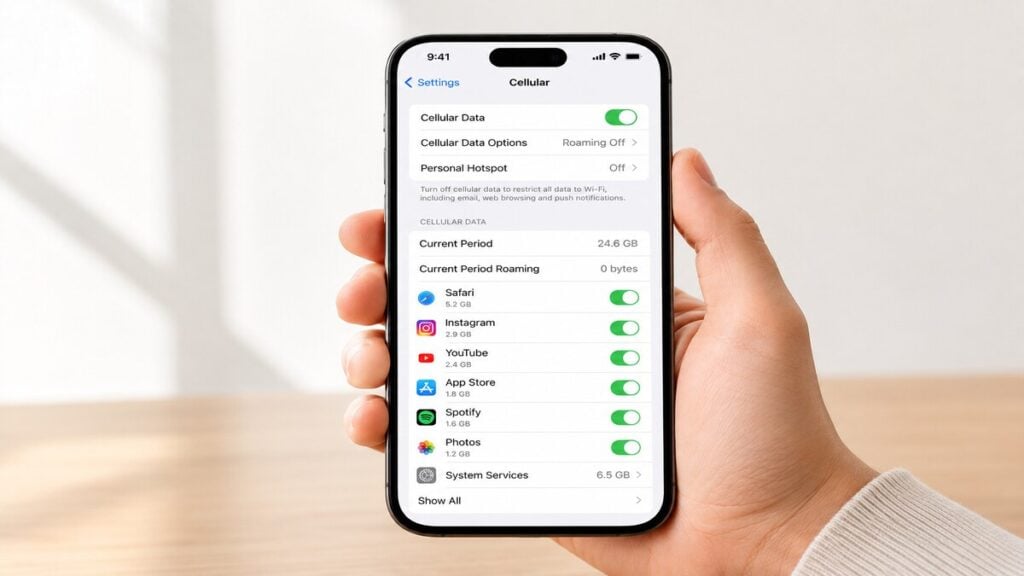
To check data usage on iPhone, go to Settings > Mobile Data or Settings > Cellular, then scroll down to view your usage for the current period and by individual app.
Depending on your iPhone region and iOS version, the wording may say Mobile Data or Cellular. Both lead to the same general area.
You can usually check:
- Total mobile data used during the current period
- Roaming data used during the current period
- Data used by each app
- System Services data usage
- Which SIM or eSIM is selected for mobile data
However, you should keep in mind that the iPhone’s Current Period does not always reset automatically at the start of a trip, billing cycle or eSIM plan. It only shows usage since the last manual reset. For travel, resetting statistics before departure makes the numbers much easier to trust.
Also, iPhone data usage should be treated as a device-side guide. It is helpful for monitoring habits, but it may not always match the provider’s live usage records exactly.
What Data Usage Means on iPhone
Data usage is the amount of mobile data your iPhone has used through a SIM or eSIM. This includes browsing, messaging apps, emails, maps, social media, cloud backups, streaming, app updates and hotspot use.
When travelling, the setup can become slightly more confusing because an iPhone may have more than one mobile plan installed on it. A regular Australian SIM may still be active for calls or SMS, while a TravelKon eSIM may be used as a data-only eSIM for mobile data overseas.
That is why checking usage is not only about the total number of gigabytes used. You also need to check which line is using the data.
If the wrong SIM is selected for mobile data, the travel eSIM may be installed correctly, but not actually do anything. If roaming settings are wrong, the eSIM may not connect properly. If a background app is active, data may disappear faster than expected, even when the phone is sitting in a pocket.
How to Check Your Data Usage on iPhone Before or During Travel
As previously stated, start with the general iPhone settings. These checks apply whether you are using a physical SIM, a local SIM, or an international eSIM.
1. Open Mobile Data Settings
Go to:
Settings > Mobile Data
Or, depending on your iPhone:
Settings > Cellular
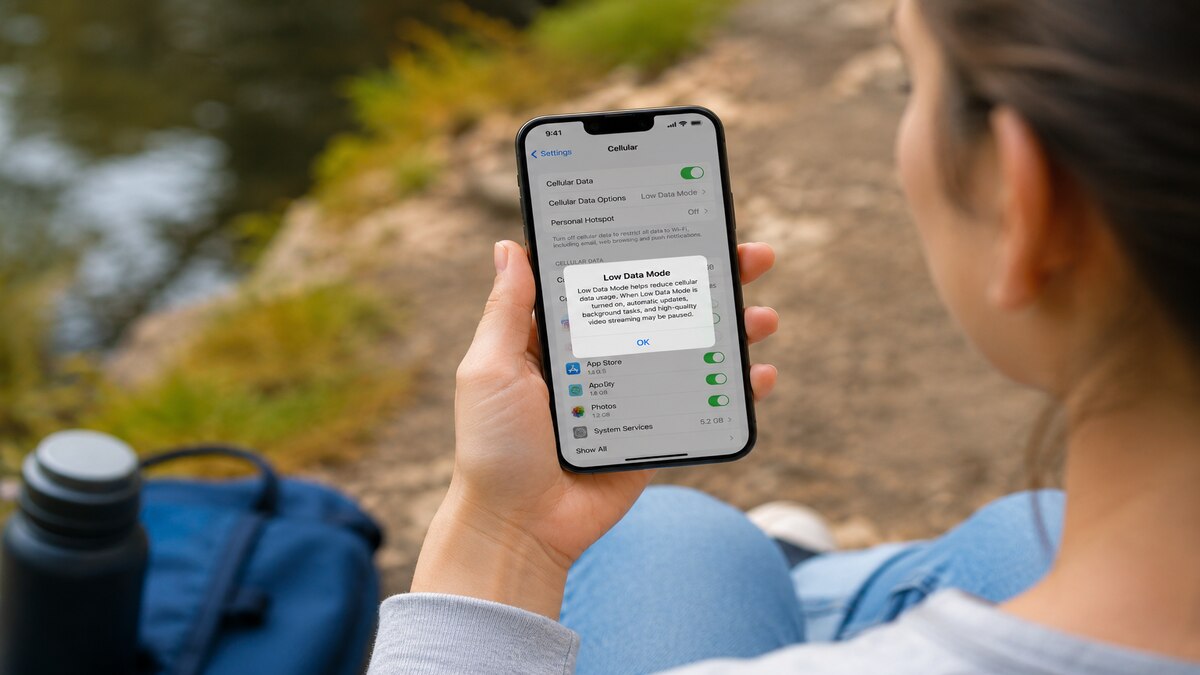
This is where your iPhone shows mobile plans, app data usage, roaming usage and mobile data controls.
2. Check Current Period Usage
Scroll down until you see Current Period.
The numbers you’ll see here show how much mobile data has been used since the last time the statistics were reset. If it has not been reset for months, the number may include old data from home, work, previous trips or other SIMs.
Before travelling, scroll to the bottom of the page and tap Reset Statistics. Doing this just before departure, or just before switching to the travel eSIM, gives you a cleaner view of trip usage.
3. Check Per-App Data Usage
On the same screen, scroll through the app list. Each app shows how much mobile data it has used during the current period.
This is often the most useful part of the screen. It quickly shows whether data is being used by expected apps like Maps and WhatsApp, or by heavier apps like Instagram, TikTok, YouTube, cloud storage, or email attachments.
If an app does not need mobile data while travelling, turn it off from this screen. The app will still work on Wi-Fi.
4. Check System Services
Near the bottom of the app list, tap System Services if available.
This can show data used by iPhone system features such as software services, push notifications, iCloud-related activity and other background functions. It is not always the main source of usage, but it is worth checking when data seems to be dropping faster than expected.
5. Check Current Period Roaming
Look for Current Period Roaming on the same Mobile Data or Cellular screen.
This will show you how much data has been used while roaming. When using a travel eSIM, roaming may be part of how the eSIM connects to local partner networks, depending on the product instructions.
The key is to check roaming by line, not just assume all roaming is good or bad.
TravelKon eSIM Checks Before You Fly
Once the general iPhone usage screen has been checked, move on to the eSIM-specific checks. This is where the setup matters most.
1. Confirm Your iPhone Supports eSIM
Before buying or installing an eSIM, check that your phone supports eSIM and is not locked to another provider. This is especially important for older iPhone models, imported devices, or phones purchased through a carrier plan.
We have a guide on how to check phone eSIM support, which is a useful first step before setting up a TravelKon eSIM.
2. Label the eSIM Clearly
After installing the eSIM, give it a practical name. Something like “TravelKon Japan”, “Europe eSIM” or “Travel Data” is much easier to manage than “Secondary”.
This is particularly important when checking mobile data settings overseas. A clear label reduces the chance of selecting the wrong SIM by mistake.
3. Select the TravelKon eSIM for Mobile Data
In Settings > Mobile Data or Settings > Cellular, check which line is selected for mobile data.
When travelling with a TravelKon eSIM, the travel eSIM should usually be selected for mobile data. Your regular SIM may still remain available for calls or SMS if needed, but it should not be used for mobile data unless that is intentional.
4. Check Data Roaming for the eSIM
Some travel eSIMs need Data Roaming switched on to connect overseas. This can feel strange because travellers are often told to avoid roaming, but the line being used makes all the difference.
The safer setup is usually:
- TravelKon eSIM selected for mobile data
- Data roaming is set according to the TravelKon product instructions
- Home SIM not selected for mobile data
- Home SIM roaming checked to avoid unwanted roaming charges
Always follow the instructions for the specific TravelKon eSIM purchased, as setup steps can vary by destination and plan.
5. Keep Setup Instructions Accessible
Save the eSIM setup email, QR code instructions, activation details and support information somewhere easy to access. A screenshot or offline copy can be helpful, especially before departure.
Avoid deleting the eSIM during troubleshooting unless the instructions or support team advise it. Some eSIMs cannot simply be reinstalled the same way after deletion.
Mistakes to Avoid when Using a TravelKon eSIM on iPhone
The most common mistake is checking Current Period usage without resetting it first. If the counter includes old usage, it will not give a clean view of travel data.
Another mistake is installing the travel eSIM but leaving the home SIM selected for mobile data. In that case, the eSIM may be ready, but the iPhone is still using the wrong line.
Turning off roaming on the travel eSIM can also cause connection problems if the plan needs roaming to access local networks. The better approach is to check the roaming settings for each line separately.
Hotspot is another easy one to miss. A laptop connected to your iPhone may start syncing cloud files, downloading software updates, refreshing inboxes or loading media-heavy websites. That can use far more data than expected in a short period.
Finally, avoid changing too many settings at once while troubleshooting. Check one thing at a time: mobile data line, roaming, signal, app usage, then support details. Random changes make it harder to know what fixed the issue or made it worse.
When to Contact TravelKon Support
Contact TravelKon support if the eSIM is installed but data is not working, usage looks wrong, or the iPhone will not connect after the basic settings have been checked.
Before contacting support, collect:
- Destination country
- iPhone model
- iOS version
- TravelKon eSIM plan purchased
- Screenshot of the Mobile Data or Cellular screen
- Screenshot showing which line is selected for mobile data
- Screenshot of the eSIM line settings
- Whether data roaming is on or off for the eSIM
- Any error message shown on the iPhone
- Whether the eSIM has connected successfully at any point
Note: Crop screenshots where needed so personal details are not shared unnecessarily.
A Simple Travel Data Checklist
Before departure, run through this quick checklist:
- Check your iPhone supports eSIM
- Install the TravelKon eSIM using Wi-Fi if the instructions allow setup before travel
- Label the eSIM clearly
- Reset iPhone mobile data statistics
- Turn off mobile data for high-usage apps you do not need
- Check whether data roaming should be on for the travel eSIM
- Save the setup instructions offline
- Confirm support details before leaving Australia
After arrival, select the TravelKon eSIM for mobile data, check the signal, then test a light data task such as loading a webpage or sending a message through an internet-based app.
Takeaways
Knowing how to check your data usage on an iPhone gives you much better control when using a travel eSIM overseas. The most useful checks are the selected mobile data line, Current Period usage, per-app usage, roaming settings and hotspot activity.
Before departure, reset the usage counter, label the TravelKon eSIM clearly, confirm compatibility and keep the setup instructions handy. Once overseas, check that the travel eSIM is selected for mobile data and monitor high-usage apps during the trip. That simple routine makes mobile data overseas easier to manage and much less stressful.
FAQs
What Is the Easiest Way to Check Your Data Usage on iPhone?
The easiest way to check your data usage on iPhone is to go to Settings > Mobile Data or Settings > Cellular, then scroll down to view Current Period usage and app-by-app usage.
Why Does My iPhone Data Usage Look Too High?
The Current Period may include old usage if it was not reset before travel. Heavy apps, background activity, hotspot use and cloud syncing can also increase data usage quickly.
Should Data Roaming Be On for a Travel eSIM?
It depends on the eSIM instructions. Many travel eSIMs need data roaming turned on for the eSIM line to connect to overseas networks. Check the setup instructions for the specific plan.
Can Hotspot Use My Travel eSIM Data?
Yes. Any device connected through hotspot can use your travel eSIM data. Laptops and tablets can use data quickly because of updates, cloud syncing, video calls and background downloads.
Can Apps Be Stopped From Using Mobile Data?
Yes. Go to Settings > Mobile Data or Settings > Cellular, then turn off mobile data for specific apps. Those apps can still work when connected to Wi-Fi.
Does Resetting Statistics Remove the eSIM?
No. Resetting statistics only clears the iPhone’s usage counter. It does not delete the eSIM, remove apps or change the plan allowance.