That first airport ride can feel simple until the terminal Wi-Fi drops, the pickup bay is outside, and the driver is asking where you are while your luggage is still in one hand.
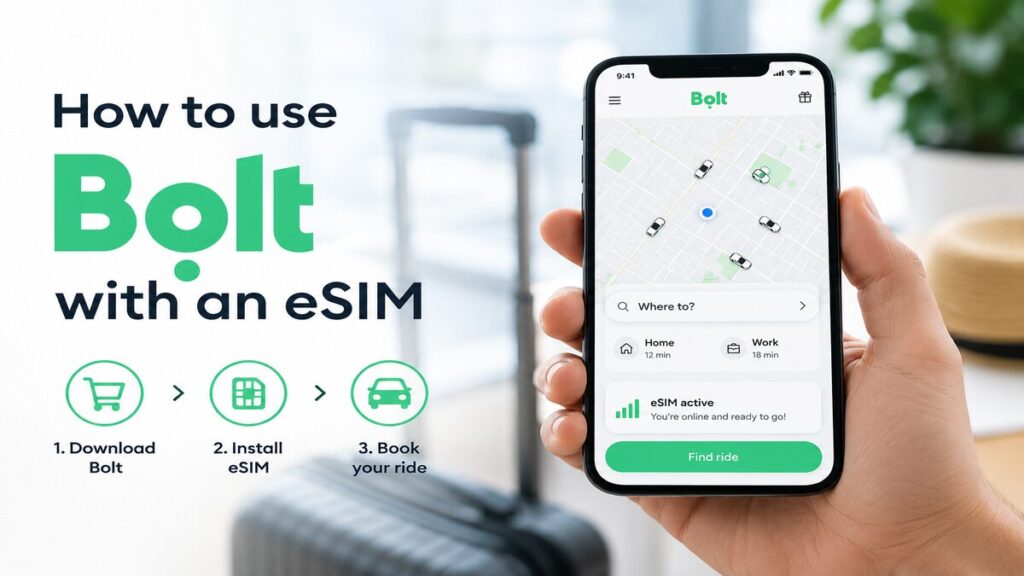
If you are an overseas traveller, Travel eSIMs can make that moment much easier by keeping mobile data available once airport Wi-Fi stops being useful. That connection can particularly come in handy when opening Bolt, loading maps, choosing the right pickup point, messaging the driver, and tracking the trip to your accommodation.
Quick Answer
Bolt can work with a travel eSIM when your phone has active mobile data, and your Bolt account is already set up. The eSIM supplies the internet connection, while the Bolt account may still be linked to your existing phone number.
That distinction is important. A data-only eSIM helps with maps, booking, driver messages, notifications, payment confirmation, and trip tracking. However, it may not receive SMS codes.
How to Set Up Bolt Before You Travel
To use Bolt with an eSIM, start by installing or updating Bolt. Open the app, log in, and make sure your account is active. If Bolt asks for a phone number, email check, passcode, or SMS verification, complete it before the trip.
Next, check your payment method. Add the card you plan to use overseas, remove expired cards, and keep a backup card available if possible. It is also worth checking your bank app for travel settings, because some banks may flag overseas payments as unusual.
Then check the practical app settings. Bolt should have location access, notifications, and mobile data enabled. Save your hotel, apartment, or first destination in Bolt or your maps app. Taking a screenshot of the address and booking details is also useful in case the app, Wi-Fi, or mobile data takes a moment to load after landing.
Using a Data-Only eSIM With Rideshare Apps
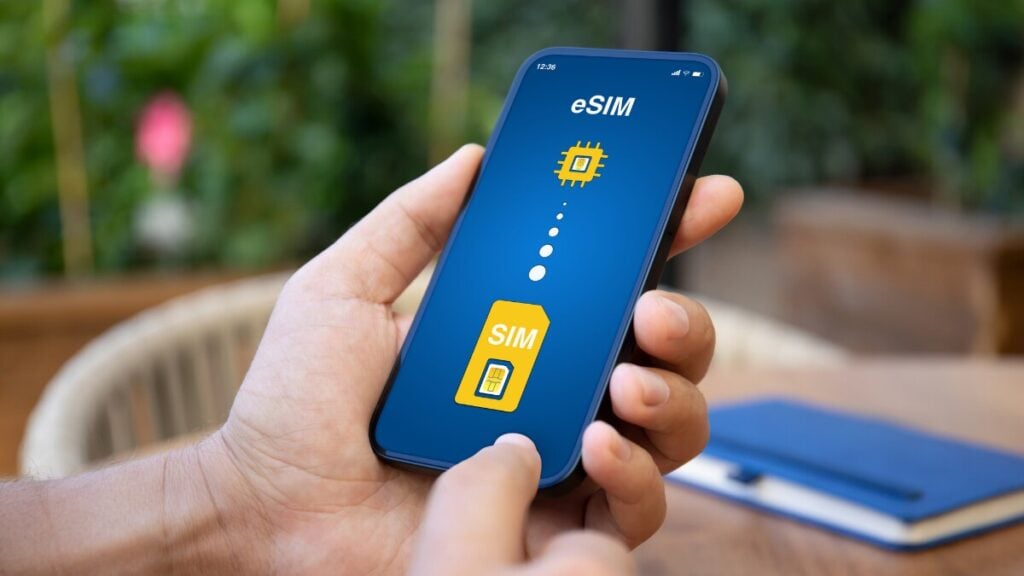
A data-only eSIM gives your phone internet access overseas. It does not usually replace your normal mobile number.
For Bolt, that usually works well once the account is ready. The app needs mobile data for live trip functions such as loading the map, finding nearby drivers, confirming the ride, sending messages, receiving alerts, and following the route. Your account, however, may still depend on the phone number used when it was created.
As such, the eSIM can provide data, but if Bolt asks for an SMS code after arrival, that code may still go to your Australian number. Depending on your mobile provider and phone setup, you may need access to your primary SIM, roaming for SMS, or another verification option shown in the app.
For a clearer breakdown of how eSIMs connect overseas, our guide to how international eSIMs work is a helpful companion before you fly.
How to Use Bolt With an eSIM Overseas
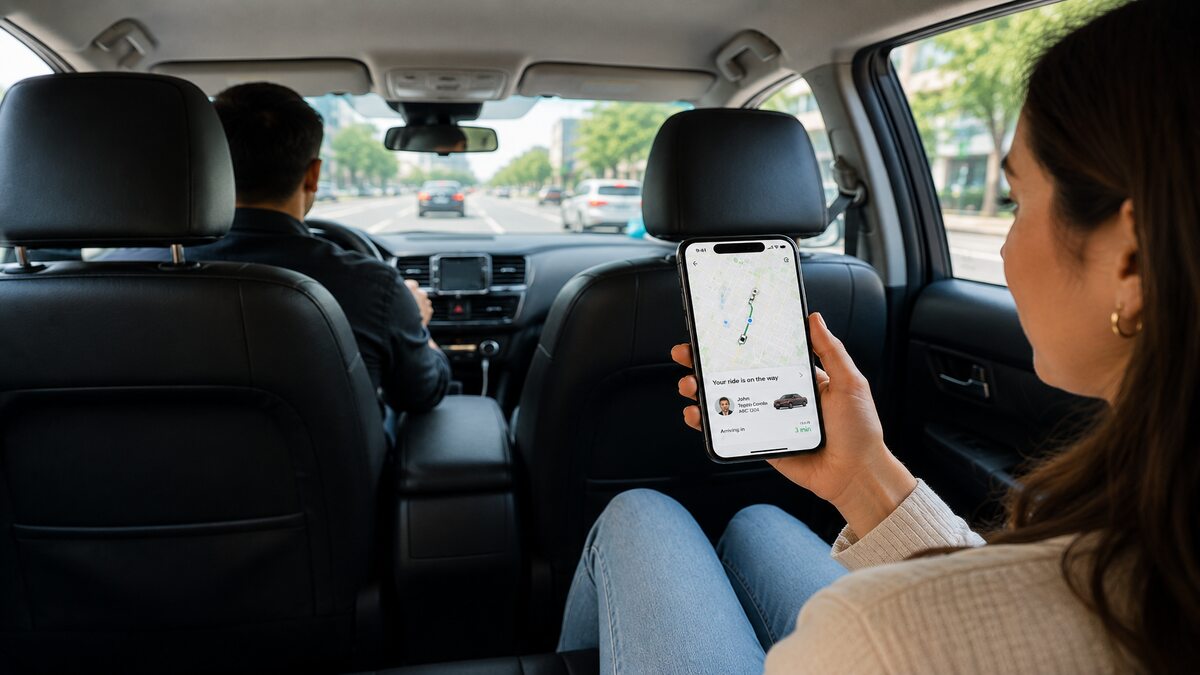
Once your eSIM is installed and active, using Bolt should feel much like using it at home. The key is making sure your phone is actually using the eSIM for mobile data.
Before opening Bolt, check your mobile data settings. The travel eSIM should be selected as the data line. If the eSIM instructions say data roaming is required, turn roaming on for that eSIM only. Be careful with roaming on your Australian SIM unless you understand the charges.
Open Bolt once your data connection is working. Enter your destination, then check the pickup point carefully before confirming. Airports often have dedicated rideshare areas, and the closest road on the map is not always the correct place to meet the driver.
After booking, keep an eye on driver messages and movement in the app. If the driver asks where you are, give simple details like terminal, door number, pickup bay, car park level, or a nearby sign. Clear pickup messages can save a lot of walking around, especially after a long flight.
Airport Arrival Checklist
Airport Wi-Fi can help inside the terminal, but mobile data is more reliable once you move towards baggage claim, exits, car parks, or rideshare pickup areas.
Before booking Bolt, check the following:
- Your travel eSIM is active.
- Mobile data is turned on.
- The eSIM is selected as the mobile data line.
- Data roaming is set correctly for the eSIM.
- Bolt has location permission.
- Notifications are enabled.
- Your payment method is available.
- Your hotel or destination address is saved.
- Your phone has enough battery.
- The pickup point matches the airport’s rideshare signs.
A quick maps check can also help. Open your Maps app and see whether your location is showing correctly. If Maps cannot find you, Bolt may also struggle to place the pickup pin accurately.
Troubleshooting Bolt with an eSIM
App Login Issues
If Bolt logs you out overseas, first check whether your eSIM data is actually working. Open a webpage or the Maps app. If nothing loads, the issue is likely the mobile connection rather than Bolt.
Try switching between airport Wi-Fi and mobile data. If the app works on Wi-Fi but not mobile data, check that the eSIM is selected for data and roaming is set correctly. If the app works on mobile data but not airport Wi-Fi, the Wi-Fi network may be slow, overloaded, or restricted.
SMS Verification Problems
A data-only eSIM may not receive SMS. If Bolt sends a code to your Australian number, you may need to access your regular SIM or enable SMS roaming through your primary mobile provider. Check any roaming costs first.
This is the main reason to complete app setup before travel. Once Bolt is already logged in, you are less likely to deal with verification during the airport pickup rush.
Payment Failures
If payment fails, try another saved card. Also, check whether your bank has blocked the transaction. Some travellers keep a backup card in the app and a small amount of local cash available, just in case another transport option is needed.
Avoid waiting until the driver arrives to fix payment issues. A quick payment check before confirming the ride can prevent a cancelled booking.
Weak Signal
Underground arrivals areas, airport car parks, thick terminal walls, and crowded pickup zones can all affect signal. Move closer to an open area if the app is struggling to load or the driver’s location is not updating.
Toggling flight mode on and off can sometimes help the phone reconnect to the local network. If your eSIM supports more than one network, manually selecting another supported network may also help.
Incorrect Pickup Points
Airport pickup points can be confusing. Bolt may place the pin near the terminal, but the actual rideshare area could be across a road, at a marked bay, or on a different level.
Before confirming the ride, compare the app with airport signs. If the pickup pin looks wrong, move it manually or select the official pickup location in the app where available.
Hotspot Backup
A hotspot can help if your eSIM is not working yet and someone else in your group has mobile data. Connect to their hotspot, open Bolt, and book the ride from there.
This is a backup, not the ideal plan. The other phone needs a battery, signal, and enough data to keep the connection active until the ride is confirmed.
TravelKon eSIM Tip
The value of a TravelKon eSIM is not just having data overseas. It gives you data access at the exact moment airport Wi-Fi becomes unreliable.
That short window after landing often involves several apps at once. You may need to use Bolt, maps, banking, hotel booking details, translation, WhatsApp, and email. Having mobile data ready can make the first hour of the trip feel much calmer.
Set up the eSIM before departure, follow the activation instructions, and check whether data roaming needs to be enabled for the eSIM. After landing, test mobile data before leaving the terminal. A simple check can save a lot of stress at the pickup zone.
Takeaways
The easiest way to use Bolt with an eSIM is to prepare before the flight. Install the app, log in, confirm your payment method, complete verification, save your first destination, and make sure your eSIM setup is ready.
Once overseas, the travel eSIM handles the mobile data. Bolt handles the ride. Sort the app before you fly, connect the eSIM when you land, and that first airport pickup becomes one less thing to worry about.
FAQs
Can You Use Bolt With an eSIM Without SMS?
Yes, you can use Bolt with an eSIM without SMS if your account is already set up and logged in. The issue is verification. If Bolt asks for a code sent by SMS, a data-only eSIM may not receive it.
Complete verification before you travel where possible. If verification is needed overseas, you may need access to your usual SIM or another option provided by Bolt.
Do You Need a Local Number to Use Bolt Overseas?
A local number is not usually needed for normal Bolt use if your account is already active. Many travellers use their existing account with a travel eSIM for mobile data.
The account may still be connected to your Australian phone number, so keep that in mind if the app asks for verification.
Is Airport Wi-Fi Enough for Bolt?
Airport Wi-Fi can be enough while you are inside the terminal, but it may drop out near exits, car parks, and rideshare pickup zones.
Mobile data is more dependable for tracking the driver, receiving messages, checking the route, and changing the pickup point once you leave Wi-Fi coverage.
How Much Data Does Bolt Use?
Bolt usually uses a modest amount of data for a standard ride because it mainly relies on maps, location updates, driver messages, and payment confirmation.
Data use can increase if you keep maps open for a long time, download app updates, use hotspot, or switch between several travel apps during the trip.
Can You Use Bolt With an International eSIM?
Yes, Bolt can be used with an international eSIM when the eSIM provides working mobile data in the country you are visiting. The app uses that data connection to load maps, book rides, send messages, and track the trip.
The important part is setting up the Bolt account before travel, especially if SMS verification may be required.