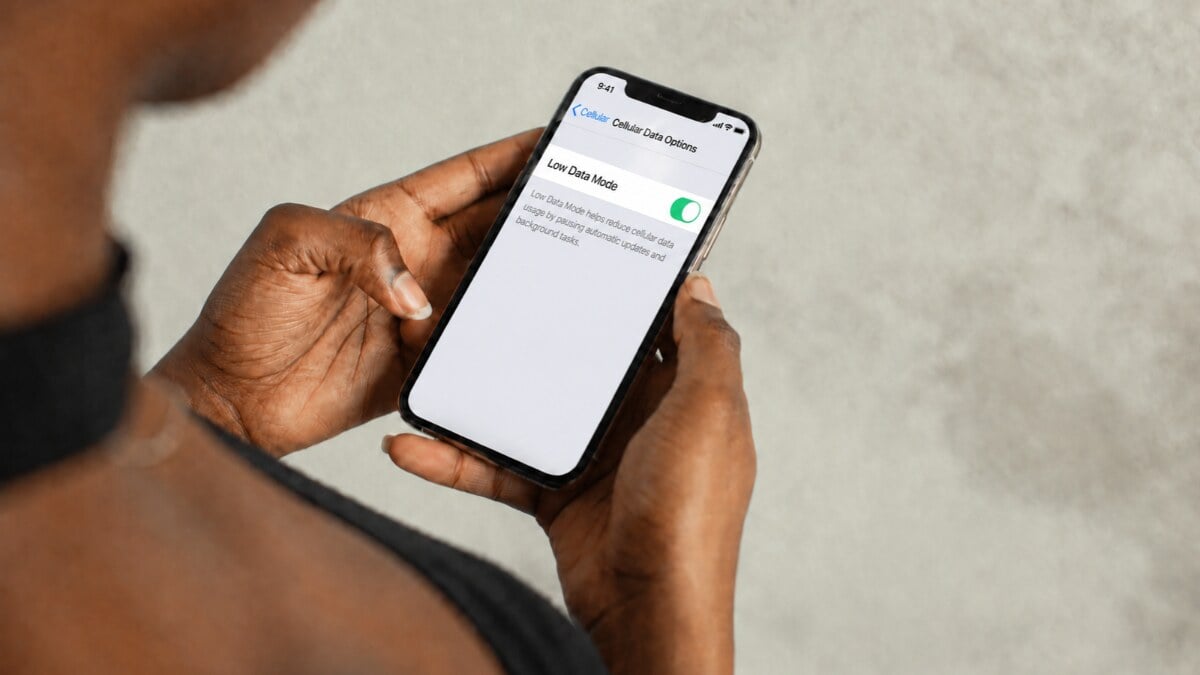
Low Data Mode on iPhone helps limit background data use without disconnecting your phone. It can postpone automatic downloads and cloud updates and reduce media quality. Each mobile line and Wi-Fi network has its own setting.
When using one of the available travel SIM and eSIM options, Low Data Mode can help prioritise directions, bookings and messages while automatic uploads wait until you’re back at your accommodation. It reduces background activity, but active app use still consumes data.
How to Enable Low Data Mode on Your Travel eSIM
Selecting the line that supplies data and changing that line’s restrictions are separate actions. Check both before leaving the settings screen.
Mobile Service, Mobile Data and Cellular are alternative regional labels for the settings used below.
With Dual SIM: Select Your Travel Line
- Open Settings → Mobile Service.
- Open the Mobile Data or Cellular Data selection and choose your travel eSIM.
- Return to the main Mobile Service screen.
- Tap your travel line in the SIMs list.
- Turn Low Data Mode on. If the line has a Data Mode menu, open it and select Low Data Mode instead.
Check the line label before changing the restriction. Configuring your home SIM does not configure the travel eSIM.
With a Single SIM: Follow the Connection Path
| Connection | Settings Path |
| LTE/4G | Settings → Cellular → Cellular Data Options → Low Data Mode → On |
| 5G | Settings → Cellular → Cellular Data Options → Data Mode → Low Data Mode |
Substitute Mobile Data → Mobile Data Options where your phone uses those labels.
On 5G, Data Mode is separate from Voice & Data → 5G Auto, which controls network selection.
Compatibility note: Low Data Mode requires iOS 13 or later. On iPhone 11, cellular data options are limited to LTE and earlier network technologies, while iPhone 13 and 14 can display additional 5G settings where supported by the carrier and plan.
Once the correct line is configured, check how cellular data switching works with dual SIM, as this setting determines which line supplies mobile data.
Low Data Mode does not measure your remaining allowance. After setup, track your eSIM data balance and usage to check consumption and top-up requirements.
What Low Data Mode Pauses or Reduces
Built-in services have documented responses. Third-party apps can respond differently.
| Service | What Changes | What You May Notice |
| Background App Refresh | Disabled | Content may refresh when you open an app |
| App Store | Automatic updates, downloads and video autoplay disabled | Automatic app updates remain pending |
| iCloud Photos | Updates paused | Recent photos have not reached other devices |
| iCloud automatic backup | Paused | Automatic device backups may remain pending |
| Apple Music | Automatic downloads and high-quality streaming disabled | Different audio quality or missing automatic downloads |
| FaceTime | Video bitrate adjusted for lower bandwidth | Reduced video quality |
Photos syncing and an iCloud device backup are separate processes, so completing one does not confirm the other. Video calls also use mobile data, making it worth checking how much data FaceTime uses before making regular calls while travelling.
What Still Works?
You can actively use connected apps. Download maps before departure, then use maps with less mobile data while finding your accommodation.
Opening an app, playing videos or sending large attachments can still consume your allowance. Low Data Mode does not stop consumption at a chosen threshold.
An app’s own streaming, download and data-saving preferences are separate controls. Changing the system setting does not necessarily change those preferences.
Hotel Wi-Fi and Hotspots Need Separate Settings
To change the connected hotel network:
- Open Settings → Wi-Fi.
- Tap the Info button beside its name.
- Switch Low Data Mode on or off.
You can leave your travel line restricted while allowing background work on that Wi-Fi connection. The Wi-Fi preference applies to the selected network.
These preferences also sync through iCloud across your devices, which can explain a restriction appearing on another device.
Receiving or Sharing a Hotspot?
Receiving a hotspot connection: change its Wi-Fi → Info → Low Data Mode setting on your iPhone.
Sharing your connection: configure each connected device’s automatic updates, cloud uploads and data-saving settings separately.
Do not treat the host iPhone’s setting as a shared allowance cap. A laptop can consume the hotspot allowance through its own downloads even when your phone use is light.
Is Low Data Mode Good for the Whole Trip?
Keep it enabled on capped travel data when automatic uploads can wait. The trade-off is postponed background work and potentially reduced media quality.
At airport arrivals, use your allowance for the hotel map pin and an arrival message. Upload the flight’s photos later.
At your accommodation, connect to Wi-Fi, plug in your phone and check whether Photos resumes syncing. Keep that network’s restriction enabled if its allowance is also limited.
For work files, confirm the upload completes before expecting another device to access them. There is no reliable universal percentage saving to apply to your trip.
How to Turn Off Low Data Mode on iPhone
Return to the line or network you configured:
- LTE/4G: switch Low Data Mode off.
- 5G: open Data Mode and select Standard.
- Wi-Fi: open the network’s Info screen and switch Low Data Mode off.
Selecting Standard restores normal data behaviour without choosing Allow More Data on 5G, which permits additional data-intensive activity.
Check your allowance before removing the restriction on mobile data. For queued photo uploads, connect to Wi-Fi and power, then check completion rather than assuming everything finishes immediately.
Low Data Mode Is Off, but Updates Still Wait
Check Photos’ Reported Status
Open Photos → Collections → Profile Button in the top corner. Your library status appears beneath your name and photo count.
On iOS 17 or earlier, open Photos → Library → All Photos, then scroll to the bottom.
Read the reason for the pause. Low Data Mode, Low Power Mode, poor connectivity and battery below 20% can interrupt syncing.
Follow the displayed instructions. A large queue may need overnight on Wi-Fi and power. Do not turn off iCloud Photos to clear a pause.
Check the Connection and App Permissions
If Wi-Fi is connected, inspect that network’s restrictions and not just the mobile line’s settings.
For an app that fails on mobile data, open Settings → Mobile Service/Mobile Data/Cellular, then scroll to the apps list. Open Show All if needed and check the affected app’s switch.
An app with mobile-data access disabled uses Wi-Fi only. Enable access only if you want it consuming the travel allowance, then review its own download or quality settings.
If actively opened apps cannot connect at all,fix an eSIM that is connected but has no internet using the separate connection guide.
FAQs
Is Low Data Mode the Same as Low Power Mode?
No. Low Data Mode reduces network activity; Low Power Mode reduces power consumption. Their background restrictions can overlap.
Does Low Data Mode Block Maps or Messages?
It does not block all data. You can actively use apps, although behaviour varies and their activity still counts towards your allowance.
Why Can’t the Setting Be Found?
Check the selected line first. Dual SIM settings differ from the single-line path, and 5G can place the control inside Data Mode.
Does Low Data Mode Limit Every Hotspot Device?
Do not rely on it as a host-wide cap. Configure each connected device’s update and upload controls too.